
How to Connect Your PC to TV Using Hdmi: A Step-by-step Guide
Are you tired of using your laptop or computer on a small screen? Do you want to enjoy your favorite movies, shows, or games on a bigger display? Look no further! Connecting your PC to TV using HDMI is a straightforward process that can be completed in just a few simple steps. In this article, we’ll guide you through the process of connecting your PC to TV using HDMI, including tips and tricks for a seamless experience.
Why Use Hdmi?
HDMI (High-Definition Multimedia Interface) is a digital interface that allows you to connect your PC or laptop to a TV, projector, or other display device. It’s the perfect solution for those who want to enjoy high-definition video and audio content on a bigger screen. With HDMI, you can transmit video and audio signals between devices in resolutions up to 4K and frame rates of 120Hz.
Checking Your Devices
Before we dive into the connection process, let’s make sure your devices are compatible with HDMI. Check the back or front of your PC for an available HDMI port. If you don’t have one, you can consider purchasing an adapter or a cable to connect your device to the TV. On the other hand, ensure that your TV has an available HDMI input.
Gathering The Necessary Equipment
To complete this process, you’ll need:
- A computer with an available HDMI output
- An HDMI cable (available in various lengths)
- A TV with an available HDMI input
Step 1: Connect The Hdmi Cable
Find a comfortable and safe place to work on your computer setup. Locate the HDMI port on your PC and the corresponding input on your TV. Take the HDMI cable and connect one end to the HDMI output on your PC, and the other end to the HDMI input on your TV.
Step 2: Configure Your TV
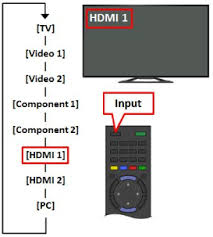
Using your TV’s remote control, navigate to the input settings menu and select the HDMI input that corresponds to the connection you just made. You should now see the desktop or screen from your computer appear on your TV.
Step 3: Adjust Your Display Settings (Windows 10)
If you’re using a Windows 10 PC, follow these steps:
- Click on the Start menu and select “Settings.”
- Navigate to “Display” and click on it.
- Select “Extend desktop to this display” and choose the HDMI input that corresponds to your TV.
- Adjust the resolution and orientation settings as needed.
Step 4: Adjust Your Display Settings (Mac)
If you’re using a Mac, follow these steps:
- Click on the Apple menu and select “System Preferences.”
- Navigate to “Displays” and click on it.
- Select “Arrangement” and choose the HDMI input that corresponds to your TV.
- Adjust the resolution and orientation settings as needed.
Step 5: Test Your Connection
Once you’ve completed these steps, test your connection by playing a video or game on your computer. You should now be able to see it on your TV in high-definition quality!
Troubleshooting Tips
If you encounter any issues with the connection, try:
- Checking the HDMI cable for damage
- Ensuring that the correct input is selected on your TV
- Adjusting the display settings on your computer or Mac
Alternative Methods: Wireless Connections
If you don’t have an available HDMI port or prefer a wireless connection, consider using:
- Miracast (Windows 10)
- Chromecast (Google)
- AirPlay (Mac)
These services allow you to stream content from your device to your TV wirelessly.
Conclusion
Connecting your PC to TV using HDMI is a straightforward process that can be completed in just a few simple steps. By following the guidelines outlined in this article, you’ll be able to enjoy high-definition video and audio content on a bigger screen with ease. Happy gaming, watching, or browsing!
Faqs
- What is Hdmi?
HDMI stands for High-Definition Multimedia Interface, a digital interface that allows you to connect your PC or laptop to a TV, projector, or other display device.
- Why do I Need an Adapter if my Computer Doesn’t Have an Available Hdmi Output?
If your computer doesn’t have an available HDMI output, you’ll need an adapter or cable to connect it to the TV.
- Can I Use a Wireless Connection Instead of Hdmi?
Yes, you can use alternative methods such as Miracast (Windows 10), Chromecast (Google), or AirPlay (Mac) for a wireless connection.
- How do I Ensure That my Audio is Coming From The Speakers on my TV And Not my Computer?
To ensure that your audio comes from the speakers on your TV, go to the Control Panel in Windows and select “Hardware and Sound” > “Sound” and choose the correct output device.
- Can I Connect Multiple Monitors or Tvs Using Hdmi?
Yes, you can connect multiple monitors or TVs using HDMI by using a splitter or switch.
- What is The Maximum Resolution I Can Achieve With Hdmi?
The maximum resolution achievable with HDMI is 4K at 60Hz (3840 x 2160 pixels).
- Can I Use Hdmi to Connect Other Devices, Such as Gaming Consoles or Dvd Players?
Yes, you can use HDMI to connect other devices, but ensure that they are compatible with your TV and computer.
- How do I Troubleshoot Issues With my Hdmi Connection?
Try checking the cable for damage, ensuring the correct input is selected on your TV, and adjusting display settings as needed.


