
How to Connect Your PC to Samsung Tv: A Step-by-step Guide
Are you tired of looking at your computer screen while watching your favorite TV shows or movies? Do you want to experience the best of both worlds by connecting your PC to your Samsung TV? Look no further! In this article, we will guide you through the process of connecting your PC to your Samsung TV using various methods.
Why Connect Your PC to Samsung Tv?
Connecting your PC to your Samsung TV offers several benefits. You can enjoy a bigger screen experience, access more content, and even use your TV as an extension of your computer. Whether you want to stream movies, play games, or work on projects, connecting your PC to your Samsung TV is a great way to enhance your viewing experience.
Method 1: Connecting Your PC to Samsung TV Using Cables
The first method involves using cables to connect your PC to your Samsung TV. You will need:
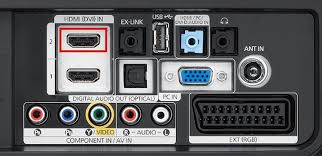
- A cable (HDMI, S-Video, VGA, or DVI)
- An adapter (if necessary)
To connect your PC to your Samsung TV using a cable:
- Choose The Right Cable: Select a cable that is compatible with both your PC and Samsung TV. HDMI is the best option as it supports high-definition video and audio.
- Check Your Pc’s Output Ports: Look for the available output ports on your PC, such as HDMI, S-Video, VGA, or DVI.
- Connect The Cable: Connect one end of the cable to your PC’s output port and the other end to your Samsung TV’s input port.
- Adjust Settings: Adjust the settings on both your PC and Samsung TV to ensure that they are communicating correctly.
Method 2: Connecting Your PC to Samsung TV Using Smartthings App
The second method involves using the SmartThings app to connect your PC to your Samsung TV wirelessly.
- A smartphone or tablet with the SmartThings app installed
- A stable internet connection
To connect your PC to your Samsung TV using the SmartThings app:
- Download And Install The Smartthings App: Download and install the SmartThings app on your smartphone or tablet.
- Launch The App: Launch the SmartThings app and follow the on-screen instructions to connect your PC to your Samsung TV wirelessly.
- Adjust Settings: Adjust the settings on both your PC and Samsung TV to ensure that they are communicating correctly.
Method 3: Connecting Your PC to Samsung TV Using Chromecast
The third method involves using a Chromecast device to connect your PC to your Samsung TV wirelessly.
- A Chromecast device
- A stable internet connection
To connect your PC to your Samsung TV using Chromecast:
- Connect The Chromecast Device: Connect the Chromecast device to your Samsung TV and follow the on-screen instructions to set it up.
- Launch Google Chrome: Launch Google Chrome on your PC and navigate to the website you want to stream.
- Click The Cast Button: Click the cast button in the top right corner of the browser window to start streaming content from your PC to your Samsung TV.
Method 4: Connecting Your PC to Samsung TV Using Airplay
The fourth method involves using an Apple device and a compatible Samsung TV to connect your PC to your Samsung TV wirelessly using AirPlay.
- An Apple device (e.G., MacBook, iPad, or iPhone)
- A compatible Samsung TV
To connect your PC to your Samsung TV using AirPlay:
- Connect The Devices: Connect your Apple device and Samsung TV to the same Wi-Fi network.
- Launch Control Center: Launch Control Center on your Apple device and tap the “Screen Mirroring” option.
- Select The TV: Select the name of your Samsung TV from the list of available devices.
Method 5: Connecting Your PC to Samsung TV Using Bluetooth
The fifth method involves connecting your PC to your Samsung TV using Bluetooth technology.
- A compatible Samsung TV
- A device with Bluetooth capabilities (e.G., Smartphone or tablet)
To connect your PC to your Samsung TV using Bluetooth:
- Enable Bluetooth on Both Devices: Enable Bluetooth on both your PC and Samsung TV.
- Pair The Devices: Pair the devices by following the on-screen instructions.
- Adjust Settings: Adjust the settings on both devices to ensure that they are communicating correctly.
Conclusion
Connecting your PC to your Samsung TV is a simple process that can be done using various methods. Whether you prefer cables, wireless connections, or a combination of both, there’s an option for everyone. Remember to adjust the settings on both devices to ensure that they are communicating correctly and enjoy a seamless viewing experience.
Frequently Asked Questions
- What is The Best Method For Connecting my PC to Samsung Tv?
The best method depends on your personal preference and the compatibility of your devices. Cables offer a stable connection, while wireless methods provide more flexibility. - Do I Need Any Special Equipment or Software to Connect my PC to Samsung Tv?
Yes, you may need additional equipment or software depending on the method you choose. For example, if you’re using Chromecast, you’ll need a Chromecast device and Google Chrome installed on your PC. - Can I Connect Multiple Devices to my Samsung TV at Once?
Yes, most modern Samsung TVs support multi-device connectivity. However, the number of devices that can be connected simultaneously may vary depending on the specific model and settings. - What Are Some Common Issues That May Occur When Connecting my PC to Samsung Tv?
Some common issues include unstable connections, compatibility problems, or difficulties adjusting settings. In such cases, refer to the user manual or contact customer support for assistance. - Is it Possible to Connect my PC to a Different Brand of TV Using One of These Methods?
While some methods may work across different brands, others may be specific to Samsung TVs. Be sure to check compatibility before attempting to connect your devices. - Can I Use Any Type of Cable to Connect my PC to Samsung Tv?
No, not all cables are compatible with both PCs and Samsung TVs. Choose a cable that is specifically designed for high-definition video and audio transmission, such as HDMI. - What if I Encounter Issues While Using One of These Methods?
If you experience any difficulties or encounter issues during the connection process, refer to the user manual or contact customer support for assistance.


