
How to Connect PC to Tv: A Step-by-step Guide
Are you tired of watching movies and videos on your small computer screen? Do you want to share your favorite content with friends and family on a bigger display? Look no further! In this article, we will show you how to connect your PC to a TV using various methods, including Wi-Fi, cable, and more.
Why Connect PC to Tv?
Connecting your PC to a TV offers several benefits:
- Enhanced Viewing Experience: Enjoy larger-than-life visuals on a bigger screen.
- Sharing Content: Share movies, videos, photos, and games with friends and family.
- Multitasking: Use the TV as an extension of your computer monitor.
Method 1: Google Chromecast
Google Chromecast is a popular device that allows you to stream content from your PC to a TV using Wi-Fi. Here’s how to set it up:
- Ensure your TV and PC are connected to the same network.
- Install the Google Home app on your PC (Windows or macOS).
- Connect the Chromecast device to an HDMI port on your TV.
- Configure the device using the Google Home app.
- Stream content from your PC to the TV by clicking on the Chromecast icon in the browser.
Method 2: Miracast
Miracast is a wireless display technology that allows you to connect your PC to a TV without cables. Here’s how to set it up:
- Ensure your TV and PC are connected to the same network.
- Check if your TV supports Miracast. Most modern TVs do.
- Open the settings on your PC (Windows or macOS).
- Select the display option and look for the Miracast icon.
- Follow the prompts to connect your PC to the TV.
Method 3: Airplay
AirPlay is a proprietary technology developed by Apple that allows you to stream content from an iPhone, iPad, or Mac to a TV using Wi-Fi. Here’s how to set it up:
- Ensure your TV and device (iPhone, iPad, or Mac) are connected to the same network.
- Check if your TV supports AirPlay. Most modern TVs do.
- Open the settings on your device.
- Select the display option and look for the AirPlay icon.
- Follow the prompts to connect your device to the TV.
Method 4: Cable Connection
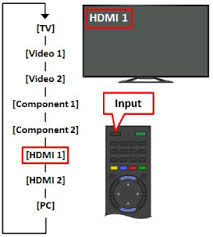
If you prefer a wired connection, you can use an HDMI cable to connect your PC to a TV. Here’s how to set it up:
- Ensure your TV has an available HDMI port.
- Connect one end of the HDMI cable to the PC and the other end to the TV.
- Configure the display settings on your PC to extend or duplicate the screen on the TV.
Tips And Variations
- Use a Compatible Adapter: If your PC has a different type of port (USB-C, Thunderbolt, micro-HDMI), you’ll need an adapter to connect it to the TV.
- Adjust Display Settings: Configure the display settings on your PC to extend or duplicate the screen on the TV.
- Check For Updates: Ensure your TV and device software are up-to-date for optimal performance.
Conclusion
Connecting your PC to a TV is easier than you think! With Google Chromecast, Miracast, AirPlay, and cable connections, you have multiple options to choose from. Follow these step-by-step guides to get started and enjoy a larger-than-life viewing experience.
Frequently Asked Questions (FAQs)
- Q: What is The Difference Between Wi-fi And Cable Connection?
A: Wi-Fi connections use wireless signals to connect devices, while cable connections use physical cables. - Q: Can I Connect my PC to a TV With Multiple Hdmi Ports?
A: Yes, you can connect your PC to a TV with multiple HDMI ports using an HDMI splitter or a separate HDMI cable for each device. - Q: How do I Configure The Display Settings on my Pc?
A: Check your PC’s documentation or online resources for specific instructions on configuring display settings. - Q: What is The Maximum Resolution I Can Achieve With Airplay?
A: The maximum resolution achievable with AirPlay depends on the device and TV being used, but it is typically up to 4K at 60Hz. - Q: Can I Use a Chromecast Device With a Non-smart Tv?
A: Yes, you can use a Chromecast device with a non-smart TV by connecting it to an HDMI port and configuring the device settings. - Q: How do I Troubleshoot Issues With my Pc-tv Connection?
A: Check your internet connection, update software, and restart devices if experiencing issues with your PC-TV connection.
Recommendations
- Use a High-quality Hdmi Cable: Ensure you have a reliable and high-quality HDMI cable for optimal performance.
- Check Device Compatibility: Verify that your TV and device are compatible with the chosen method before proceeding.
- Adjust Display Settings Carefully: Configure the display settings on your PC to avoid conflicts or unexpected behavior.


