
How to Connect Your Philips Smart TV to The Internet
Are you excited to experience the world of smart TVs, but not sure how to connect your Philips Smart TV to the internet? Look no further! In this guide, we will walk you through the steps to connect your TV to the internet using both Android TV and the proprietary operating system.
What is Android Tv?
Android TV is a smart TV platform developed by Google that provides an interface for streaming media, browsing the internet, and accessing various apps. It’s available on most modern TVs, including Philips Smart TVs.
How to Connect Your Philips Smart TV to The Internet Using Android TV
If you have a Philips Smart TV with Android TV installed, follow these steps:
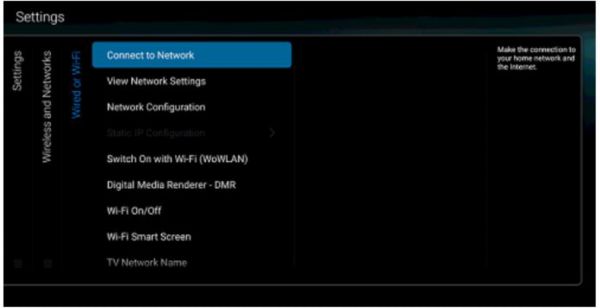
- Access The Settings Menu: Press the “Settings” button on your remote control.
- Select Wireless And Networks: Choose the option that says “Wireless and networks.”
- Connect to Wi-fi: Select the “Wi-Fi” option and choose the network you want to connect to.
- Enter Your Password: Enter the password for your chosen network using the on-screen keyboard.
- Confirm Connection: Once connected, confirm the connection by pressing the “OK” button.
How to Connect Your Philips Smart TV to The Internet Using The Proprietary Operating System
If you have a Philips Smart TV with the proprietary operating system installed, follow these steps:
- Access The Settings Menu: Press the “Settings” button on your remote control.
- Select Connect to Net: Choose the option that says “Connect to net.”
- Choose Your Connection Method: Select either “Cablato” (Ethernet) or “Wireless” (Wi-Fi).
- Configure Your Network: If using Wi-Fi, select the network you want to connect to and enter your password.
- Confirm Connection: Once connected, confirm the connection by pressing the “OK” button.
What Devices Can Help You Connect Your Philips TV to The Internet?
If your Philips TV is not equipped with a built-in internet connection, don’t worry! There are several devices that can help you connect your TV to the internet:
- Chromecast: A small HDMI device that allows you to stream content from your smartphone or tablet to your TV.
- Amazon Fire TV Stick: A mini-computer that plugs into your TV’s HDMI port and provides access to a wide range of apps, including Amazon Prime Video and Netflix.
- TV Box Android: A true mini-computer that can be connected to your TV via HDMI and provides internet connectivity and app downloading capabilities.
- Apple TV: A device developed by Apple that allows you to stream content from other Apple devices (such as iPhone or iPad) to your TV.
Conclusion
Connecting your Philips Smart TV to the internet is easier than you think! Whether using Android TV or the proprietary operating system, follow these steps and you’ll be streaming your favorite shows and movies in no time. And if you’re not equipped with a built-in internet connection, don’t worry – there are plenty of devices that can help.
Faqs
- What is The Difference Between Android TV And The Proprietary Operating System?
Android TV is a smart TV platform developed by Google, while the proprietary operating system is specific to Philips TVs. - How do I Connect my Chromecast to my Tv?
To connect your Chromecast to your TV, plug it into an available HDMI port and follow the on-screen instructions. - Can I Use my Smartphone or Tablet as a Remote Control For my Tv?
Yes, many smart TVs allow you to use your smartphone or tablet as a remote control. - What is Wi-fi Direct?
Wi-Fi Direct allows devices to connect directly to each other without the need for a router. - Can I Stream Content From Multiple Devices at Once?
Yes, some devices (such as Chromecast and Amazon Fire TV Stick) allow you to stream content from multiple devices simultaneously. - How do I Troubleshoot Internet Connectivity Issues on my Tv?
If you’re experiencing internet connectivity issues, try restarting your router or device, checking your network settings, or contacting your internet service provider for assistance. - What is The Difference Between a Smart TV And a Regular Tv?
A smart TV is equipped with built-in internet connectivity and features such as streaming apps, while a regular TV does not have these capabilities. - Can I Connect my TV to The Internet Using an Ethernet Cable?
Yes, some devices (such as TV Box Android) allow you to connect your TV to the internet using an Ethernet cable.


