
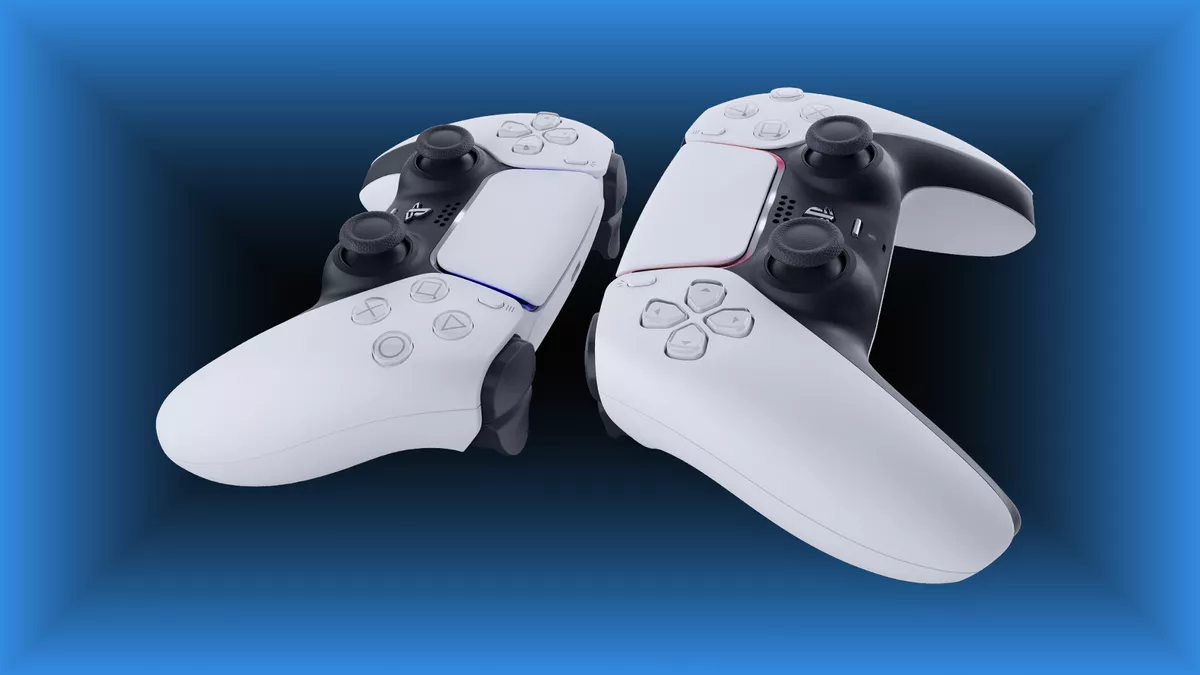
Connecting Your Ps5 Controller to Pc: A Comprehensive Guide
Are you looking to take your gaming experience to the next level by connecting your PS5 controller to your PC? Look no further! In this guide, we will walk you through the steps to connect your DualSense controller to your Windows or Mac computer using both wireless and wired methods.
Why Connect Your Ps5 Controller to Pc?
Connecting your PS5 controller to your PC offers several advantages. Firstly, it provides a more immersive gaming experience with the advanced haptic feedback and adaptive triggers of the DualSense controller. Secondly, it allows you to play games on PC that are designed for console platforms, giving you access to a wider range of games.
Wireless Connection: Connecting Your Ps5 Controller to PC Via Bluetooth
To connect your PS5 controller to your PC wirelessly using Bluetooth, follow these steps:
Step 1: Prepare Your Dualsense Controller
Before connecting your controller to your PC, ensure it is turned off. Press and hold the PlayStation button for a few seconds until the LED lights on the controller start flashing quickly.
Step 2: Enable Bluetooth on Your Pc
On Windows, go to Settings > Devices > Bluetooth & other devices, and toggle the switch to enable Bluetooth. On Mac, click the Apple menu and select System Preferences > Bluetooth, then toggle the switch to enable Bluetooth.
Step 3: Add a New Device on Your Pc
On Windows, right-click the Start button and select Settings > Devices > Add device. Click “Bluetooth” as the type of device to add. On Mac, click the Apple menu and select System Preferences > Bluetooth, then click “+” at the bottom left corner.
Step 4: Connect Your Dualsense Controller to Your Pc
Wait for your controller to appear in the list of available devices on your PC. Select “Wireless controller” as the device type. Once connected, you can start using your controller with compatible games and applications on your PC.
Wired Connection: Connecting Your Ps5 Controller to PC Via Usb Cable
To connect your PS5 controller to your PC using a wired connection:
Step 1: Prepare Your Dualsense Controller And Pc
Ensure your controller is turned off. If you’re using an adapter, plug it into your PC’s USB port.
Step 2: Connect The Controller to Your PC Via Usb Cable
Connect one end of the USB cable to the controller (located between the triggers) and the other end to a free USB port on your PC.
Step 3: Wait For The Connection to Establish
Once connected, wait for the connection to establish. You may see a notification on your PC indicating that the controller is connected successfully.
Troubleshooting Tips
If you encounter any issues while connecting your PS5 controller to your PC, try these troubleshooting tips:
- Reset Your Controller: If your controller is not responding or not pairing with your PC, try resetting it by pressing and holding the PlayStation button for 10 seconds.
- Restart Your PC: Sometimes, a simple reboot can resolve connectivity issues.
Using Your Ps5 Controller on Mac
Connecting your DualSense controller to Mac is equally straightforward:
Step 1: Prepare Your Dualsense Controller
Before connecting your controller to your Mac, ensure it is turned off. Press and hold the PlayStation button for a few seconds until the LED lights on the controller start flashing quickly.
Step 2: Enable Bluetooth on Your Mac
Click the Apple menu and select System Preferences > Bluetooth, then toggle the switch to enable Bluetooth.
Step 3: Add a New Device on Your Mac
Click the “+” at the bottom left corner of the Bluetooth window to add a new device.
Step 4: Connect Your Dualsense Controller to Your Mac
Wait for your controller to appear in the list of available devices on your Mac. Select “Wireless controller” as the device type. Once connected, you can start using your controller with compatible games and applications on your Mac.
Conclusion
Connecting your PS5 controller to your PC offers a more immersive gaming experience with advanced features like haptic feedback and adaptive triggers. Whether you choose to connect wirelessly or via cable, following these steps ensures seamless connectivity between your controller and PC.
Faqs
- What are the benefits of connecting my PS5 controller to PC?
- Connecting your PS5 controller to PC provides a more immersive gaming experience with advanced features like haptic feedback and adaptive triggers.
- Can I use my PS5 controller on Mac?
- Yes, you can connect your DualSense controller to your Mac using Bluetooth.
- Do I need any additional software or drivers for my PS5 controller to work on PC or Mac?
- No, the necessary software and drivers come pre-installed with Windows 10 or macOS.
- Can I use my PS5 controller’s speakers and microphone on PC or Mac?
- Yes, your DualSense controller can be used as an external speaker and microphone for audio input and output.
- How do I troubleshoot connectivity issues between my PS5 controller and PC or Mac?
- Try resetting your controller by pressing and holding the PlayStation button for 10 seconds.


