
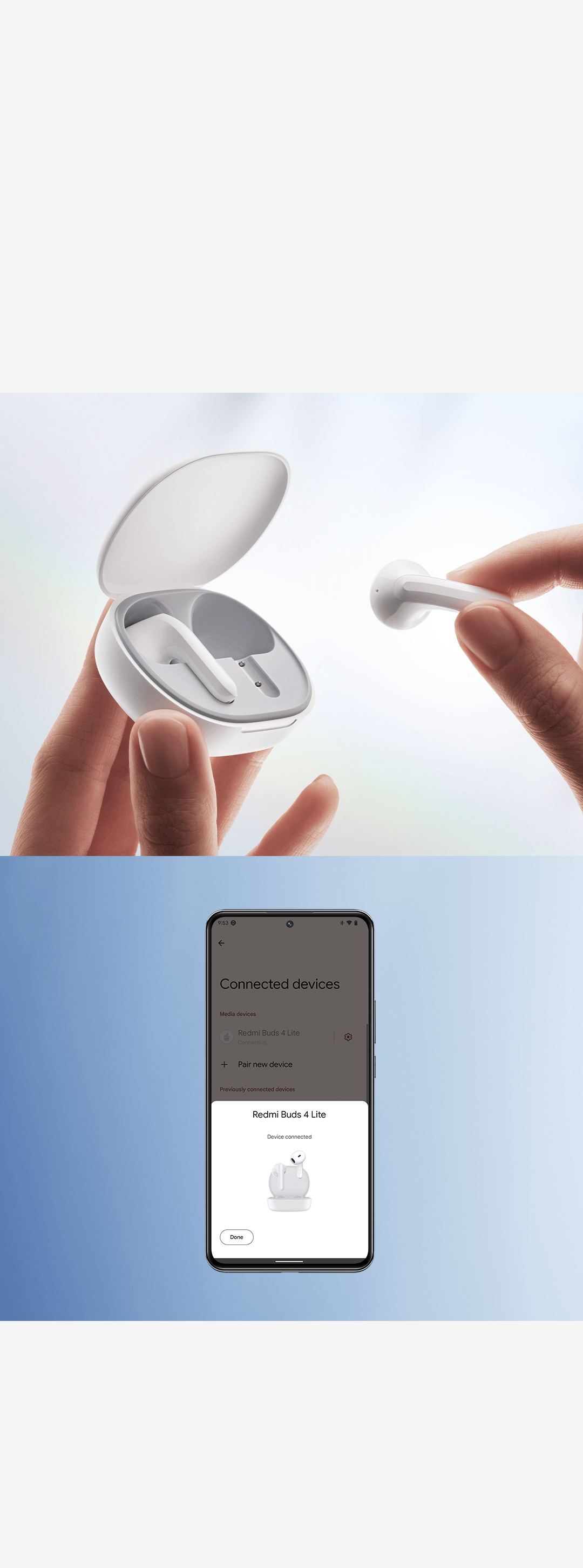
How to Connect Redmi Buds to Your Device: A Step-by-step Guide
Are you struggling to connect your Redmi Buds earphones to your device? Look no further! In this article, we’ll guide you through the process of connecting your Redmi Buds to your Android, iPhone, PC Windows, and Mac devices.
Introduction
With the increasing popularity of wireless earbuds, it’s essential to know how to connect them to your device. Whether you’re a tech-savvy individual or just starting out, this guide will walk you through the simple steps to connect your Redmi Buds to your preferred device.
Why Connect Your Redmi Buds?
Connecting your Redmi Buds is crucial for several reasons:
- Easy Access: Connecting your earphones allows you to listen to music, podcasts, or audiobooks with ease.
- Convenience: With wireless earbuds, you can enjoy hands-free listening and take calls without any hassle.
- Better Experience: Connected earbuds provide a more immersive experience, allowing you to focus on your content without distractions.
How to Connect Redmi Buds to Android
- Activate Bluetooth: Go to Settings > Bluetooth and toggle the switch to ON.
- Open The Casket: Open the casket containing your Redmi Buds earphones.
- Connect The Earphones: On your Android device, you’ll see a pop-up asking you to connect the earphones. Tap on “Connect” and wait for a few seconds.
- Pairing Complete: Once connected, you’ll see the earphones listed in your Bluetooth settings.
How to Connect Redmi Buds to Iphone
- Activate Bluetooth: Go to Settings > Bluetooth and toggle the switch to ON.
- Open The Casket: Open the casket containing your Redmi Buds earphones.
- Connect The Earphones: On your iPhone, go to Settings > Bluetooth and tap on “Redmi Buds” from the list of available devices.
- Pairing Complete: Once connected, you’ll see the earphones listed in your Bluetooth settings.
How to Connect Redmi Buds to PC Windows
- Activate Bluetooth: Go to Start > Settings > Bluetooth & Devices and toggle the switch to ON.
- Open The Casket: Open the casket containing your Redmi Buds earphones.
- Add Device: On your PC, go to Settings > Bluetooth & Devices and click on “Add device.” Select “Bluetooth” and follow the prompts.
- Pairing Complete: Once connected, you’ll see the earphones listed in your Bluetooth settings.
How to Connect Redmi Buds to Mac
- Activate Bluetooth: Go to Apple menu > System Preferences > Bluetooth and toggle the switch to ON.
- Open The Casket: Open the casket containing your Redmi Buds earphones.
- Connect The Earphones: On your Mac, go to System Preferences > Bluetooth and click on “Connect” next to “Redmi Buds.”
- Pairing Complete: Once connected, you’ll see the earphones listed in your Bluetooth settings.
Troubleshooting Tips
If you’re experiencing issues connecting your Redmi Buds, try these troubleshooting tips:
- Restart Your Device: Sometimes, a simple restart can resolve connectivity issues.
- Update Your Device’s Software: Ensure that your device’s software is up-to-date to avoid compatibility issues.
- Reset Your Earphones: Try resetting your earphones by turning them off and on again.
Conclusion
Connecting your Redmi Buds to your device is a straightforward process. By following these step-by-step guides, you’ll be able to enjoy hands-free listening and take calls with ease. Remember to troubleshoot any issues that may arise, and don’t hesitate to reach out for further assistance.


