
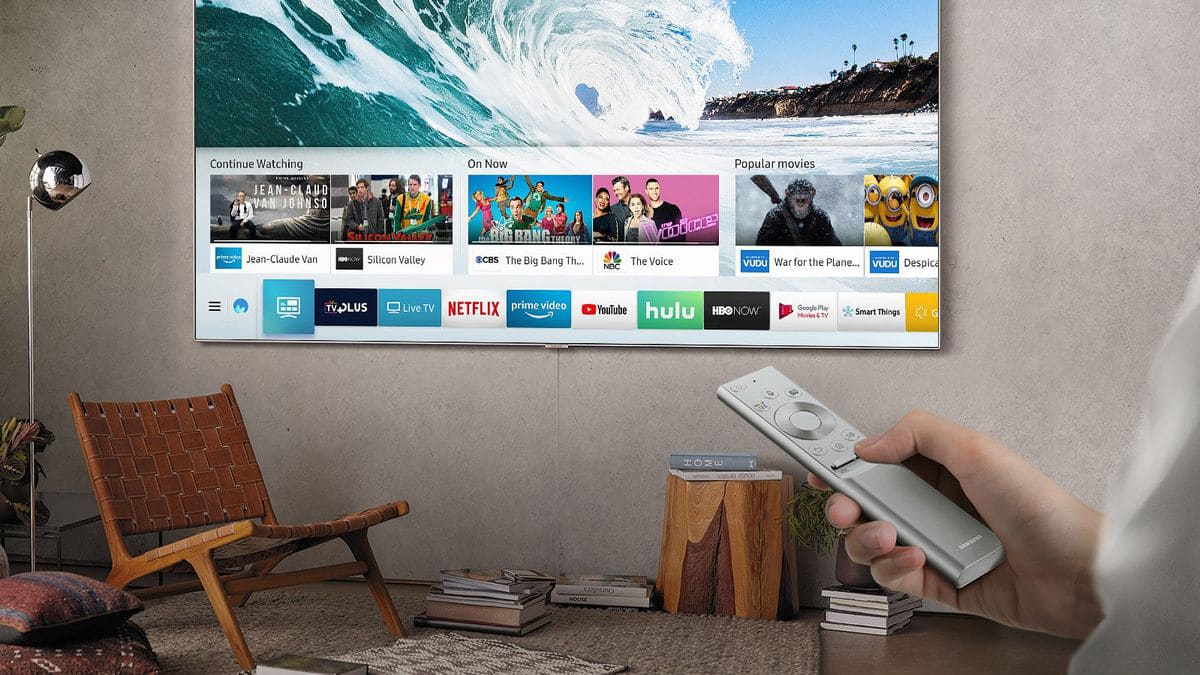
Connecting Your Samsung Smart TV to The Internet: A Step-by-step Guide
Are you a proud owner of a new Samsung Smart TV, but unsure how to connect it to the internet? Look no further! In this article, we will guide you through the simple steps to connect your TV to the internet using both wireless and wired methods.
Why Connect Your Smart TV to The Internet?
Connecting your smart TV to the internet opens up a world of possibilities. You can enjoy streaming services like Netflix, Hulu, and Amazon Prime Video, as well as access a wide range of apps that offer everything from news and weather to entertainment and educational content.
Connecting Your TV to The Internet Wireless Method
To connect your Samsung Smart TV to the internet wirelessly:
- Go to Settings: Use your remote control to navigate to the settings menu on your TV.
- Select Network: Choose the network option, which should be listed under a category like “Connections” or “Settings.”
- Choose Wireless: Select the wireless connection option and follow the prompts to connect to your Wi-Fi network.
- Enter Your Password: Enter the password for your Wi-Fi network to complete the connection.
Connecting Your TV to The Internet Wired Method
To connect your Samsung Smart TV to the internet using a wired method:
- Plug in The Ethernet Cable: Connect one end of an Ethernet cable to the back of your TV and the other end to your router.
- Follow The On-screen Instructions: The TV will guide you through the process of connecting to the internet via Ethernet.
Troubleshooting Connection Issues
If you encounter any issues during the connection process, don’t worry! Here are some troubleshooting tips:
- Make sure your Wi-Fi network is stable and has a strong signal.
- Check that your Ethernet cable is securely connected to both the TV and the router.
- Restart your router and try reconnecting.
Why Use The Smart Hub?
The Smart Hub on your Samsung Smart TV is a powerful tool that allows you to access a wide range of apps, streaming services, and features. By using the Smart Hub, you can:
- Access a vast library of entertainment content
- Enjoy seamless streaming experiences
- Control your TV’s settings and configurations with ease
Using Wps Technology
If your router is equipped with WPS technology, you can easily connect your TV to the internet without having to enter your Wi-Fi password. To use WPS:
- Enable Wps on Your Router: Make sure WPS is enabled on your router.
- Access The Wireless Settings on Your TV: Go to settings and select network, then choose wireless.
- Select Wps Technology: Choose the WPS technology option and follow the prompts.
Using a Streaming Device
If you’re not satisfied with the built-in streaming capabilities of your Samsung Smart TV, consider using a separate streaming device like Google Chromecast, Amazon Fire Stick, or Apple TV. These devices can:
- Expand your streaming options
- Offer enhanced features and functionality
- Enhance your overall viewing experience
Conclusion
Connecting your Samsung Smart TV to the internet is a straightforward process that opens up a world of possibilities for entertainment, education, and communication. By following these simple steps, you can enjoy seamless streaming experiences, access a vast library of content, and control your TV’s settings with ease.
Frequently Asked Questions
Q: Why connect my Samsung Smart TV to the internet?
A: Connecting your TV to the internet allows you to access a wide range of apps, streaming services, and features that enhance your viewing experience.
Q: What are the benefits of using WPS technology?
A: WPS technology allows for easy and secure connections between devices without the need for manual password entry.
Q: Can I use my smart TV’s built-in streaming capabilities or should I consider a separate streaming device?
A: Both options have their advantages. Your TV’s built-in streaming capabilities may be sufficient, but using a separate device can offer enhanced features and functionality.
Q: What are some troubleshooting tips for connection issues?
A: Restart your router, check the Ethernet cable connections, and ensure that your Wi-Fi network is stable and has a strong signal.
Q: Can I connect my TV to the internet wirelessly or must I use an Ethernet cable?
A: Both wireless and wired methods are available. Choose the method that suits your needs best.
Q: What is the Smart Hub on my Samsung Smart TV, and what benefits does it offer?
A: The Smart Hub is a powerful tool that allows you to access apps, streaming services, and features, making it easy to control your TV’s settings and configurations.
Q: Are there any alternatives to using my smart TV’s built-in streaming capabilities?
A: Yes, consider using separate streaming devices like Google Chromecast, Amazon Fire Stick, or Apple TV for enhanced features and functionality.


