
Connecting Your Sky Q Decoder to The Internet: A Step-by-step Guide
Are you tired of not being able to access your favorite TV shows and movies on Sky Q? Do you want to be able to stream content from external platforms like Netflix, Amazon Prime Video, and DAZN? If so, then this guide is for you! In this article, we will walk you through the process of connecting your Sky Q decoder to the internet using Wi-Fi or Ethernet cable.
Why Connect Your Sky Q Decoder to The Internet?
Connecting your Sky Q decoder to the internet opens up a whole new world of possibilities. With an active internet connection, you can:
- Access external streaming platforms like Netflix, Amazon Prime Video, and DAZN
- Watch live sports and events on demand
- Enjoy exclusive content from popular TV shows and movies
- Use the Sky Q app to control your decoder remotely
Connecting Your Sky Q Decoder to Wi-fi
To connect your Sky Q decoder to Wi-Fi, follow these steps:
- Go to the home screen of your Sky Q decoder by pressing the Home button on your remote control.
- Select Settings from the menu using the directional arrows and press OK.
- Choose Configure from the Settings menu and select OK.
- Scroll down to Net and select it with the arrow buttons.
- Choose Connect in Wi-Fi and enter your password using the remote control keys.
- Select the network you want to connect to from the list of available networks.
- Wait a few seconds for the decoder to connect to the internet.
Connecting Your Sky Q Decoder to Ethernet Cable
If you prefer to use an Ethernet cable, follow these steps:
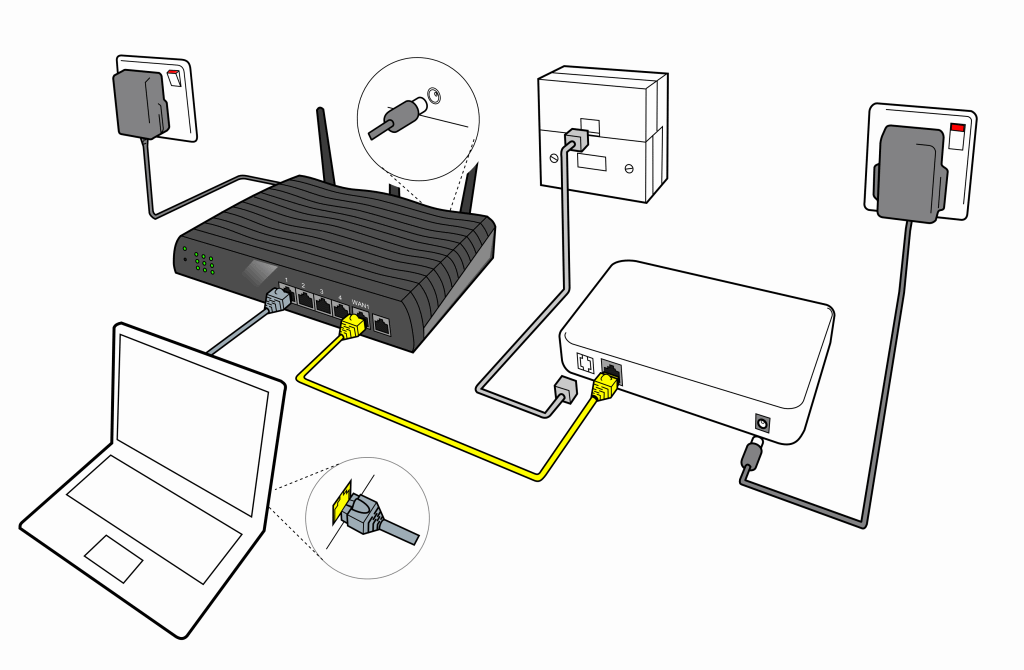
- Connect the Ethernet cable to your router and then to the back of your Sky Q decoder.
- Go to the home screen of your Sky Q decoder by pressing the Home button on your remote control.
- Select Settings from the menu using the directional arrows and press OK.
- Choose Configure from the Settings menu and select OK.
- Scroll down to Net and select it with the arrow buttons.
- Choose Connect in Ethernet and wait a few seconds for the decoder to connect to the internet.
Troubleshooting Common Issues
If you encounter any issues while connecting your Sky Q decoder to the internet, try these troubleshooting steps:
- Restart your router and decoder
- Check that your password is correct
- Ensure that your network name is spelled correctly
- Try using a different Ethernet cable or Wi-Fi network
Alternative Solutions For Connecting Your Sky Q Decoder
If you’re having trouble connecting your Sky Q decoder to the internet, there are alternative solutions available:
- Use a range extender to extend your Wi-Fi signal throughout your home
- Purchase an adapter Powerline to extend your internet connection using electrical cables
- Consider upgrading to a newer model of Sky Q decoder that supports better connectivity options
Connecting Your Sky Q Mini to The Internet
If you have a Sky Q Mini, connecting it to the internet is just as easy:
- Go to the home screen of your Sky Q Mini by pressing the Menu button on your remote control.
- Select Settings from the menu using the directional arrows and press OK.
- Choose Configure from the Settings menu and select OK.
- Scroll down to Net and select it with the arrow buttons.
- Choose Connect in Wi-Fi or Ethernet and enter your password using the remote control keys.
Connecting Your My Sky Decoder
If you have a My Sky decoder, connecting it to the internet is just as easy:
- Go to the home screen of your My Sky decoder by pressing the Menu button on your remote control.
- Select Settings from the menu using the directional arrows and press OK.
- Choose Configure from the Settings menu and select OK.
- Scroll down to Net and select it with the arrow buttons.
- Choose Connect in Wi-Fi or Ethernet and enter your password using the remote control keys.
Conclusion
Connecting your Sky Q decoder to the internet is a straightforward process that opens up a whole new world of possibilities for entertainment and streaming. With this guide, you should now be able to connect your Sky Q decoder to the internet using Wi-Fi or Ethernet cable with ease. Remember to troubleshoot common issues and consider alternative solutions if needed.
Frequently Asked Questions
Q: Do I need an active internet connection to use Sky Q?
A: Yes, you need an active internet connection to access external streaming platforms and use the Sky Q app remotely.
Q: Can I connect my Sky Q decoder to Ethernet cable instead of Wi-Fi?
A: Yes, you can connect your Sky Q decoder to Ethernet cable if preferred.
Q: What are some common issues that might occur when connecting my Sky Q decoder to the internet?
A: Some common issues include incorrect passwords, network name errors, and router or decoder restarts.
Q: Can I use a range extender to extend my Wi-Fi signal throughout my home?
A: Yes, you can use a range extender to extend your Wi-Fi signal throughout your home.
Q: What is an adapter Powerline and how does it work?
A: An adapter Powerline extends your internet connection using electrical cables instead of Ethernet cable or Wi-Fi.
Q: Can I connect multiple Sky Q decoders to the same network?
A: Yes, you can connect multiple Sky Q decoders to the same network using a network extender or router.
Q: Do I need to restart my Sky Q decoder after connecting it to the internet?
A: No, your Sky Q decoder should automatically reconnect to the internet if it loses its connection.
Step-by-step Guide
- Connect your Sky Q decoder to Wi-Fi or Ethernet cable
- Go to the home screen of your Sky Q decoder by pressing the Home button on your remote control
- Select Settings from the menu using the directional arrows and press OK
- Choose Configure from the Settings menu and select OK
- Scroll down to Net and select it with the arrow buttons
- Choose Connect in Wi-Fi or Ethernet and enter your password using the remote control keys
Step-by-step Guide For Sky Q Mini
- Go to the home screen of your Sky Q Mini by pressing the Menu button on your remote control
- Select Settings from the menu using the directional arrows and press OK
- Choose Configure from the Settings menu and select OK
- Scroll down to Net and select it with the arrow buttons
- Choose Connect in Wi-Fi or Ethernet and enter your password using the remote control keys
Step-by-step Guide For My Sky Decoder
- Go to the home screen of your My Sky decoder by pressing the Menu button on your remote control
- Select Settings from the menu using the directional arrows and press OK
- Choose Configure from the Settings menu and select OK
- Scroll down to Net and select it with the arrow buttons
- Choose Connect in Wi-Fi or Ethernet and enter your password using the remote control keys


