
How to Connect Sky Wifi: A Step-by-step Guide
Are you a new Sky WiFi subscriber looking to understand how to connect your devices to the internet? Look no further! In this comprehensive guide, we’ll walk you through the steps to connect your Sky WiFi hub, TV, phone, and computer to the internet.
Understanding Your Sky Wifi Hub
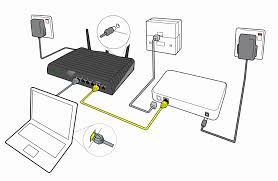
Before we dive into the nitty-gritty of connecting your devices, it’s essential to understand how your Sky WiFi hub works. The hub is the central device that connects all your devices to the internet. It’s usually placed in a convenient location, such as a living room or office.
Connecting Your Devices to Sky Wifi
Now that you have a basic understanding of your Sky WiFi hub, let’s move on to connecting your devices to the internet.
Connecting Your TV to Sky Wifi
If you have a smart TV, you’ll want to connect it to your Sky WiFi network. To do this:
- Find the name and password of your Sky WiFi network on the back of your Sky WiFi hub.
- Go to your TV’s settings menu and select the option to connect to a wireless network.
- Select your Sky WiFi network from the list of available networks.
- Enter the password for your Sky WiFi network when prompted.
That’s it! Your TV should now be connected to your Sky WiFi network.
Connecting Your Phone to Sky Wifi
If you have a smartphone, you can connect it to your Sky WiFi network using the following steps:
- Go to your phone’s settings menu and select the option to connect to a wireless network.
- Select your Sky WiFi network from the list of available networks.
- Enter the password for your Sky WiFi network when prompted.
You can also use the Wi-Fi settings on your phone to connect to your Sky WiFi network.
Connecting Your Computer to Sky Wifi
To connect your computer to your Sky WiFi network:
- Find the name and password of your Sky WiFi network on the back of your Sky WiFi hub.
- Go to your computer’s settings menu and select the option to connect to a wireless network.
- Select your Sky WiFi network from the list of available networks.
- Enter the password for your Sky WiFi network when prompted.
Alternatively, you can use an Ethernet cable to connect your computer directly to your Sky WiFi hub.
Connecting Multiple Devices
If you have multiple devices that need to be connected to your Sky WiFi network, follow these steps:
- Connect each device to the Sky WiFi network using the instructions above.
- Make sure each device has a unique IP address and is not conflicting with other devices on the network.
Troubleshooting Common Issues
Occasionally, you may encounter issues connecting your devices to your Sky WiFi network. Here are some common problems and their solutions:
- Device Not Connecting to Sky Wifi: Check that the device is turned on and that the Wi-Fi switch is enabled.
- Weak or no Signal: Move the device closer to the Sky WiFi hub or move the Sky WiFi hub to a more central location.
- Conflicting Devices: Ensure that each device has a unique IP address.
Conclusion
In this comprehensive guide, we’ve walked you through the steps to connect your Sky WiFi hub, TV, phone, and computer to the internet. Remember to always follow the manufacturer’s instructions for setting up and troubleshooting issues with your devices. If you’re still having trouble, don’t hesitate to contact Sky customer support for assistance.
Frequently Asked Questions (FAQs)
- What is The Maximum Number of Devices I Can Connect to my Sky Wifi Network?
You can connect up to 32 devices to your Sky WiFi network. - How do I Reset my Sky Wifi Hub?
To reset your Sky WiFi hub, press and hold the reset button for 10 seconds. - Can I Use an Ethernet Cable to Connect my Computer to my Sky Wifi Hub?
Yes, you can use an Ethernet cable to connect your computer directly to your Sky WiFi hub. - How do I Change The Password of my Sky Wifi Network?
To change the password of your Sky WiFi network, go to the settings menu on your Sky WiFi hub and select the option to change the password. - Can I Use a Vpn With my Sky Wifi Network?
Yes, you can use a virtual private network (VPN) with your Sky WiFi network. - How do I Troubleshoot Issues With my Sky Wifi Network?
To troubleshoot issues with your Sky WiFi network, check that all devices are turned on and that the Wi-Fi switch is enabled. Move devices closer to the Sky WiFi hub or move the Sky WiFi hub to a more central location if you’re experiencing weak or no signal. - Can I Use Multiple Sky Wifi Hubs in my Home?
Yes, you can use multiple Sky WiFi hubs in your home to extend coverage and improve network performance. - How do I Secure my Sky Wifi Network?
To secure your Sky WiFi network, ensure that all devices have a unique IP address and are not conflicting with other devices on the network. Use strong passwords for your Sky WiFi network and keep firmware up-to-date.
I hope this guide has been helpful in connecting you to your Sky WiFi network!


