
How to Connect Your Smartphone to Tv: A Comprehensive Guide
Are you tired of using your smartphone’s small screen? Do you want to enjoy your favorite videos, games, or presentations on a larger display? Look no further! In this article, we will guide you through the various ways to connect your smartphone to a TV, exploring different technologies and methods.
Why Connect Your Smartphone to Tv?
Connecting your smartphone to a TV offers numerous benefits. You can:
- Enjoy larger-screen entertainment with better sound quality
- Share photos and videos with family and friends on a bigger canvas
- Give presentations or business demos without the need for a projector
- Stream games, music, and other content wirelessly
Chromecast: The Popular Choice
Google Chromecast is a popular wireless streaming device that allows you to cast your smartphone’s screen onto a TV. Here’s how it works:
- Connect your smartphone to the same Wi-Fi network as your TV.
- Open the Google Home app on your smartphone and select the Chromecast device.
- Choose the content you want to cast, such as a video or presentation.
Other Wireless Technologies
Besides Chromecast, there are other wireless technologies that allow you to connect your smartphone to a TV:
- Miracast: A technology developed by Microsoft that enables wireless screen sharing between devices. While it’s not as widely adopted as Chromecast, it’s still a viable option.
- Airplay 2: Developed by Apple, this technology allows for wireless streaming of content from an iPhone or iPad to a TV.
- Dlna: A technology that enables wireless streaming of digital media between devices.
Connecting Your Smartphone to TV Without Wi-fi
If you don’t have access to a Wi-Fi network or prefer a wired connection, there are still ways to connect your smartphone to a TV:
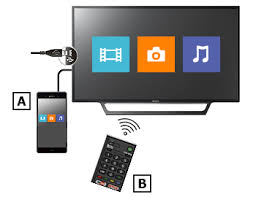
- Use an HDMI cable to connect your smartphone directly to the TV. This method works best with newer smartphones that have an HDMI output.
- Invest in an MHL (Mobile High-Definition Link) adapter, which can convert your smartphone’s USB-C or micro-USB port into an HDMI output.
Tips And Tricks
Here are some additional tips to keep in mind when connecting your smartphone to a TV:
- Make sure both devices are on the same Wi-Fi network for wireless streaming.
- Check if your smartphone’s screen mirroring feature is enabled.
- If you’re using Chromecast, ensure that your TV is compatible with the device.
Conclusion
Connecting your smartphone to a TV offers a range of benefits and options. Whether you choose wireless streaming with Chromecast or use an HDMI cable for a wired connection, there’s a solution that suits your needs. With this guide, you’ll be able to enjoy larger-screen entertainment, share content, and give presentations without the need for a projector.
Frequently Asked Questions
Here are some frequently asked questions about connecting smartphones to TVs:
- Q: Which wireless technology should I use?
A: It depends on your device and TV compatibility. Check if your devices support Chromecast, Miracast, AirPlay 2, or DLNA. - Q: Can I connect my smartphone to a TV without Wi-Fi?
A: Yes, you can use an HDMI cable for a wired connection or invest in an MHL adapter for wireless streaming with an older phone. - Q: Are there any limitations to wireless streaming?
A: Wireless streaming may experience delays or quality issues due to network congestion or device compatibility.


