
How to Connect a Sound Card to Your Pc: A Step-by-step Guide
Are you tired of using your computer’s built-in speakers and want to upgrade to a better audio experience? Connecting a sound card to your PC can be a great solution, but it can also be intimidating if you’re not tech-savvy. Don’t worry; we’ve got you covered! In this article, we’ll guide you through the process of connecting a sound card to your PC, step by step.
What is a Sound Card?
Before we dive into the installation process, let’s briefly explain what a sound card is. A sound card is a hardware component that allows you to connect external audio devices, such as speakers or headphones, to your computer. It converts digital audio signals from your PC into analog signals that can be processed by external audio equipment.
Types of Sound Cards
There are two main types of sound cards: Internal and external. Internal sound cards are connected directly to the motherboard, while external sound cards use a USB connection to connect to the computer.
Choosing The Right Sound Card
When choosing a sound card, consider the following factors:
- Compatibility: Ensure that the sound card is compatible with your PC’s operating system (Windows or macOS).
- Audio Quality: Look for a sound card with high-quality audio output and a good signal-to-noise ratio.
- Connectivity Options: Consider whether you need additional connectivity options, such as USB or FireWire connections.
- Price: Sound cards can range from affordable to very expensive, so set a budget before making a purchase.
Installing an Internal Sound Card
To install an internal sound card, follow these steps:
- Shut Down Your PC: Make sure the computer is turned off and unplugged from the power source.
- Locate The Motherboard: Identify the motherboard on which you want to install the sound card.
- Remove Any Obstructions: Remove any obstructions or cables that may be in the way of installing the sound card.
- Install The Sound Card: Gently push the sound card into the PCI slot, making sure it clicks into place. Secure the sound card with screws if necessary.
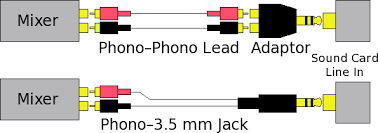
- Connect Any Additional Cables: Connect any additional cables, such as speaker or microphone cables, to the sound card.
Installing an External Sound Card
To install an external sound card, follow these steps:
- Plug in The Sound Card: Plug the sound card into a USB port on your PC.
- Install Any Necessary Drivers: Install any necessary drivers for the sound card using the installation CD or by downloading them from the manufacturer’s website.
- Connect Any Additional Cables: Connect any additional cables, such as speaker or microphone cables, to the sound card.
Troubleshooting Common Issues
If you encounter any issues during the installation process, don’t worry! Here are some common troubleshooting tips:
- No Audio Output: Check that the sound card is properly connected to the motherboard and that all cables are securely attached.
- Audio Not Working Properly: Check that the sound card drivers are installed correctly and updated to the latest version.
Conclusion
Connecting a sound card to your PC can be a great way to upgrade your audio experience. By following these step-by-step instructions, you should be able to successfully install an internal or external sound card on your PC. Remember to choose the right sound card for your needs and troubleshoot any common issues that may arise.
Frequently Asked Questions (FAQs)
- What is a Sound Card?
A sound card is a hardware component that allows you to connect external audio devices, such as speakers or headphones, to your computer. - How do I Install an Internal Sound Card?
To install an internal sound card, shut down your PC, locate the motherboard, remove any obstructions, and install the sound card into the PCI slot. Secure the sound card with screws if necessary. - What Are The Different Types of Sound Cards Available?
There are two main types of sound cards: Internal and external sound cards. - How do I Troubleshoot Common Issues During Installation?
Check that the sound card is properly connected to the motherboard, all cables are securely attached, and the sound card drivers are installed correctly and updated to the latest version.
Bonus Tips
- Use a high-quality power supply unit (PSU) for optimal audio performance.
- Connect your speakers or headphones directly to the sound card for the best possible audio quality.
- Update your sound card drivers regularly to ensure optimal performance.


