
How to Connect Cases to Your Tv: A Step-by-step Guide
Are you tired of mediocre audio quality on your TV? Do you want to enhance your home theater experience with high-quality sound? Look no further! In this article, we will guide you through the process of connecting cases (also known as speakers) to your TV, ensuring that you get the best possible sound quality.
Why Connect Cases to Your Tv?
Connecting cases to your TV is a great way to improve the overall audio experience. With a good set of speakers, you can enjoy clearer dialogue, more immersive sound effects, and a more engaging viewing experience. Plus, it’s easier than ever to connect cases to your TV, with many modern TVs featuring built-in Bluetooth connectivity.
Types of Connections
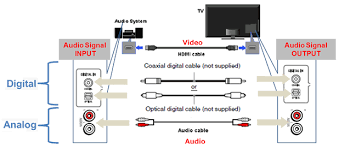
There are several types of connections that you can use to link your cases to your TV. Here are some of the most common ones:
- Hdmi: This is a digital connection that allows for high-quality audio and video transmission.
- Bluetooth: This is a wireless connection that allows for easy pairing with devices.
- Toslink: This is an optical fiber connection that provides high-quality digital audio transmission.
- Rca: This is an analog connection that allows for basic audio transmission.
Connecting Cases to Your TV Using Hdmi
If you have a TV with an HDMI port and a case with an HDMI output, connecting them is relatively straightforward. Here’s how:
- Connect the HDMI cable from the case to the corresponding port on your TV.
- Make sure the TV is set to the correct input (usually labeled as “HDMI” or “External Speaker”).
- Turn on the case and adjust the volume to a comfortable level.
Connecting Cases to Your TV Using Bluetooth
If you have a TV with built-in Bluetooth connectivity, connecting cases using Bluetooth is easy:
- Make sure the TV’s Bluetooth feature is enabled.
- Put your case into pairing mode (usually by pressing a button on the case).
- Select the case as the audio source on your TV.
Connecting Cases to Your TV Using Toslink
If you have a TV with a TOSLINK port and a case with an optical output, connecting them is also relatively straightforward:
- Connect the TOSLINK cable from the case to the corresponding port on your TV.
- Make sure the TV is set to the correct input (usually labeled as “TOSLINK” or “Digital Audio”).
- Turn on the case and adjust the volume to a comfortable level.
Connecting Cases to Your TV Using Rca
If you have an older TV with RCA ports, connecting cases using RCA is still possible:
- Connect the RCA cables from the case to the corresponding ports on your TV.
- Make sure the TV is set to the correct input (usually labeled as “RCA” or “Analog Audio”).
- Turn on the case and adjust the volume to a comfortable level.
Tips And Tricks
- Make sure the volume on both the TV and the case are adjusted to a comfortable level.
- Use a high-quality HDMI cable for the best possible audio transmission.
- Experiment with different settings on your TV to find the optimal audio configuration.
- Consider using a soundbar or home theater system for an immersive audio experience.
Frequently Asked Questions
Q: What is the difference between HDMI and TOSLINK connections?
A: HDMI is a digital connection that provides high-quality audio and video transmission, while TOSLINK is an optical fiber connection that provides high-quality digital audio transmission.
Q: Can I connect cases to my TV using Bluetooth if it doesn’t have built-in Bluetooth connectivity?
A: Yes, you can use a Bluetooth adapter or transmitter to connect your case to your TV via Bluetooth.
Q: How do I adjust the volume on my case and TV?
A: Check the user manuals for both the case and the TV for specific instructions on adjusting the volume.
Q: Can I connect multiple cases to my TV?
A: Yes, but you will need to use a separate amplifier or audio processor to manage the multiple inputs.
Q: What are some common issues when connecting cases to my TV?
A: Common issues include mismatched input settings, incorrect cable connections, and poor audio quality.


