
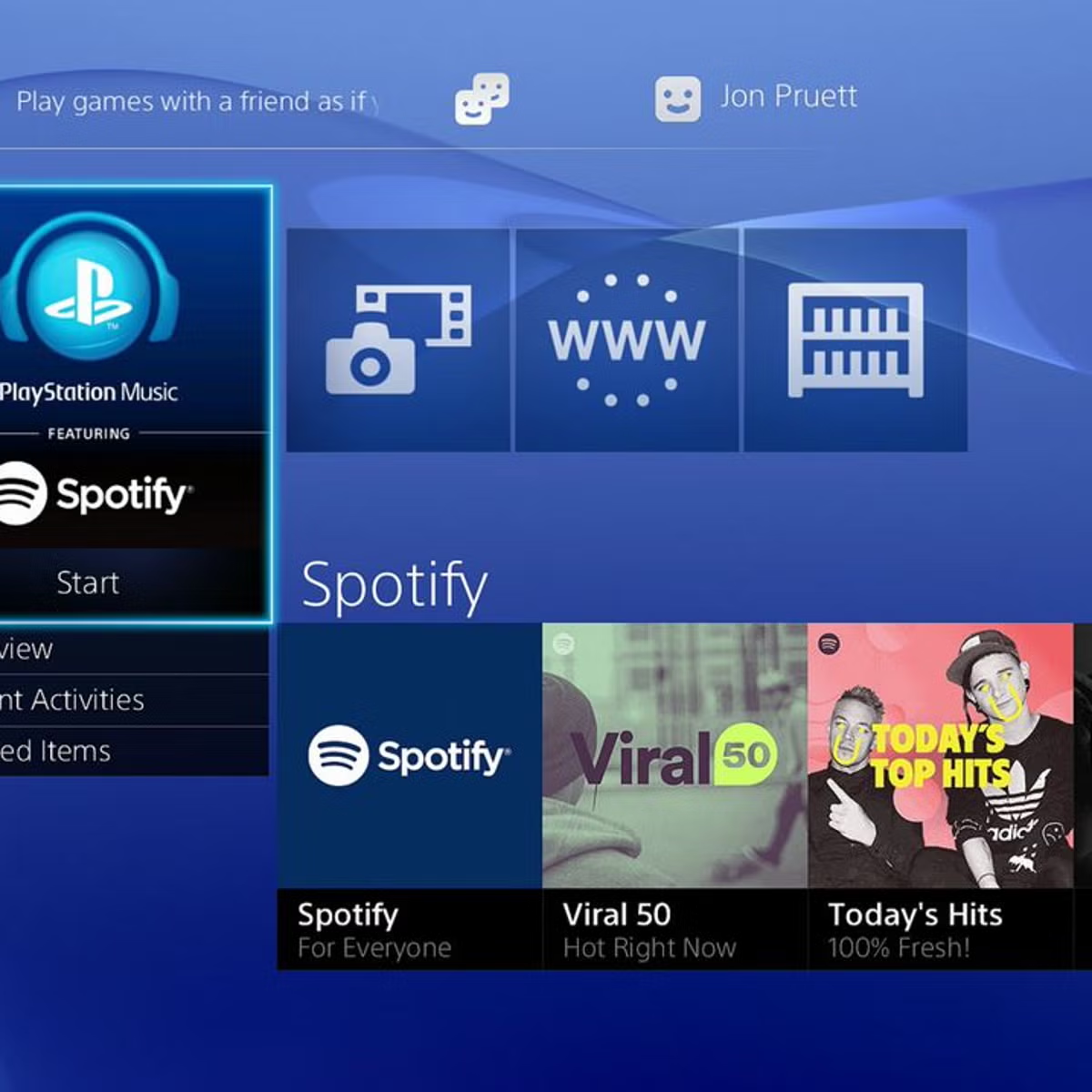
How to Connect Spotify to Ps4: A Step-by-step Guide
Are you looking to enjoy your favorite music on your PlayStation 4 while gaming or just relaxing? Look no further! In this article, we will guide you through the process of connecting Spotify to your PS4.
Introduction
Spotify is a popular music streaming service that allows users to access millions of songs, podcasts, and videos. Connecting Spotify to your PS4 is a straightforward process that requires a few simple steps. In this article, we will walk you through each step, ensuring that you can enjoy your favorite music on your console.
System Requirements
Before proceeding, ensure that your PS4 meets the following requirements:
- A stable internet connection
- A Spotify account (free or premium)
- The latest version of the Spotify app for PS4
Step 1: Connect Your Ps4 to The Internet
To connect Spotify to your PS4, you need to ensure that your console is connected to the internet. To do this:
- Go to the Settings menu on your PS4
- Select Network
- Choose Wi-Fi or LAN (depending on your connection type)
- Enter your network password and select Connect
Step 2: Access The Playstation Network
To access the Spotify app, you need to be logged in to the PlayStation Network.
- Go to the Settings menu on your PS4
- Select Account Management
- Create a new account or log in to an existing one
Step 3: Install The Spotify App
If you haven’t already, install the Spotify app on your PS4:
- Open the PlayStation Store on your PS4
- Search for Spotify and select the app
- Click Download and wait for the installation to complete
Step 4: Connect Your Spotify Account
To connect your Spotify account to your PS4:
- Launch the Spotify app on your PS4
- Select Sign In and enter your Spotify login credentials
- Choose Connect and follow the prompts to link your account
Step 5: Enjoy Music on Your Ps4
Now that you have connected your Spotify account, you can enjoy music on your PS4:
- Launch the Spotify app and select Home
- Browse through your playlists, albums, or discover new music
- Select a song to play and control it using the provided controls
Benefits of Connecting Spotify to Your Ps4
Connecting Spotify to your PS4 offers several benefits:
- Access millions of songs, podcasts, and videos
- Enjoy music while gaming or relaxing on your console
- Create and manage playlists directly from your PS4
Troubleshooting Common Issues
If you encounter any issues connecting Spotify to your PS4, try the following:
- Restart your console and re-launch the Spotify app
- Check your internet connection for stability
- Log out of your PlayStation Network account and re-login
Conclusion
Connecting Spotify to your PS4 is a simple process that requires minimal setup. By following these steps, you can enjoy music on your console while gaming or relaxing.
Frequently Asked Questions (FAQs)
- Do I Need a Premium Spotify Subscription to Connect it to my Ps4?
No, a free Spotify account will suffice. - Can I Listen to Music While Playing Games on my Ps4?
Yes, you can control the music playback using the provided controls or the Fast Menu. - How do I Disconnect Spotify From my Ps4?
To disconnect Spotify from your PS4, go to the Spotify app and select Disconnect. - Can I Connect Multiple Devices to a Single Spotify Account?
Yes, you can link multiple devices to a single Spotify account.
Additional Resources
For more information on connecting Spotify to your PS4 or using Spotify on other devices, visit our website at [insert URL].


