
How to Connect Your Tablet to a Tv: A Step-by-step Guide
Are you tired of watching your favorite shows or movies on a small tablet screen? Do you want to enjoy a bigger and better viewing experience? Connecting your tablet to a TV is easier than you think! In this article, we will show you how to connect your tablet to a TV using various methods, including wireless connections.
Why Connect Your Tablet to a Tv?
There are several reasons why you might want to connect your tablet to a TV. Here are a few:
- To enjoy bigger and better viewing experience for movies, shows, and games
- To share content with family or friends
- To access more content on your tablet, such as apps, games, and videos
Method 1: Using Chromecast
Chromecast is a popular wireless streaming device that allows you to connect your tablet to a TV without the need for cables. Here’s how to use it:
- Purchase a Chromecast Device: You can buy a Chromecast device from Amazon or other online retailers.
- Connect The Chromecast Device to Your TV: Plug in the Chromecast device to an HDMI port on your TV.
- Download The Google Home App: Download and install the Google Home app on your tablet.
- Set up The Chromecast Device: Follow the instructions in the Google Home app to set up the Chromecast device.
- Stream Content From Your Tablet: Open the Google Home app on your tablet, select the Chromecast device, and start streaming content to your TV.
Method 2: Using Miracast
Miracast is a wireless display technology that allows you to connect your tablet to a TV without cables. Here’s how to use it:
- Check if Your Device Supports Miracast: Make sure that both your tablet and TV support Miracast.
- Download The Miracast App: Download and install the Miracast app on your tablet.
- Connect to The Miracast Network: Follow the instructions in the Miracast app to connect to the Miracast network.
- Stream Content From Your Tablet: Open the Miracast app on your tablet, select the TV as the display device, and start streaming content.
Method 3: Using Airplay
AirPlay is a wireless streaming technology developed by Apple that allows you to connect your iPad or iPhone to a TV. Here’s how to use it:
- Check if Your Device Supports Airplay: Make sure that both your tablet and TV support AirPlay.
- Download The Airplay App: Download and install the AirPlay app on your tablet.
- Connect to The Airplay Network: Follow the instructions in the AirPlay app to connect to the AirPlay network.
- Stream Content From Your Tablet: Open the AirPlay app on your tablet, select the TV as the display device, and start streaming content.
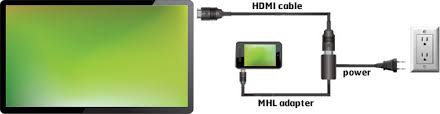
Method 4: Using a Cable
If you prefer not to use wireless connections, you can always use a cable to connect your tablet to a TV. Here’s how:
- Purchase an Hdmi Cable: Buy an HDMI cable that is compatible with your tablet and TV.
- Connect The Cable to Your Tablet And TV: Plug one end of the HDMI cable into your tablet and the other end into your TV.
- Select The Correct Input on Your TV: Select the correct input on your TV to view content from your tablet.
Tips And Tricks
Here are some tips and tricks to keep in mind when connecting your tablet to a TV:
- Make sure that both your tablet and TV are connected to the same Wi-Fi network.
- Use a high-quality HDMI cable for optimal video and audio performance.
- Check if your device supports Miracast or AirPlay before using these technologies.
- Use the Google Home app to set up and control Chromecast devices.
Conclusion
Connecting your tablet to a TV is easier than you think! With methods like wireless streaming, Miracast, AirPlay, and cables, you can enjoy bigger and better viewing experiences. Remember to check compatibility and follow instructions carefully for optimal performance.
Frequently Asked Questions (FAQs)
- Q: What Are The Benefits of Connecting my Tablet to a Tv?
A: Connecting your tablet to a TV allows you to enjoy bigger and better viewing experiences, share content with family or friends, and access more content on your tablet. - Q: How do I Use Chromecast to Connect my Tablet to a Tv?
A: Purchase a Chromecast device, connect it to your TV, download the Google Home app, set up the Chromecast device, and stream content from your tablet. - Q: What is Miracast, And How Does it Work?
A: Miracast is a wireless display technology that allows you to connect your tablet to a TV without cables. Check if your devices support Miracast, download the Miracast app, connect to the Miracast network, and stream content from your tablet. - Q: How do I Use Airplay to Connect my Ipad or Iphone to a Tv?
A: Check if your device supports AirPlay, download the AirPlay app, connect to the AirPlay network, select the TV as the display device, and start streaming content from your tablet. - Q: What Are Some Tips For Connecting my Tablet to a Tv?
A: Make sure that both your tablet and TV are connected to the same Wi-Fi network, use a high-quality HDMI cable, check compatibility before using Miracast or AirPlay, and follow instructions carefully for optimal performance.
Recommended Products
- Chromecast Device: Purchase a Chromecast device from Amazon or other online retailers.
- Miracast App: Download the Miracast app on your tablet to connect it to a TV wirelessly.
- Airplay App: Download the AirPlay app on your iPad or iPhone to connect it to a TV wirelessly.
- Hdmi Cable: Buy an HDMI cable that is compatible with your tablet and TV for optimal video and audio performance.
- TV Mount: Consider investing in a TV mount to secure your TV and enhance viewing experiences.


