
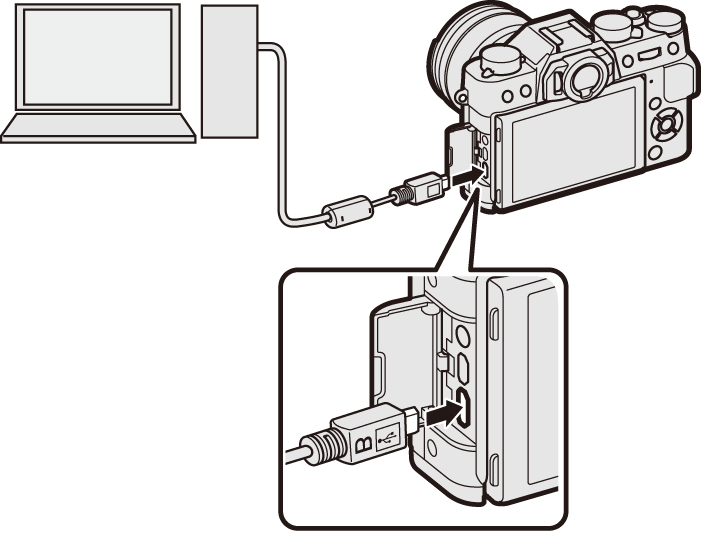
How to Connect Your Camera to a PC
Are you tired of using a low-quality webcam on your computer? Do you have a better camera that you want to use as a webcam or to record video? Look no further! In this article, we will show you how to connect your camera to a PC and use it as a webcam or to record video.
Why Use Your Camera as a Webcam?
Using your camera as a webcam can be beneficial in many ways. For one, you can get high-quality video and images that are not possible with a standard webcam. You can also use your camera’s advanced features such as zooming, panning, and image stabilization to enhance the quality of your video.
How to Connect Your Camera to a PC
Connecting your camera to a PC is relatively easy. Here’s what you need to do:
- Download The Software: First, you need to download the software that comes with your camera or find an alternative app that can connect your camera to your PC.
- Connect The Camera to The PC: Next, connect your camera to your PC using a USB cable. Make sure the camera is turned on and set to the correct mode (webcam or video recording).
- Launch The Software: Launch the software you downloaded in step 1. Follow the instructions to set up your camera as a webcam.
- Test The Connection: Once you’ve connected your camera, test it by taking a photo or recording a short video.
Connecting Your Camera to a PC For Windows
If you have a Windows PC, here’s how you can connect your camera:
- Download Nikon Webcam Utility: If you have a Nikon camera, download the Nikon Webcam Utility software from the official website.
- Connect The Camera to The PC: Connect your camera to your PC using a USB cable.
- Launch The Utility: Launch the Nikon Webcam Utility software and follow the instructions to set up your camera as a webcam.
Connecting Your Camera to a PC For Mac
If you have a Mac, here’s how you can connect your camera:
- Download Nikon Webcam Utility: If you have a Nikon camera, download the Nikon Webcam Utility software from the official website.
- Connect The Camera to The PC: Connect your camera to your Mac using a USB cable.
- Launch The Utility: Launch the Nikon Webcam Utility software and follow the instructions to set up your camera as a webcam.
How to Transfer Photos And Videos From Your Camera to a PC
If you have taken photos or recorded videos with your camera, here’s how you can transfer them to your PC:
- Connect The Camera to The PC: Connect your camera to your PC using a USB cable.
- Launch File Explorer: Launch File Explorer on your Windows PC or the Finder on your Mac.
- Transfer Files: Transfer your photos and videos from your camera to your PC by copying and pasting them into the desired folder.
Conclusion
Connecting your camera to a PC is relatively easy and can be done using various software and apps. Whether you want to use your camera as a webcam or to record video, we hope this article has provided you with the necessary information to get started.
Faqs
- Q: How do I Connect my Camera to a Pc?
A: Connect your camera to your PC using a USB cable and launch the software that comes with your camera. - Q: What Software Can I Use to Connect my Camera to a Pc?
A: You can use Nikon Webcam Utility for Windows or Mac, or alternative apps such as digiCamControl Virtual Webcam. - Q: How do I Transfer Photos And Videos From my Camera to a Pc?
A: Connect your camera to your PC using a USB cable and launch File Explorer or the Finder. - Q: Can I Use my Smartphone’s Camera as a Webcam?
A: Yes, you can use your smartphone’s camera as a webcam by installing an app on your phone and a relative software on your PC. - Q: What Are Some Alternative Apps to Nikon Webcam Utility?
A: Some alternative apps include digiCamControl Virtual Webcam, OBS Studio, and Chamber-Live. -
Q: How do I Record Video With my Camera Connected to a Pc?
A: Use software such as OBS Studio or digiCamControl Virtual Webcam to record video with your camera connected to a PC. -
Q: Can I Use my Camera’s Advanced Features With it Connected to a Pc?
A: Yes, you can use your camera’s advanced features such as zooming, panning, and image stabilization when using it as a webcam or recording video. -
Q: How do I Troubleshoot Issues With Connecting my Camera to a Pc?
A: Check the cable connection, ensure the software is installed correctly, and consult online resources for troubleshooting tips.


