
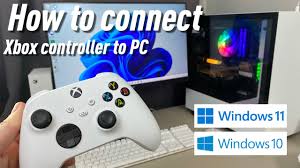
How to Connect a Controller to Your PC
Are you looking to connect your controller to your PC? Perhaps you’ve acquired a DualShock or a controller for Xbox that doesn’t use a lot of power and want to “recycle” it as a controller for your computer? Good news! This guide will show you how to connect your controller to your PC in the most facile and fast possible way, without modifying your operating system.
Preliminary Information
Before we dive into the details, let’s cover some preliminary information. You may have already acquired a controller that is compatible with your computer, such as the DualShock 4 or the Xbox One controller. If so, you can skip to the next section.
How to Connect a Controller to Your PC
To connect a controller to your PC, you’ll need to follow these steps:
- Use The Cable Method: If your controller has a USB cable, simply plug it into an available USB port on your computer.
- Use Bluetooth: If your controller is Bluetooth-enabled, put it in pairing mode and select it from the list of available devices on your computer.
How to Connect a Ps4 Controller to Your PC
To connect a PS4 controller to your PC, follow these steps:
- Use The Cable Method: Plug the cable into an available USB port on your computer.
- Use Bluetooth: Put the controller in pairing mode and select it from the list of available devices on your computer.
How to Connect a Ps3 Controller to Your PC
To connect a PS3 controller to your PC, follow these steps:
- Use The Cable Method: Plug the cable into an available USB port on your computer.
- Download Scptoolkit: Download and install ScpToolkit, a software program that allows you to use your PS3 controller with your PC.
How to Connect an Xbox Controller to Your PC
To connect an Xbox controller to your PC, follow these steps:
- Use The Cable Method: Plug the cable into an available USB port on your computer.
- Download 360Controller: Download and install 360Controller, a software program that allows you to use your Xbox controller with your PC.
Tips And Tricks
Here are some additional tips and tricks to keep in mind when connecting your controller to your PC:
- Use The Correct Cables: Make sure to use the correct cables for your controller. For example, if you’re using a DualShock 4, make sure to use the USB-C cable.
- Update Your Drivers: If you’re experiencing issues with your controller not being recognized by your computer, try updating your drivers.
- Use a Controller Adapter: If your controller doesn’t have a USB port or uses a different type of connection, consider using a controller adapter.
Conclusion
Connecting a controller to your PC is easier than ever. With the right cables and software programs, you can enjoy playing your favorite games on your computer with the comfort and precision of a controller.
Frequently Asked Questions
Here are some frequently asked questions about connecting controllers to PCs:
Q: What Type of Cable do I Need For my Ps4 Controller?
A: You’ll need a USB-C cable to connect your PS4 controller to your PC.
Q: How do I Update my Drivers For my Xbox Controller?
A: You can update your drivers by visiting the Microsoft website and downloading the latest drivers.
Q: What Software Program do I Need to Use With my Ps3 Controller?
A: You’ll need to download and install ScpToolkit, a software program that allows you to use your PS3 controller with your PC.
Q: Can I Connect my Xbox One Controller Wirelessly to my Pc?
A: Yes! Simply put your controller in pairing mode and select it from the list of available devices on your computer.
Q: Do I Need to Install a Driver For my Dualshock 4 Controller?
A: No, you can simply plug in the cable and start playing!
Q: Can I Use my Controller With Other Operating Systems Besides Windows?
A: Yes! You can use your controller with macOS and Linux as well.
Q: What Type of Adapter do I Need to Connect my Xbox One Controller to a Usb Port on my Computer?
A: You’ll need a USB-C adapter to connect your Xbox One controller to a USB port on your computer.


