
How to Connect Your Nintendo Switch to a Tv: A Step-by-step Guide
Are you tired of playing your favorite games on the small screen of your Nintendo Switch? Do you want to experience gaming in all its glory on a bigger, better display? Look no further! In this article, we’ll show you how to connect your Nintendo Switch to a TV, so you can enjoy a more immersive gaming experience.
Why Connect Your Nintendo Switch to a Tv?
Connecting your Nintendo Switch to a TV offers several benefits. Firstly, it provides a larger and clearer display, making games look more vibrant and detailed. Secondly, it allows for a more social gaming experience, as you can invite friends over to join in on the fun. Finally, it’s a great way to enjoy your favorite games in a more relaxing environment.
Step 1: Prepare Your Equipment
Before connecting your Nintendo Switch to a TV, make sure you have the following:
- A TV with an HDMI port
- An HDMI cable (preferably a high-quality one)
- The Nintendo Switch console
- A power source for the TV and console
Step 2: Connect The Nintendo Switch to The TV
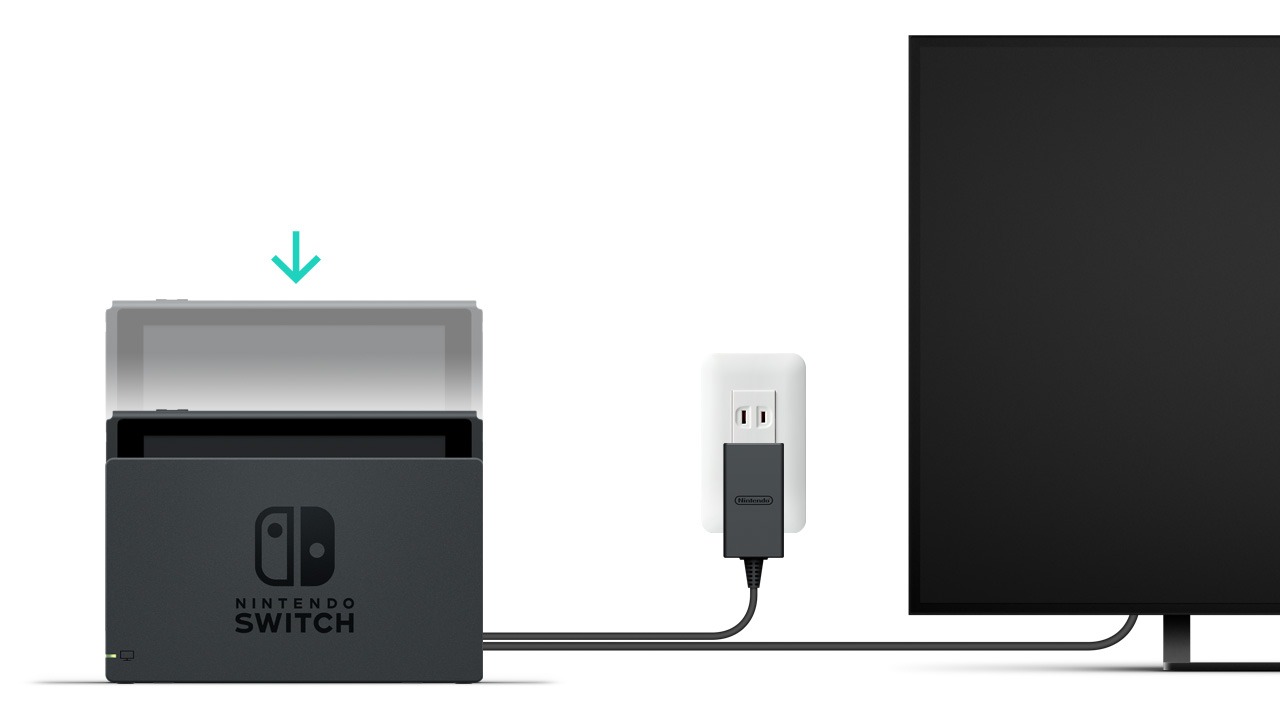
To connect your Nintendo Switch to a TV, follow these steps:
- Take the HDMI cable and insert one end into the TV’s HDMI port.
- Insert the other end of the HDMI cable into the Nintendo Switch’s HDMI OUT port (located on the back or side of the console).
- Make sure both cables are securely connected to their respective ports.
Step 3: Turn On Your TV And Console
- Turn on your TV and select the correct HDMI input channel.
- Turn on your Nintendo Switch console by pressing the power button.
Step 4: Configure Your TV Settings
- Using your TV’s remote control, navigate to the settings menu.
- Look for the “HDMI” or “Video” option and select it.
- Choose the correct input channel (usually labeled as HDMI 1, HDMI 2, etc.).
- Adjust any other necessary settings, such as resolution or sound quality.
Step 5: Test Your Connection
- Insert a game cartridge or download a game from the Nintendo eShop.
- Launch the game and test your connection by playing for a few minutes.
- Make sure everything is working smoothly and there are no issues with video or audio quality.
Alternative Solutions For Connecting Your Nintendo Switch to a TV
If you don’t have an HDMI cable or if your TV doesn’t have an HDMI port, don’t worry! There are other solutions available:
- Usb-c to Hdmi Adapter: You can purchase a USB-C to HDMI adapter that allows you to connect your Nintendo Switch directly to the TV.
- Hdmi to Component Converter: If your TV has a component input (YPbPr), you can use an HDMI to component converter to adapt the signal.
- Hdmi to Dvi Converter: Some TVs and monitors have a DVI port, in which case you can use an HDMI to DVI converter.
Tips And Tricks
- Make sure to update your Nintendo Switch console to the latest software version for optimal performance.
- Use a high-quality HDMI cable to ensure the best possible video quality.
- Adjust your TV settings to optimize the gaming experience (e.G., Reduce motion blur, adjust color accuracy).
Conclusion
Connecting your Nintendo Switch to a TV is a simple process that can greatly enhance your gaming experience. By following these steps and considering alternative solutions, you’ll be able to enjoy your favorite games on a larger and more immersive display.
Frequently Asked Questions (FAQs)
- Q: Do I Need an Hdmi Cable to Connect my Nintendo Switch to a Tv?
A: Yes, you will need an HDMI cable to connect your Nintendo Switch to a TV. - Q: Can I Use Any Hdmi Cable With my Nintendo Switch?
A: It’s recommended to use a high-quality HDMI cable for optimal video quality. - Q: What if my TV Doesn’t Have an Hdmi Port?
A: You can consider alternative solutions such as using a USB-C to HDMI adapter or an HDMI to component converter. - Q: How do I Configure my TV Settings For Optimal Gaming Performance?
A: Adjust your TV settings to reduce motion blur, adjust color accuracy, and optimize video quality. - Q: Can I Use Any Game Cartridge With my Nintendo Switch Connected to a Tv?
A: Yes, you can use any game cartridge or download games from the Nintendo eShop while connected to a TV. - Q: What if I Experience Issues With Video or Audio Quality?
A: Try adjusting your TV settings, using a different HDMI cable, or consulting the user manual for troubleshooting tips. - Q: Can I Connect my Nintendo Switch to Multiple Tvs?
A: Yes, you can connect your Nintendo Switch to multiple TVs by using additional HDMI cables and switches.
I hope this article has been informative and helpful! If you have any further questions or concerns, feel free to ask in the comments below.


