
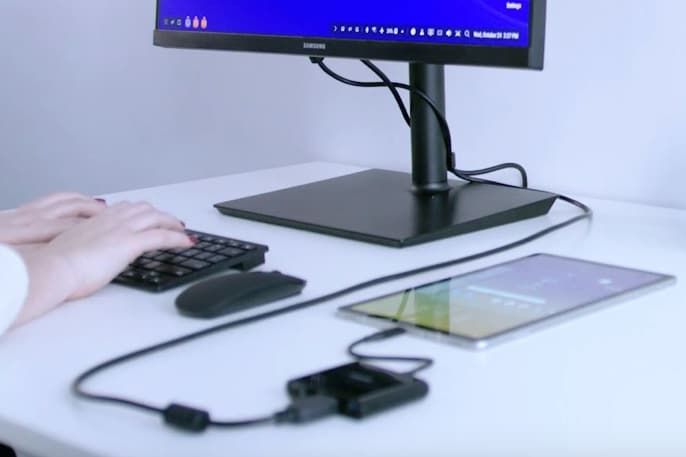
How to Connect Your Tablet to Your Pc: A Step-by-step Guide
Are you tired of transferring files between your tablet and PC manually? Do you want to use your tablet as a second monitor or access its files directly from your computer? Look no further! In this article, we will guide you through the process of connecting your tablet to your PC using both wired and wireless methods.
What You Need to Get Started
Before we begin, make sure you have:
- A tablet (Android or iPad)
- A PC (Windows or Mac)
- A USB cable
- A stable internet connection
Connecting Your Tablet to Your PC Using a Usb Cable
This method is the most straightforward and efficient way to connect your tablet to your PC. Here’s how:
Step 1: Prepare Your Devices
Turn on both devices and ensure they are connected to the same Wi-Fi network.
Step 2: Connect The Tablet to The PC Using a Usb Cable
Use the USB cable to connect your tablet to your PC. Make sure the cable is securely inserted into both devices.
Step 3: Enable File Transfer on Your Tablet
On your tablet, go to Settings > USB Connection and select “File Transfer” or “MTP (Media Transfer Protocol)”.
Step 4: Access The Tablet’s Files From Your Pc
On your PC, open the file explorer and navigate to the device section. You should see your tablet listed as a connected device. Click on it to access its files.
Connecting Your Tablet to Your PC Using Wifi
If you prefer not to use a USB cable or want to transfer files wirelessly, here’s how:
Step 1: Enable File Transfer on Your Tablet (Again!)
On your tablet, go to Settings > USB Connection and select “File Transfer” or “MTP (Media Transfer Protocol)”.
For Android devices:
- Open the Photos app on your tablet
- Select the file you want to share
- Tap on the share icon and select “Nearby Share”
- Choose your PC as the destination device
For iPad devices:
- Open the Settings app on your tablet
- Go to General > AirDrop
- Turn on AirDrop
- On your PC, go to Finder (Mac) or File Explorer (Windows)
Using Your Tablet as a Second Monitor
Want to use your tablet as an extra monitor for your PC? Here’s how:
Step 1: Choose The Right Software
For Android devices, download and install SuperDisplay from the Google Play Store.
For iPad devices, download and install Astropad Project Blue (beta version).
Step 2: Set Up The Connection
Follow the instructions in the software you chose to set up the connection between your tablet and PC.
Connecting Your Tablet to Your Mac Using Wi-fi
If you have a Mac and an iPad or Android device, here’s how:
- Open iTunes on your Mac
- Connect your iPad or Android device using a USB cable (required for initial setup)
- Enable file transfer on your device
Now that we’ve covered the basics of connecting your tablet to your PC, let’s explore some additional options.
Using Services Like Snapdrop or Cloud Storage
Want to transfer files wirelessly without installing any software? Try services like Snapdrop or cloud storage solutions like Google Drive, OneDrive, or Dropbox!
Step 1: Sign Up For The Service
Create an account on the service you prefer.
Follow the instructions provided by the service to share files between your devices.
Connecting Your Ipad to Your PC
Want to connect your iPad directly to your PC? Here’s how:
- Open iTunes on your PC
- Connect your iPad using a USB cable (required for initial setup)
- Enable file transfer on your device
Now that we’ve explored the various methods of connecting your tablet to your PC, it’s time to summarize.
Conclusion
Connecting your tablet to your PC is easier than you think! Whether you prefer to use a USB cable or go wireless, there are many options available. By following these simple steps, you’ll be able to share files between devices, use your tablet as a second monitor, and even transfer files wirelessly using services like Snapdrop.
Frequently Asked Questions (FAQs)
Q: How do I enable file transfer on my Android device?
A: Go to Settings > USB Connection and select “File Transfer” or “MTP (Media Transfer Protocol)”.
Q: Can I use my iPad as a second monitor for my PC?
A: Yes, you can! Use software like Astropad Project Blue (beta version) to set up the connection.
Q: How do I share files wirelessly between devices?
A: Try services like Snapdrop or cloud storage solutions like Google Drive, OneDrive, or Dropbox!
Q: Can I connect my iPad directly to my PC?
A: Yes, you can! Open iTunes on your PC and follow the instructions provided by the service.
Q: How do I use Nearby Share (Android) or AirDrop (iPad)?
A: For Android devices, open the Photos app and select the file you want to share. Tap on the share icon and choose “Nearby Share”. For iPad devices, go to Settings > General > AirDrop and turn it on.
Q: Can I transfer files wirelessly using a USB cable?
A: No, this is not possible. However, you can use services like Snapdrop or cloud storage solutions to share files wirelessly.
Q: How do I access the tablet’s files from my PC?
A: On your PC, open the file explorer and navigate to the device section. You should see your tablet listed as a connected device. Click on it to access its files.
Q: Can I use my tablet as a graphic tablet for my PC?
A: Yes, you can! Use software like SuperDisplay (Android) or Astropad Project Blue (beta version) (iPad) to set up the connection.
Q: How do I transfer files between devices using cloud storage solutions?
A: Follow the instructions provided by the service to share files between your devices.


