
How to Connect to a Wi-fi Network: A Step-by-step Guide
Are you tired of struggling to connect to your home Wi-Fi network? Do you find yourself forgetting the password or having trouble linking devices to your network? You’re not alone! In this article, we’ll walk you through the process of connecting to a Wi-Fi network, step by step.
Why Is Connecting to Wi-fi Important?
Connecting to a Wi-Fi network is essential for accessing the internet, streaming media, and communicating with others. However, it’s equally important to ensure your connection is secure to prevent unauthorized access to your personal data.
What Are Some Common Issues When Connecting to Wi-fi?
Some common issues people face when connecting to Wi-Fi include:
- Forgetting the password
- Difficulty linking devices to the network
- Weak or easily guessable passwords
Don’t worry; we’ve got you covered! In this article, we’ll address these issues and provide a comprehensive guide on how to connect to a Wi-Fi network.
How to Recover Your Wi-fi Password: A Step-by-step Guide
Have you forgotten your Wi-Fi password? Don’t worry; it’s an easy mistake to make. Here are some steps to follow:
Windows 11: How to Recover Your Wi-fi Password
- Press the Start button and type “Control Panel”
- Click on “Network and Internet > Network and Sharing Center”
- Select the desired network and click on the Wireless Properties tab
- In the dialog box, select the option “Show characters” to view the password
- Click on “Save” to save the password
Macos: How to Recover Your Wi-fi Password
- Press the Start button and type “Keychain Access”
- Select the System Keychain
- Click on the Wireless tab
- Select the desired network and click on the Show Password button to view the password
Android Smartphone: How to Recover Your Wi-fi Password
- Tap the Settings app on your device
- Scroll down and select “Network and Internet”
- Select the desired network and tap on the Share button
- Select the option “Wi-Fi Password” to view the password
Iphone/ipad: How to Recover Your Wi-fi Password
- Tap the Settings app on your device
- Scroll down and select “Wi-Fi”
- Select the desired network and tap on the i button next to it
- Tap on the Show Password button to view the password
How to Connect to a Wi-fi Network: A Step-by-step Guide
Now that you’ve recovered your Wi-Fi password, here’s how to connect to a Wi-Fi network:
- Open the Settings app on your device.
- Scroll down and select “Network and Internet.”
- Select the desired network from the list of available networks.
- Enter the Wi-Fi password when prompted.
- Tap the Connect button to establish a connection.
Frequent Questions (FAQ)
Q: How can I recover my Wi-Fi password?
A: You can recover your Wi-Fi password by following the steps provided in this article specific to your system or device.
Q: What is the difference between WPA2 and WPA3?
A: WPA3 is a more secure version of WPA2. WPA3 offers a higher level of protection against brute-force attacks and vulnerabilities present in WPA2.
Q: How can I configure my router to ensure a stable Wi-Fi connection?
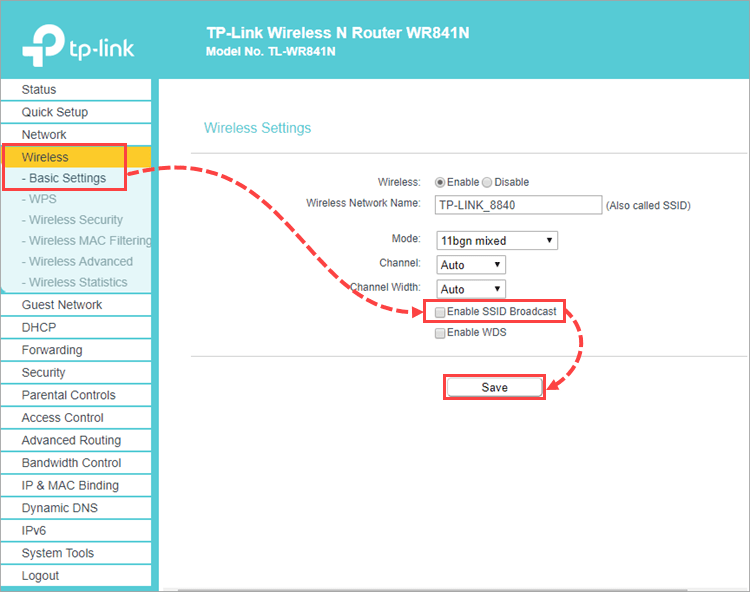
A: To configure your router, access the control panel, select the “Network” or “Wi-Fi” tab, enable WPA2 or WPA3 encryption, and disable WPS if it’s not necessary.
Q: What are the consequences of using a weak password for my Wi-Fi network?
A: Using a weak password can expose your Wi-Fi network to security risks, including brute-force attacks and unauthorized access to your data.


