
Connecting to Supercell Id: A Guide to Synchronizing Your Progress
If you’re a fan of video games developed by Supercell, such as Clash of Clans or Clash Royale, you know how frustrating it can be to lose your progress when switching between devices. In this article, we’ll show you how to connect your Supercell ID and synchronize your data across different platforms.
What is Supercell Id?
Supercell ID is a unique identifier that allows you to access and synchronize your game data across multiple devices. It’s similar to a login system, but specifically designed for Supercell games. By connecting your Supercell ID, you can enjoy seamless gameplay experience on Android or iOS devices.
Creating a Supercell ID
To start, let’s create a Supercell ID account. Here’s how:
- Open The Game: Launch any Supercell game (e.G., Clash of Clans, Brawl Stars) on your device.
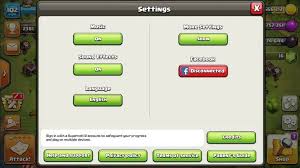
- Access Settings: Tap on the gear icon or navigate to the Settings section.
- Tap “Supercell Id”: Select this option from the menu.
- Register an Account: Follow the prompts to create a new Supercell ID account.
Connecting to Supercell ID
Now that you have a Supercell ID, let’s connect it to your favorite games:
Clash of Clans
- Launch Clash of Clans: Open the game on your device.
- Tap The Gear Icon: Access the Settings section.
- Select “Supercell Id”: Choose this option from the menu.
- Disconnect if Necessary: Tap the Disconnect button to ensure you’re not already logged in.
- Enter Email Address: Enter the email address associated with your Supercell ID account.
- Access: Tap Access to confirm.
Brawl Stars
- Launch Brawl Stars: Open the game on your device.
- Tap The Gear Icon: Access the Settings section.
- Select “Supercell Id”: Choose this option from the menu.
- Disconnect if Necessary: Tap the Disconnect button to ensure you’re not already logged in.
- Enter Email Address: Enter the email address associated with your Supercell ID account.
- Access: Tap Access to confirm.
Clash Royale
- Launch Clash Royale: Open the game on your device.
- Tap The Gear Icon: Access the Settings section.
- Select “Supercell Id”: Choose this option from the menu.
- Disconnect if Necessary: Tap the Disconnect button to ensure you’re not already logged in.
- Enter Email Address: Enter the email address associated with your Supercell ID account.
- Access: Tap Access to confirm.
Boom Beach
- Launch Boom Beach: Open the game on your device.
- Tap The Gear Icon: Access the Settings section.
- Select “Supercell Id”: Choose this option from the menu.
- Disconnect if Necessary: Tap the Disconnect button to ensure you’re not already logged in.
- Enter Email Address: Enter the email address associated with your Supercell ID account.
- Access: Tap Access to confirm.
Hay Day
- Launch Hay Day: Open the game on your device.
- Tap The Gear Icon: Access the Settings section.
- Select “Supercell Id”: Choose this option from the menu.
- Disconnect if Necessary: Tap the Disconnect button to ensure you’re not already logged in.
- Enter Email Address: Enter the email address associated with your Supercell ID account.
- Access: Tap Access to confirm.
Squad Busters
- Launch Squad Busters: Open the game on your device.
- Tap The Gear Icon: Access the Settings section.
- Select “Supercell Id”: Choose this option from the menu.
- Disconnect if Necessary: Tap the Disconnect button to ensure you’re not already logged in.
- Enter Email Address: Enter the email address associated with your Supercell ID account.
- Access: Tap Access to confirm.
Troubleshooting
If you encounter any issues while connecting your Supercell ID, try restarting the game or checking your internet connection. If problems persist, feel free to reach out to our support team for assistance.
Conclusion
Connecting your Supercell ID is a simple and straightforward process that ensures seamless gameplay across multiple devices. By following these steps, you can enjoy uninterrupted gaming experience with all your favorite Supercell titles.
Connect With us
Stay up-to-date on the latest gaming news and tutorials by following our social media channels:
Facebook: @Supercellid
Twitter: @Supercellid
Instagram: @Supercellid
Have any questions or concerns? Feel free to reach out to us at [email protected].


