
How to Connect to Internet at Home: A Step-by-step Guide
Are you struggling to connect your devices to the internet at home? Look no further! In this comprehensive guide, we’ll walk you through the process of setting up your home network and connecting your devices to the internet.
Understanding Your Home Network
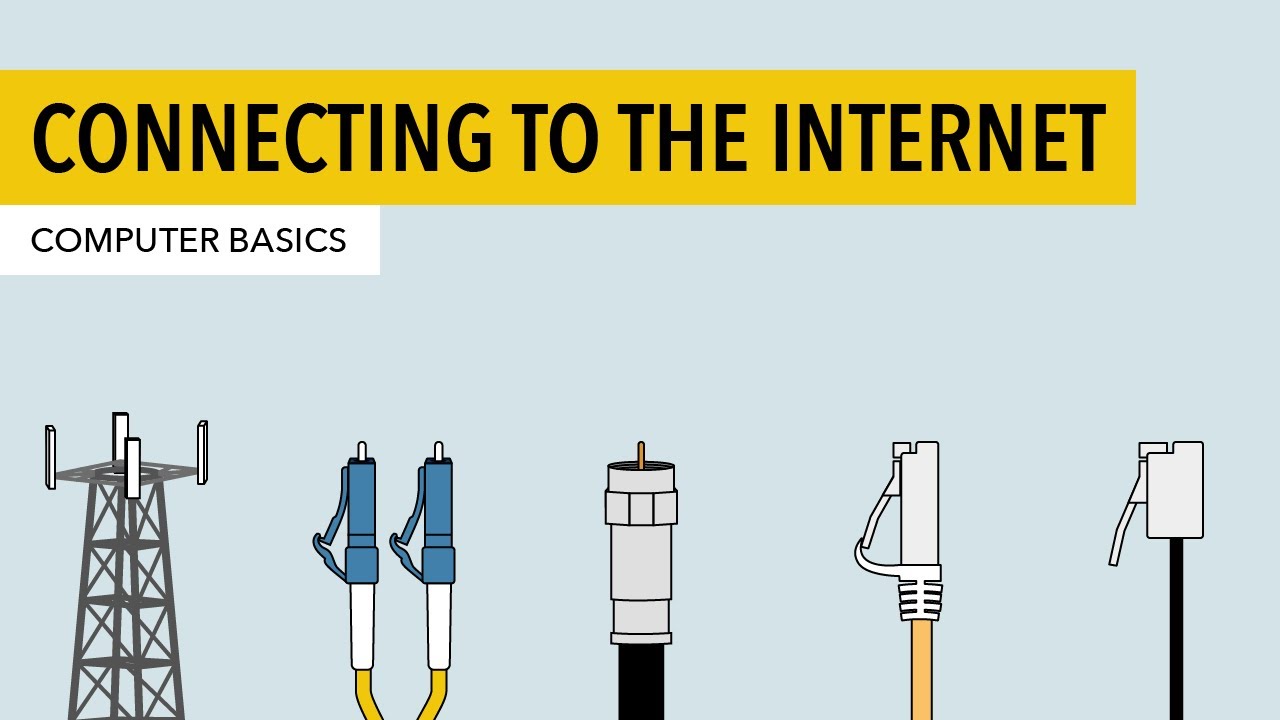
Before we dive into the nitty-gritty, it’s essential to understand how your home network works. Your router is the central hub that connects all your devices to the internet. The modem brings the internet signal from your service provider into your home, where it’s received by the router and distributed to all connected devices.
Configuring Your Modem
To connect to the internet at home, you’ll need to configure your modem correctly. Here are the steps:
- Connect The Power Cord: Plug in the power cord to turn on the modem.
- Connect The Ethernet Cable: Connect an Ethernet cable from the modem to your computer or other devices that need access to the internet.
- Configure The Modem: Access the modem’s web interface by typing its IP address (usually 192.168.1.1) Into a web browser. Log in with the default username and password, which are usually “admin” for both.
- Follow The On-screen Instructions: The modem will guide you through the configuration process, which may include setting up your network name (SSID), security settings, and other parameters.
Connecting Devices to Your Home Network
Now that your modem is configured, it’s time to connect your devices to the internet:
- Connect a Computer: Connect a computer to the router using an Ethernet cable or Wi-Fi.
- Connect Other Devices: Use Wi-Fi or Ethernet cables to connect other devices, such as smartphones, tablets, and smart home devices.
- Configure Each Device: Set up each device’s network settings according to its manufacturer’s instructions.
Troubleshooting Common Issues
If you encounter any issues during the process, don’t worry! Here are some common problems and their solutions:
- Connection Issues: Restart your router or modem to resolve connection issues.
- Weak Signal Strength: Move your devices closer to the router or upgrade to a more powerful antenna.
- Security Concerns: Update your network’s security settings to ensure encryption and authentication.
Alternative Solutions
If you’re looking for alternative ways to connect to the internet, consider:
- Mobile Hotspots: Use your smartphone as a mobile hotspot to access the internet from anywhere.
- Public Wi-fi: Take advantage of public Wi-Fi hotspots at coffee shops, libraries, or other locations.
- Virtual Private Networks (VPNs): Use VPNs to secure and encrypt your online data.
Conclusion
Connecting to the internet at home can seem daunting, but with this step-by-step guide, you should be able to set up your home network and connect your devices in no time. Remember to troubleshoot common issues, use alternative solutions when needed, and always prioritize security.
Frequently Asked Questions (FAQs)
- What is The Difference Between a Modem And a Router?
A modem brings the internet signal from your service provider into your home, while a router distributes the signal to all connected devices. - How do I Secure my Home Network?
Use strong passwords, enable encryption, and set up a guest network to keep your data safe. - Can I Use my Smartphone as a Hotspot?
Yes! Your smartphone can be used as a mobile hotspot to access the internet from anywhere. - What is a Virtual Private Network (VPN)?
A VPN encrypts and secures your online data, protecting it from unauthorized access. - Why is my Internet Connection Slow?
Check your router’s firmware, restart your modem, or upgrade to a faster plan if needed. - Can I Connect Multiple Devices to The Same Network?
Yes! You can connect multiple devices to the same network using Wi-Fi or Ethernet cables. - How do I Update my Network’s Security Settings?
Check your router’s manual or contact your service provider for instructions on updating security settings. - What Should I do if I Encounter Connection Issues?
Restart your router or modem, check your network settings, or contact your service provider for assistance.


