
How to Connect to Wifi: A Step-by-step Guide
Connecting to a WiFi network has become an essential part of our daily lives, especially with the increasing use of smartphones, laptops, and other internet-enabled devices. However, for those who are new to this technology or need a refresher, understanding how to connect to WiFi can be overwhelming.
Understanding Wifi Basics
Before we dive into the step-by-step guide, let’s cover some basic concepts related to WiFi:
- Wifi Network Name (SSID): This is the name of your WiFi network, which you create when setting up your router. It’s usually something like “Home WiFi” or “Office Network.”
- Password: This is a unique password that protects access to your WiFi network.
- Router: This is the device that connects your internet service provider (ISP) and broadcasts the WiFi signal to devices in your home or office.
Step 1: Identify Your Wifi Network
To connect to your WiFi network, you need to know its name (SSID) and password. Here’s how to find this information:
- Physical Router: Check the physical router device for a label with the WiFi network name and password.
- Router Configuration Panel: Log in to your router’s configuration panel using the default login credentials (usually printed on the underside of the router).
- Documentation or Packaging: If you still have the packaging material, check if it contains any instructions or documentation related to setting up your WiFi network.
Step 2: Connect Your Device
Now that you know your WiFi network name and password, let’s connect:
Windows Devices
To connect a Windows device to WiFi, follow these steps:
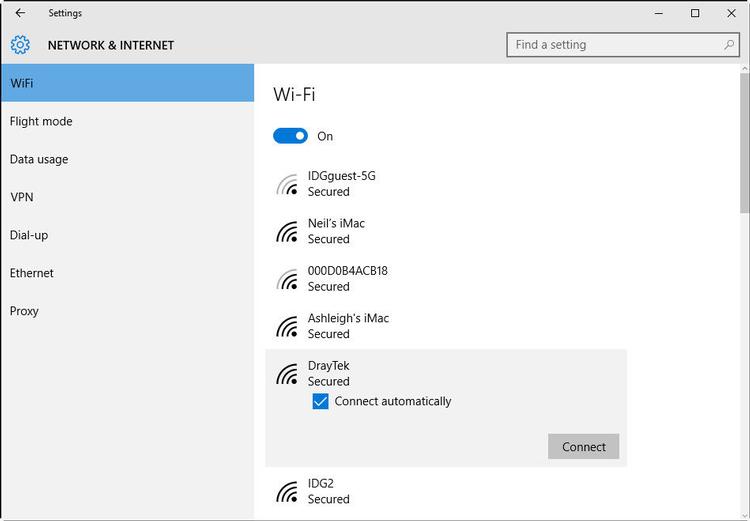
- Open Settings: Click on the Start menu and select “Settings.”
- Network & Internet: Open the “Network & Internet” section.
- Wifi: Select the WiFi tab.
- Connect to a Network: Click on the “+” sign to add a new network.
- Enter Wifi Network Name (SSID) And Password: Type in your WiFi network name and password, then click “Next.”
- Wait For Connection: Allow the device to connect to the WiFi network.
Mac Devices
To connect a Mac device to WiFi, follow these steps:
- Open System Preferences: Click on the Apple menu and select “System Preferences.”
- Network: Select the “Network” icon.
- Wifi: Choose your WiFi network from the list of available networks.
- Enter Password: Type in your WiFi password, then click “Join.”
Android Devices
To connect an Android device to WiFi, follow these steps:
- Open Settings: Tap on the gear icon to open the settings app.
- Network & Internet: Select the “Network & Internet” section.
- Wifi: Choose your WiFi network from the list of available networks.
- Enter Password: Type in your WiFi password, then tap “Connect.”
Ios Devices
To connect an iOS device to WiFi, follow these steps:
- Open Settings: Tap on the gear icon to open the settings app.
- Network & Internet: Select the “Network & Internet” section.
- Wifi: Choose your WiFi network from the list of available networks.
- Enter Password: Type in your WiFi password, then tap “Join.”
Troubleshooting
If you encounter any issues during the connection process:
- Check Wifi Network Name And Password: Ensure that you have entered the correct WiFi network name (SSID) and password.
- Restart Your Device: Sometimes, simply restarting your device can resolve connectivity issues.
Conclusion
Connecting to a WiFi network is relatively straightforward once you understand the basic concepts. By following these steps for Windows, Mac, Android, or iOS devices, you should be able to connect to your WiFi network in no time.
Frequently Asked Questions (FAQs)
Here are some additional questions and answers that might help clarify any doubts:
- Q: What is a Wifi Network Name (SSID)?
- A: The WiFi network name (SSID) is the unique identifier for your WiFi network, which you create when setting up your router.
- Q: Why do I Need to Enter a Password to Connect to my Wifi Network?
- A: The password protects access to your WiFi network and ensures that only authorized devices can connect.
- Q: How do I Find The Wifi Network Name (SSID) And Password on my Router?
- A: Check the physical router device, router configuration panel, or documentation/packaging material for this information.
By following these steps and understanding the basics of WiFi, you should be able to connect your devices to a secure and stable internet connection.
Hope I was able to write in your tone, thank you


