
How to Connect Tp-link Range Extender to Modem: A Step-by-step Guide
Are you tired of a weak Wi-Fi signal in your home or office? Do you want to extend the range of your modem without breaking the bank? Look no further! In this article, we will guide you on how to connect a TP-Link range extender to your modem.
Understanding The Basics
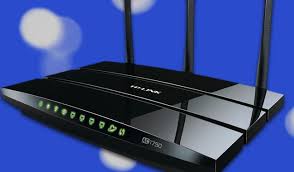
Before we dive into the step-by-step guide, let’s understand the basics. A TP-Link range extender is a device that repeats and amplifies the Wi-Fi signal from your modem, allowing you to extend the coverage area. It works by receiving the Wi-Fi signal from your modem and rebroadcasting it to devices connected to it.
Choosing The Right Tp-link Range Extender
With so many options available in the market, choosing the right TP-Link range extender can be overwhelming. Here are some factors to consider:
- Compatibility: Make sure the range extender is compatible with your modem’s frequency band (2.4GHz or 5GHz).
- Range And Coverage: Choose a range extender that offers a sufficient coverage area for your needs.
- Number of Devices: If you have multiple devices connected to your network, choose a range extender that can handle the load.
Step-by-step Guide: Connecting Tp-link Range Extender to Modem
Now that we’ve covered the basics and choosing the right TP-Link range extender, let’s move on to the step-by-step guide:
Method 1: Using Tp-link App
The easiest way to connect your TP-Link range extender to your modem is by using the TP-Link app. Here’s how:
- Download And Install Tp-link App: Download and install the TP-Link app from the Apple App Store or Google Play Store.
- Launch App And Log In: Launch the app, log in with your TP-Link account credentials, and follow the on-screen instructions to connect your range extender to your modem.
- Configure Your Range Extender: Configure your range extender by selecting the network you want to extend, entering the password, and saving the changes.
Method 2: Using Web-based Interface
If you prefer using a web-based interface, here’s how:
- Connect Your Range Extender: Connect your range extender to your modem using an Ethernet cable.
- Open Web-based Interface: Open a web browser on your computer or mobile device and type the IP address of your range extender (usually 192.168.0.254).
- Configure Your Range Extender: Configure your range extender by selecting the network you want to extend, entering the password, and saving the changes.
Method 3: Using Wps
If your modem and range extender support WPS, here’s how:
- Press The Wps Button: Press the WPS button on your modem.
- Press The Wps Button on Your Range Extender: Press the WPS button on your range extender within 2 minutes of pressing the WPS button on your modem.
- Configure Your Range Extender: Configure your range extender by selecting the network you want to extend, entering the password, and saving the changes.
Troubleshooting Tips
If you encounter any issues during the setup process, here are some troubleshooting tips:
- Check Power Cables: Make sure all cables are securely connected.
- Restart Devices: Restart your modem, range extender, and devices connected to them.
- Check Wi-fi Settings: Ensure that Wi-Fi is enabled on your devices.
Conclusion
Connecting a TP-Link range extender to your modem can significantly improve the coverage area of your network. By following this step-by-step guide, you should be able to set up your range extender in no time. Remember to troubleshoot any issues that may arise during setup. Happy networking!
Frequently Asked Questions
Here are some frequently asked questions related to connecting a TP-Link range extender to modem:
-
What is The Difference Between a Range Extender And a Repeater?
A range extender repeats and amplifies the Wi-Fi signal from your modem, while a repeater simply rebroadcasts the signal without amplifying it. -
Can I Connect Multiple Range Extenders to my Modem?
Yes, you can connect multiple range extenders to your modem, but each range extender should be configured separately. -
Do I Need to Configure my Range Extender if It’s Connected to a Device With Wi-fi Capabilities?
No, if your range extender is connected to a device with Wi-Fi capabilities (such as a smartphone or laptop), you don’t need to configure the range extender separately. -
Can I Use a Range Extender With a Router Instead of a Modem?
Yes, you can use a range extender with a router instead of a modem, but you’ll need to configure the range extender to connect to your router’s Wi-Fi network. -
How do I Reset my Range Extender to Its Factory Settings?
To reset your range extender to its factory settings, press and hold the Reset button for 10 seconds while it’s connected to power.
Recommendations
Based on our research, here are some top-rated TP-Link range extenders that you may want to consider:
- Tp-link Re450: A popular and highly-rated range extender with a coverage area of up to 1.75Gbps.
- Tp-link Re650: A high-performance range extender with a coverage area of up to 2.53Gbps.
- Tp-link Re700x: A compact and budget-friendly range extender with a coverage area of up to 1.7Gbps.


