
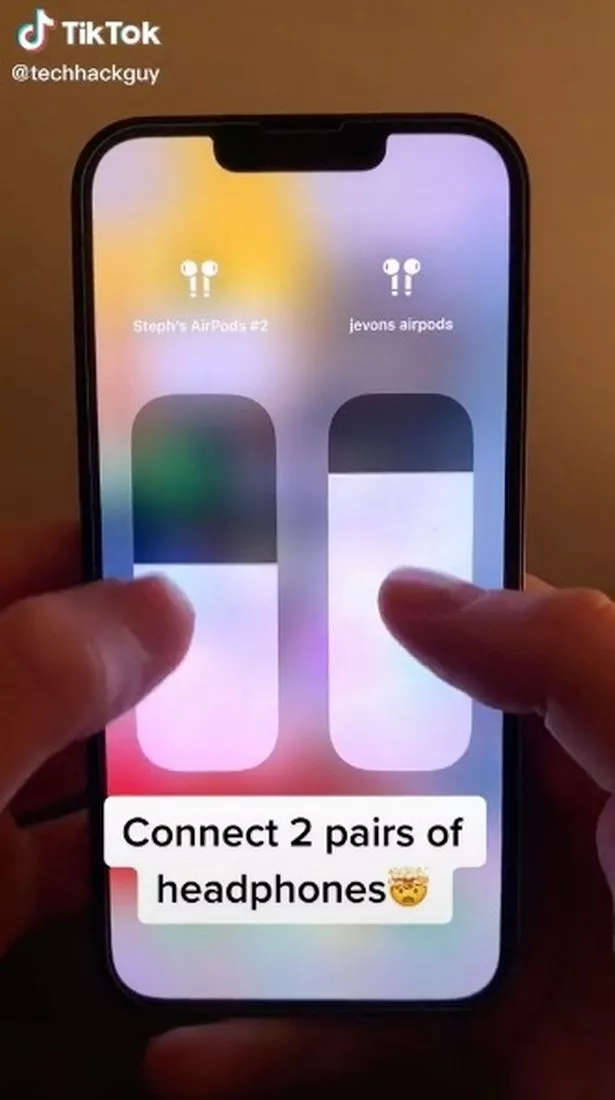
How to Connect Two Airpods to The Same Iphone or Ipad
Are you tired of having to share your music or podcast with others on a long flight or during a road trip? Do you wish there was a way to connect two pairs of AirPods to the same device without disturbing those around you? Look no further! In this article, we’ll show you how to connect two AirPods to the same iPhone or iPad using Apple’s Share Audio feature.
What is Share Audio?
Share Audio is a feature available on iOS devices that allows users to share audio with other Bluetooth-compatible earphones. This means that if you have two pairs of AirPods, you can connect them to your iPhone or iPad and listen to the same music or podcast simultaneously.
Requirements For Using Share Audio
Before we dive into the steps, make sure you meet the following requirements:
- Your device must be an iPhone 8 or later, running iOS 13 or later.
- Both AirPods pairs must have a compatible chip (H1 or W1).
- The other person’s AirPods must also have a compatible chip.
How to Connect Two Airpods to The Same Iphone
- Connect Your First Pair of Airpods: Put one earbud in each ear and make sure they’re connected to your iPhone.
- Enable Share Audio: Go to Settings > Bluetooth, then tap on “i” next to your AirPods name and select “Share Audio”.
- Connect The Second Pair of Airpods: Have the other person put their AirPods in ear and connect them to their own iPhone or iPad.
- Enable Share Audio on The Second Device: Repeat steps 2-3 on the second device.
- Sync Your Audio: Once both devices are connected, you’ll see a prompt asking if you want to sync your audio. Tap “Share Audio” to start the process.
How to Connect Two Airpods to The Same Ipad
The procedure for connecting two AirPods to an iPad is similar to that of an iPhone:
- Connect Your First Pair of Airpods: Put one earbud in each ear and make sure they’re connected to your iPad.
- Enable Share Audio: Go to Settings > Bluetooth, then tap on “i” next to your AirPods name and select “Share Audio”.
- Connect The Second Pair of Airpods: Have the other person put their AirPods in ear and connect them to their own iPhone or iPad.
- Enable Share Audio on The Second Device: Repeat steps 2-3 on the second device.
- Sync Your Audio: Once both devices are connected, you’ll see a prompt asking if you want to sync your audio. Tap “Share Audio” to start the process.
Can I Connect Two Airpods to an Android Device?
Unfortunately, it’s not possible to connect two pairs of AirPods (or other earphones with Apple chips) directly to an Android device using Bluetooth 5.0 Or later. However, you can use a workaround by sharing audio from your iPhone or iPad to an Android device using the Dual Audio feature.
Can I Connect Two Airpods to a Pc?
Unfortunately, it’s not possible to connect two pairs of AirPods directly to a Windows PC using Bluetooth. Apple has implemented special identifiers in their devices that prevent multiple earphones from being connected at once. However, you can still connect one pair of AirPods to your PC and use them normally.
Can I Connect Two Airpods to a Mac?
While Share Audio is not natively available on Macs, you can use the MIDI Audio feature to connect two AirPods to your MacBook or other Apple device. This process involves creating a new audio output device using the MIDI Audio Configuration tool.
By following these steps and requirements, you’ll be able to enjoy shared audio with friends and family on long trips or during downtime.
Frequently Asked Questions
- Q: Can I Connect Two Pairs of Airpods to an Android Device?
A: Unfortunately, no. - Q: Can I Use Any Type of Earphones With Share Audio?
A: Yes, as long as they have a compatible chip (H1 or W1). - Q: Can I Connect Two Airpods to a Windows Pc?
A: No, due to Apple’s implementation of special identifiers in their devices. - Q: Can I Connect Two Airpods to a Mac?
A: Yes, using the MIDI Audio feature and creating a new audio output device. - Q: How do I Know if my Device Meets The Requirements For Share Audio?
A: Check your iPhone or iPad’s operating system version (iOS 13 or later) and ensure both AirPods pairs have compatible chips. - Q: Can I Share Audio With Non-apple Earphones?
A: Yes, as long as they are Bluetooth-compatible.
We hope this guide has been helpful in connecting two AirPods to the same iPhone or iPad using Share Audio!


