
Connecting Whatsapp to Your Pc: A Comprehensive Guide
Are you tired of constantly switching between your phone and computer while using WhatsApp? Do you want to experience the comfort of typing messages on your keyboard, just like you do on your computer? Look no further! In this article, we will guide you through the process of connecting WhatsApp to your PC, making it easier for you to manage your conversations and stay connected with your colleagues and clients.
What You Need to Know
Before we dive into the step-by-step instructions, let’s cover some basics. To connect WhatsApp to your PC, you’ll need:
- A smartphone (either Android or iPhone)
- A computer with an internet connection
- The WhatsApp client native for Windows or macOS (or the web version)
Connecting Whatsapp to Your PC
If you’re using a Windows or macOS device, you can download the official WhatsApp client from the Microsoft Store or App Store. Once installed, follow these steps:
- Open the WhatsApp application on your smartphone.
- Tap the three dots in the top right corner and select “Devices connected”.
- Tap “Link a device” and confirm the operation using Face ID or Touch ID (if applicable).
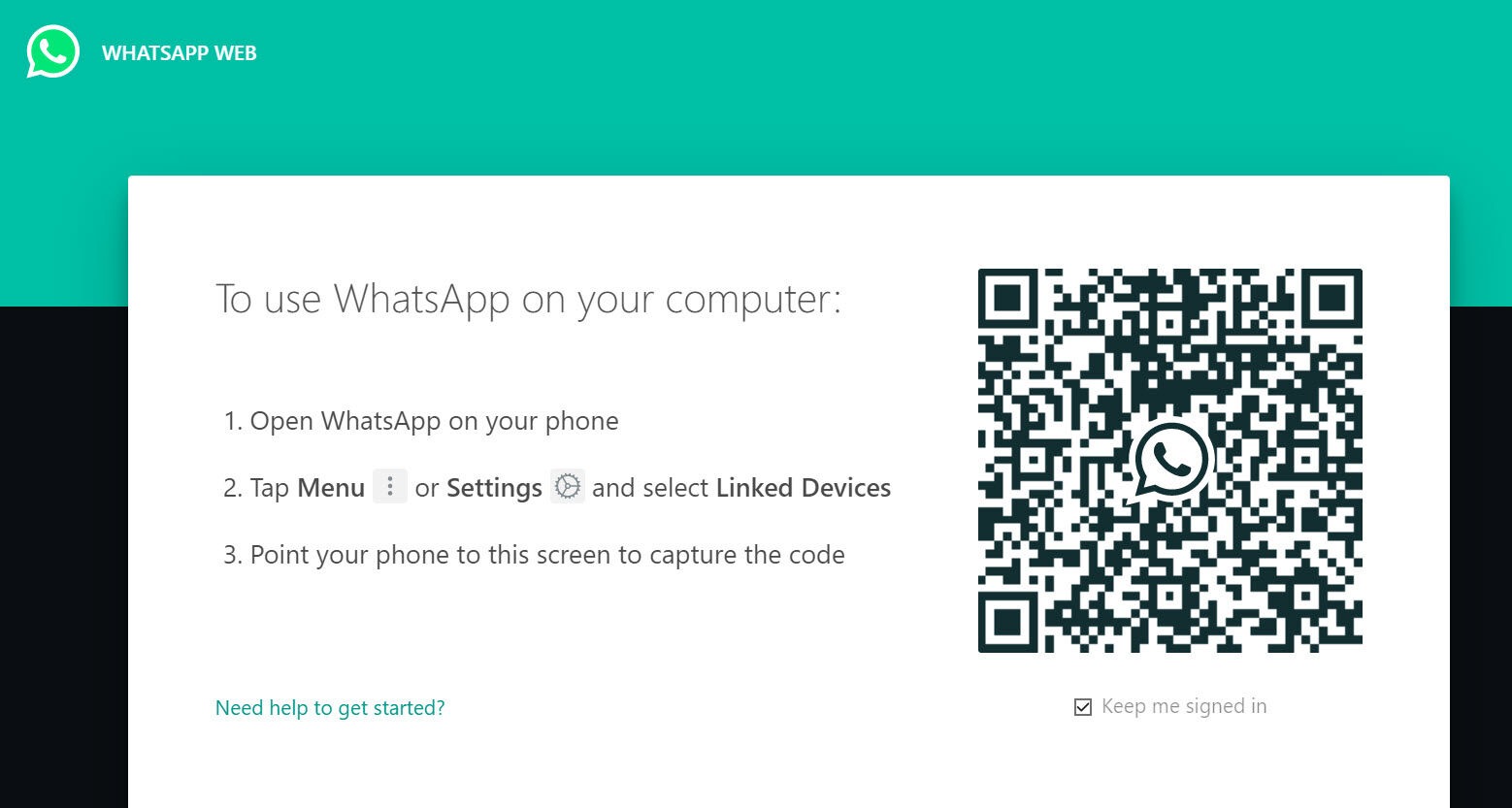
- Scan the QR code displayed on your computer screen with your smartphone’s camera.
- Wait for the synchronization process to complete.
Using Whatsapp Web
Alternatively, you can use the WhatsApp web version by accessing the following URL in your browser:
-
Https://Web.Whatsapp.Com/
-
Open the WhatsApp web version on your computer.
- Scan the QR code displayed on your screen with your smartphone’s camera.
- Wait for the synchronization process to complete.
Connecting Whatsapp to Your PC Without a Smartphone
If you don’t have a smartphone or prefer not to use one, you can still connect WhatsApp to your PC using the “Devices connected” feature.
- Open the WhatsApp client native on your computer (if installed).
- Follow the same steps as above to link your device.
- Note that this method requires you to manually scan the QR code each time you access WhatsApp on your PC.
Benefits of Connecting Whatsapp to Your PC
By connecting WhatsApp to your PC, you’ll enjoy several benefits:
- Improved typing experience: Use your keyboard to type messages and save time.
- Enhanced productivity: Stay connected with colleagues and clients without constantly switching between devices.
- Easier conversation management: Access all your chats from one place.
Troubleshooting Common Issues
If you encounter any issues during the setup process, refer to our troubleshooting guide on how to find and scan WhatsApp QR codes.
Conclusion
Connecting WhatsApp to your PC is a straightforward process that opens up new possibilities for improved productivity and convenience. By following these steps, you’ll be able to manage your conversations more efficiently and stay connected with your colleagues and clients from the comfort of your computer. Happy chatting!
Frequently Asked Questions (FAQs)
- Q: What Devices Can I Use to Connect Whatsapp to my Pc?
A: You can use Android or iPhone smartphones, as well as computers with Windows or macOS operating systems. - Q: Do I Need a Smartphone to Connect Whatsapp to my Pc?
A: No, you can use the “Devices connected” feature on your computer without a smartphone. - Q: How do I Troubleshoot Common Issues When Connecting Whatsapp to my Pc?
A: Refer to our troubleshooting guide for help with finding and scanning WhatsApp QR codes. - Q: Can I Connect Multiple Devices to Whatsapp at Once?
A: Yes, you can connect multiple devices to WhatsApp using the “Devices connected” feature. - Q: Do I Need to Have my Smartphone Connected to The Internet For Whatsapp to Work on my Pc?
A: No, you don’t need your smartphone connected to the internet for WhatsApp to function on your PC. - Q: Can I Use Whatsapp on Multiple Devices at The Same Time?
A: Yes, you can use WhatsApp on multiple devices simultaneously using the “Devices connected” feature. - Q: How do I Enable Notifications on my Computer When Using Whatsapp?
A: Follow the instructions in our article to enable notifications on your computer while using WhatsApp. - Q: Can I Disconnect a Device From Whatsapp And Reconnect it Later?
A: Yes, you can disconnect a device from WhatsApp and reconnect it at a later time using the “Devices connected” feature.
Hope this helps!


