
How to Connect Headphones With Cables: A Comprehensive Guide
Are you tired of using wireless headphones that drain your phone’s battery? Do you want to experience the same quality sound without the hassle of recharging? Look no further!
In this article, we’ll show you how to connect headphones with cables to your iPhone, and explore the best options for a seamless listening experience.
Connecting Headphones With Cables: A Brief History
In the past, iPhones had a dedicated headphone jack that allowed users to plug in their favorite headphones or earphones. However, with the release of the iPhone 7, Apple decided to ditch this feature and move towards wireless audio connectivity. But don’t worry, there are still ways to connect your headphones with cables to your iPhone.
Lightning-connector Headphones
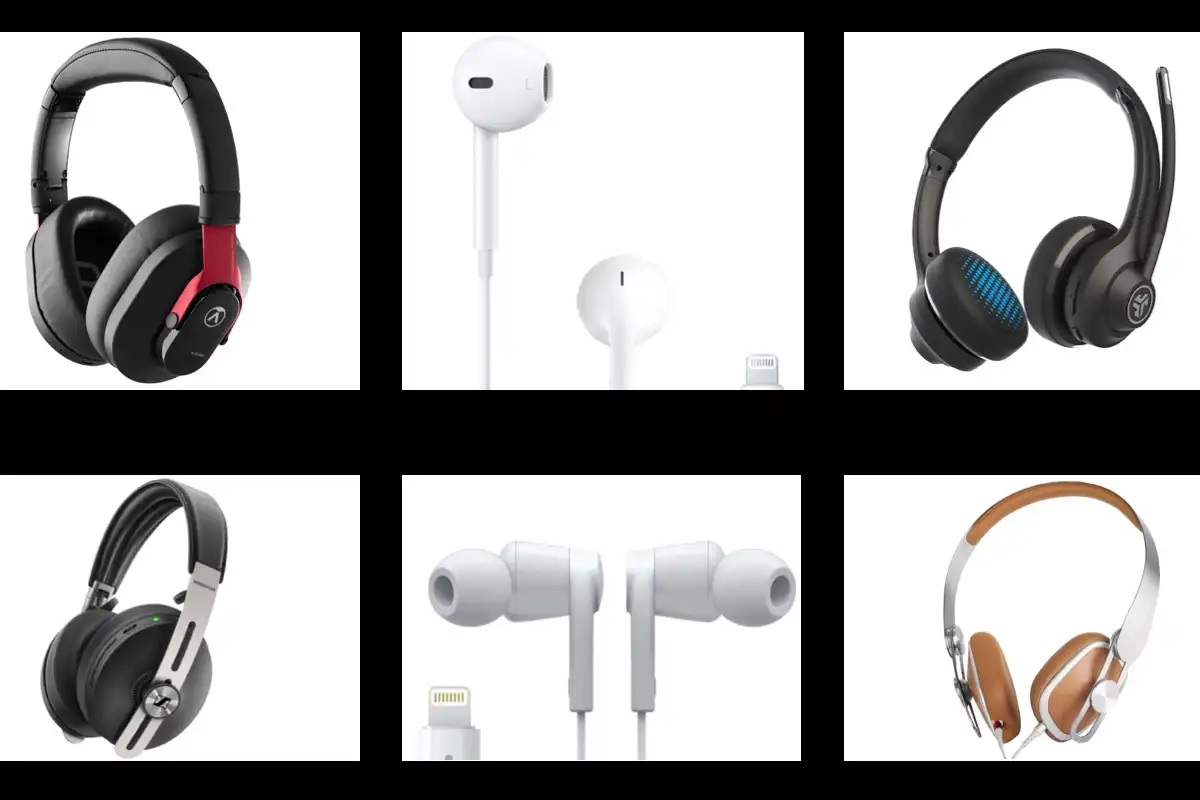
One of the most convenient options is to use earphones or headsets specifically designed for Lightning-connector iPhones. These devices come equipped with a Lightning connector that plugs directly into the phone’s charging port, making it easy to connect and disconnect your headphones. You can find a variety of options on Amazon, including Apple EarPods with Lightning.
Adapters
Another option is to use an adapter that converts the Lightning connector on your phone to a standard headphone jack. This way, you can use your favorite headphones or earphones with a cable. There are two types of adapters available: Simple ones with only a Lightning connector and a headphone jack, and more advanced ones with additional features like dual jacks for simultaneous charging and listening.
Choosing The Right Adapter
When selecting an adapter, look for one that is MFi (Made For iPhone) certified, which ensures compatibility with your device. Make sure to read reviews and check the specifications before making a purchase.
Connecting Your Headphones
To connect your headphones, simply plug the adapter into your phone’s charging port and insert the headphone jack into the corresponding slot on the adapter. If you’re using an adapter with dual jacks, make sure to select the correct option in the iPhone settings. Once connected, you’ll enjoy clear and crisp sound quality from your favorite music or podcasts.
Personalizing Your Audio Settings
To get the most out of your headphones, take some time to customize your audio settings on your phone. Go to Settings > Accessibility > Audio and Effects > Headphones and adjust the settings according to your preferences.
Using Apple Earpods With Lightning
If you’re already using Apple EarPods with a Lightning connector, you’ll be happy to know that you can still customize your audio settings on your phone. Tap on the “Use Configuration Audio Personalized” option and follow the prompts to adjust the settings according to your preferences.
Iphone 6 And Previous Models
If you own an iPhone 6 or earlier model, don’t worry – you can still connect your headphones with cables! These devices have a dedicated headphone jack that allows you to plug in your favorite headphones or earphones. Simply find the correct slot on your phone and insert the cable.
Conclusion
In this article, we’ve shown you how to connect headphones with cables to your iPhone, even after Apple dropped the headphone jack feature. With the right adapters and a little bit of customization, you can enjoy high-quality sound without the hassle of wireless audio connectivity. So go ahead, treat yourself to some new earphones or headsets, and experience the best listening experience possible!


