
Wireless Headphones: A Comprehensive Guide to Pairing With Android And Ios Devices
Are you tired of struggling to pair your wireless headphones with your smartphone? Look no further! In this article, we’ll guide you through the step-by-step process of pairing your wireless headphones with both Android and iOS devices.
Understanding Wireless Headphones Compatibility
Before we dive into the pairing process, it’s essential to understand that not all wireless headphones are compatible with every device. Some wireless headphones require an adapter or a specific setup to work seamlessly with your smartphone. Don’t worry; we’ll cover this in detail below.
Wireless Headphones: A Brief Introduction
Wireless headphones have become increasingly popular in recent years, offering users the convenience of listening to music without the hassle of tangled cords. With wireless headphones, you can enjoy your favorite tunes or podcasts while exercising, cooking, or simply relaxing at home.
Pairing Wireless Headphones With Android Devices
To pair your wireless headphones with an Android device, follow these steps:
Step 1: Activate Pairing Mode on Your Headphones
The first step is to activate pairing mode on your wireless headphones. This can be done by pressing and holding the pairing button until the LED light starts flashing.
Step 2: Open The Settings App on Your Android Device
Open the settings app on your Android device and navigate to the “Connections” section.
Step 3: Select Bluetooth
In the Connections section, select “Bluetooth.”
Step 4: Turn On Bluetooth
Turn on Bluetooth by sliding the toggle switch to the right.
Step 5: Search For Available Devices
Search for available devices in your vicinity. Your Android device will list all nearby Bluetooth-enabled devices, including your wireless headphones.
Step 6: Select Your Headphones
Select your wireless headphones from the list of available devices.
Step 7: Wait For The Pairing Process to Complete
Wait for the pairing process to complete. This should take a few seconds.
Pairing Wireless Headphones With Ios Devices
To pair your wireless headphones with an iOS device, follow these steps:
Step 1: Activate Pairing Mode on Your Headphones
The first step is to activate pairing mode on your wireless headphones. This can be done by pressing and holding the pairing button until the LED light starts flashing.
Step 2: Open The Settings App on Your Ios Device
Open the settings app on your iOS device and navigate to the “Bluetooth” section.
Step 3: Turn On Bluetooth
Turn on Bluetooth by sliding the toggle switch to the right.
Step 4: Search For Available Devices
Search for available devices in your vicinity. Your iOS device will list all nearby Bluetooth-enabled devices, including your wireless headphones.
Step 5: Select Your Headphones
Select your wireless headphones from the list of available devices.
Step 6: Wait For The Pairing Process to Complete
Wait for the pairing process to complete. This should take a few seconds.
Alternative Methods For Pairing Wireless Headphones
If you’re having trouble pairing your wireless headphones using the traditional method, don’t worry! There are alternative methods available:
- Google Fast Pair: If you have an Android device with Google Fast Pair enabled, you can pair your wireless headphones quickly and easily.
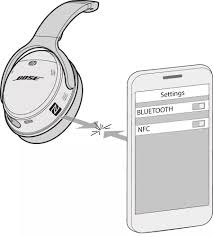
- Nfc (Near Field Communication): Some wireless headphones support NFC pairing. This allows you to pair your headphones by simply touching them to your smartphone.
Troubleshooting Common Issues
Are you experiencing issues with your wireless headphones? Don’t worry; we’ve got you covered! Here are some common issues and their solutions:
- Headphones Not Pairing: If your headphones aren’t pairing, try restarting your device or resetting your headphones.
- Weak Signal: If you’re experiencing a weak signal, try moving closer to your device or using a Bluetooth extender.
Conclusion
Pairing wireless headphones with Android and iOS devices can seem daunting, but it’s actually quite straightforward. By following the steps outlined in this article, you should be able to pair your wireless headphones quickly and easily. If you encounter any issues, don’t hesitate to reach out for help. Happy listening!
Frequently Asked Questions (FAQs)
Here are some frequently asked questions about pairing wireless headphones:
- Q: What is The Difference Between Pairing Mode And Bluetooth Mode?
A: Pairing mode is used to connect your wireless headphones to a device, while Bluetooth mode is used to enable or disable Bluetooth connectivity. - Q: How do I Know if my Wireless Headphones Are Compatible With my Device?
A: Check the manufacturer’s website for compatibility information or contact their customer support team. - Q: Can I Pair Multiple Devices at Once?
A: Yes, you can pair multiple devices to your wireless headphones, but it may affect battery life and performance. - Q: How do I Troubleshoot Pairing Issues?
A: Restart your device or reset your headphones if they’re not pairing correctly.


