
How to Connect Your Xbox 360 to a Tv: A Step-by-step Guide
Are you looking for ways to connect your Xbox 360 to a TV? If so, you’ve come to the right place! In this article, we’ll show you how to do just that, with step-by-step instructions and tips to make it easy.
Connecting Your Xbox 360 to a Tv: The Basics
Before we dive into the nitty-gritty details, let’s cover the basics. To connect your Xbox 360 to a TV, you’ll need:
- An Xbox 360 console
- A TV with an HDMI port (if you have one)
- A cable to connect the two (either HDMI or SCART)
Why Connect Your Xbox 360 to a Tv?
Connecting your Xbox 360 to a TV allows you to play games on the big screen, which is perfect for parties and family game nights. You’ll also be able to enjoy other entertainment options like movies and TV shows.
Method 1: Connecting Your Xbox 360 to a TV With Hdmi
If your TV has an HDMI port, connecting your Xbox 360 is a breeze.
- Take the HDMI cable provided with your Xbox 360 or purchase one separately.
- Plug one end of the cable into the HDMI output on the back of your Xbox 360.
- The other end goes into the HDMI input on your TV.
- Make sure to use the correct HDMI port (HDMI1, HDMI2, etc.) To get the best picture quality.
Method 2: Connecting Your Xbox 360 to a TV Without Hdmi
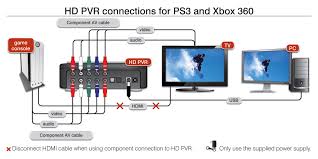
If your TV doesn’t have an HDMI port, you can still connect your Xbox 360 using SCART or Component AV cables.
- Take the SCART cable (if your TV has one) and plug it into the back of your Xbox 360.
- The other end goes into the SCART input on your TV.
- Alternatively, use a Component AV cable to connect your Xbox 360 to your TV. This will give you better picture quality.
Troubleshooting Tips
If you’re experiencing problems connecting your Xbox 360 to your TV, here are some troubleshooting tips:
- Make sure all cables are securely connected to both the console and the TV.
- Check that the correct HDMI port is being used on the TV.
- Ensure the SCART or Component AV cable is properly seated in both devices.
Conclusion
Connecting your Xbox 360 to a TV is a straightforward process, whether you’re using HDMI, SCART, or Component AV cables. By following these step-by-step instructions, you’ll be able to enjoy gaming and entertainment on the big screen in no time!
Frequently Asked Questions (FAQs)
-
Q: What Cable do I Need to Connect my Xbox 360 to a Tv?
A: If your TV has an HDMI port, use an HDMI cable. Otherwise, use a SCART or Component AV cable. -
Q: Why is my Picture Not Showing up on The Tv?
A: Check that all cables are securely connected and ensure the correct HDMI port (if using) is being used. -
Q: Can I Connect Multiple Devices to my TV at Once?
A: Yes, but you may need additional cables or adapters to achieve this. -
Q: How do I Fix a Faulty Cable Connection?
A: Try reseating the cable or replacing it if necessary. -
Q: Can I Connect my Xbox 360 to a Monitor Instead of a Tv?
A: Yes, but ensure the monitor has an HDMI input and is compatible with your console. -
Q: What Are Some Troubleshooting Tips For Connectivity Issues?
A: Check cables, ensure correct ports are being used, and restart devices if necessary. -
Q: Can I Use Any Type of Cable to Connect my Xbox 360 to a Tv?
A: No, only compatible cables like HDMI, SCART, or Component AV should be used to avoid damage to your console or TV. -
Q: What Are Some Alternatives to Connecting my Xbox 360 to a Tv?
A: Consider using external screens like monitors or projectors for an enhanced gaming experience.


