
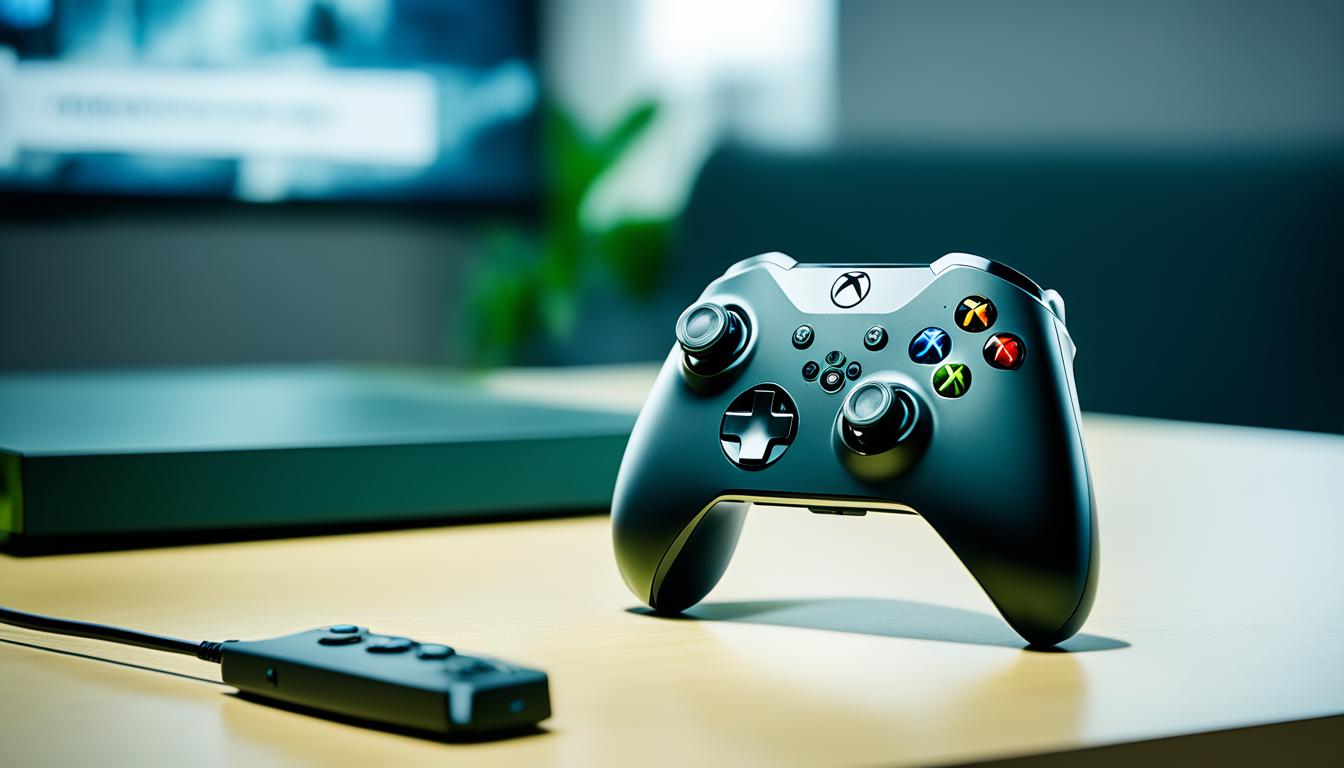
How to Connect Xbox Controller to Your Devices: A Comprehensive Guide
Are you struggling to connect your Xbox controller to your console, PC, phone, or tablet? Look no further! In this article, we will guide you through the step-by-step process of connecting your Xbox controller to various devices.
Connecting Xbox Controller to Console
If you have just acquired a new Xbox controller and are unsure how to connect it to your console, don’t worry. We’ve got you covered!
To connect your Xbox controller to your console in wireless mode using Bluetooth:
- Install batteries (AA or Microsoft Battery Pack) in the controller.
- Press the Xbox button until it starts to blink slowly.
- Go to your console and press the physical Associate button, identified by the icon ((().
- Hold the Associate button for 10 seconds until the LED light becomes steady.
Connecting Xbox Controller With Cable
If you prefer a wired connection, we’ve got instructions for that too!
To connect your Xbox controller to your PC or console using a cable:
- Choose a suitable cable (USB-To-USB-C or USB-To-microUSB).
- Connect one end of the cable to the controller and the other end to the device.
- Turn on the controller by pressing the Xbox button.
Connecting Xbox Controller to PC
Do you want to use your Xbox controller with your Windows computer? It’s easy!
To connect your Xbox controller to your PC using Bluetooth:
- Open the Settings app on your Windows computer and click on “Bluetooth & devices”.
- Click on “Add device” and select “Bluetooth”.
- Press the Associate button on the controller and hold it for 10 seconds until the LED light becomes steady.
Connecting Xbox Controller to Mac
Even though you’re using a Microsoft product, connecting your Xbox controller to your Mac is still possible!
To connect your Xbox controller to your Mac using Bluetooth:
- Make sure your Mac is updated to macOS Catalina or later.
- Insert batteries (AA or rechargeable) into the controller.
- Press the Xbox button until it starts to blink slowly.
- Open the Apple menu and select “System Preferences”.
- Click on “Bluetooth” and toggle the switch to ON.
- Select the “Xbox Wireless Controller” from the list of available devices.
Connecting Xbox Controller to Phone or Tablet
Want to use your Xbox controller with your Android, iOS, or iPadOS device? We’ve got you covered!
To connect your Xbox controller to your phone or tablet using Bluetooth:
- Make sure your device is updated to the latest version (Android 5.1.1 Or later).
- Insert batteries (AA or rechargeable) into the controller.
- Press the Xbox button until it starts to blink slowly.
- Open the Settings app and select “Bluetooth”.
- Select the “Xbox Wireless Controller” from the list of available devices.
Connecting Xbox Controller to Fire TV
Even though this is an Amazon device, you can still connect your Xbox controller using Bluetooth!
To connect your Xbox controller to your Fire TV:
- Make sure your Fire TV is updated to the latest version.
- Insert batteries (AA or rechargeable) into the controller.
- Press the Xbox button until it starts to blink slowly.
- Go to the Settings menu and select “Controller & devices”.
- Select the “Add a new controller” option.
- Follow the on-screen instructions to complete the pairing process.
Conclusion
Connecting your Xbox controller to various devices is easier than you think! With these step-by-step guides, you should be able to connect your controller to your console, PC, phone, tablet, or Fire TV in no time.
Frequently Asked Questions (FAQs)
- What if my Xbox Controller Doesn’t Turn On?
Make sure the batteries are properly inserted and the power button is functioning correctly. - Why Won’t my Xbox Controller Connect to my Device?
Try restarting both devices or checking for any software updates. - Can I Use my Xbox Controller With Multiple Devices at Once?
Yes, you can pair your Xbox controller with up to eight devices at a time using the wireless method. - Will my Xbox Controller Work With Older Devices?
It’s possible that your Xbox controller might not be compatible with older devices, so it’s essential to check compatibility before purchasing. - Can I Use my Xbox Controller to Play Games on my Phone or Tablet?
Yes, you can use your Xbox controller to play games on your Android, iOS, or iPadOS device using Bluetooth. - What if my Fire TV Doesn’t Recognize my Xbox Controller?
Try restarting both devices and checking for any software updates. - Can I Customize The Settings of my Xbox Controller?
Yes, you can adjust the settings of your Xbox controller to suit your gaming preferences. - Will my Xbox Controller be Charged Automatically When Connected to a Device?
Yes, your Xbox controller will be charged automatically when connected to a device using a cable or wirelessly with a compatible power bank.
Now that you’ve read this comprehensive guide, connecting your Xbox controller to various devices should be a breeze!


