
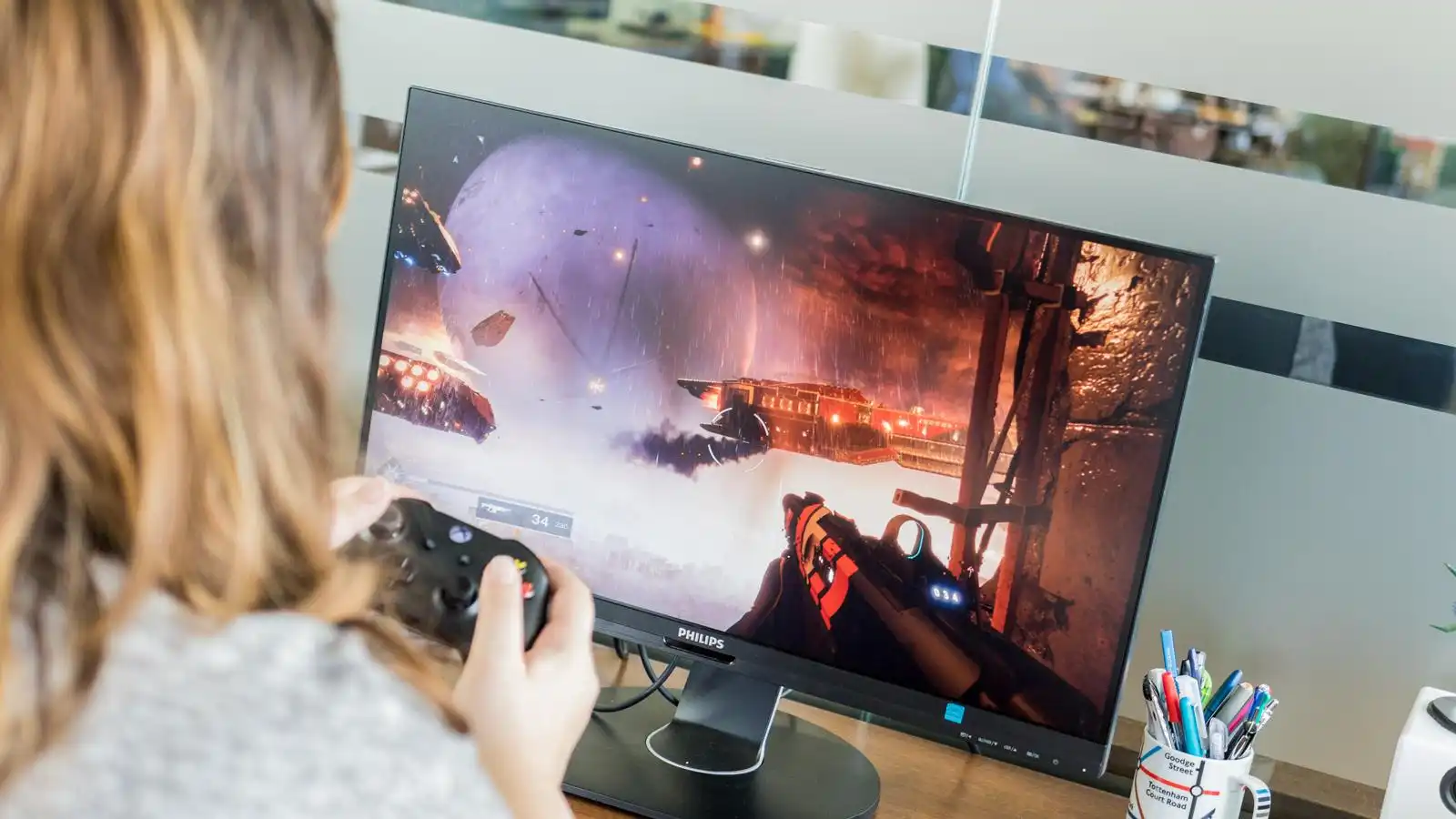
How to Connect Your Xbox One Controller to Pc: A Step-by-step Guide
Are you a gamer looking to take your gaming experience to the next level by connecting your Xbox One controller to your PC? Look no further! In this article, we will guide you through the process of connecting your Xbox One controller to your PC, whether you’re using Windows 10, Windows 8.1/Windows 7, or macOS.
Why Connect Your Xbox One Controller to Pc?
Connecting your Xbox One controller to your PC offers a multitude of benefits, including:
- Improved Gaming Experience: With the precise control and comfort of your Xbox One controller, you’ll be able to enjoy your favorite games with ease.
- Increased Accessibility: If you have a disability or prefer using a controller for gaming, connecting it to your PC can make playing games more enjoyable and accessible.
- Versatility: By having both keyboard and mouse controls available, you can switch between the two depending on the game you’re playing.
How to Connect Your Xbox One Controller to Windows 10
Connecting your Xbox One controller to Windows 10 is a straightforward process that requires minimal setup. Here’s how:
- Connect The Controller: Use the cable provided with the controller and connect it to one of the available USB ports on your PC.
- Power on The Controller: Press and hold the central button on the controller for a few seconds until the light starts flashing.
- Windows 10 Will Automatically Detect The Controller: As soon as the controller is recognized, Windows 10 will begin installing the necessary drivers.
- Wait For The Installation to Complete: This process should take only a few minutes, and once it’s done, you’ll be able to use your Xbox One controller on your PC.
How to Connect Your Xbox One Controller to Windows 8.1/Windows 7
Connecting your Xbox One controller to Windows 8.1 Or Windows 7 requires a bit more effort than connecting it to Windows 10. Here’s how:
- Connect The Controller: Use the cable provided with the controller and connect it to one of the available USB ports on your PC.
- Power on The Controller: Press and hold the central button on the controller for a few seconds until the light starts flashing.
- Install The Necessary Drivers: Go to Device Manager, locate the Xbox One controller under “Human Interface Devices,” and click on it to install the necessary drivers.
- Wait For The Installation to Complete: This process should take only a few minutes, and once it’s done, you’ll be able to use your Xbox One controller on your PC.
How to Connect Your Xbox One Controller to Macos
Connecting your Xbox One controller to macOS is a bit more complicated than connecting it to Windows. Here’s how:
- Get The Necessary Drivers: Download the Xbox 360 Controller driver from GitHub.
- Install The Drivers: Double-click the downloaded file, follow the prompts, and wait for the installation to complete.
- Connect The Controller: Use the cable provided with the controller and connect it to one of the available USB ports on your Mac.
- Power on The Controller: Press and hold the central button on the controller for a few seconds until the light starts flashing.
- Open System Preferences: Click on the Bluetooth icon in the top right corner of the screen, select “Bluetooth,” and add the Xbox One controller as a new device.
Tips And Tricks
- Use The Correct Cable: Make sure to use the USB-to-USB-C cable provided with your Xbox One controller.
- Update Your Drivers: Ensure that you’re running the latest drivers for your controller by checking the manufacturer’s website.
- Adjust Settings Accordingly: Depending on the game you’re playing, you may need to adjust the controller settings in-game.
Conclusion
Connecting your Xbox One controller to PC is a straightforward process that offers numerous benefits. By following these step-by-step guides, you’ll be able to enjoy improved gaming experiences, increased accessibility, and versatility with your favorite games. Happy gaming!
Frequently Asked Questions (FAQs)
- Q: What Are The System Requirements For Connecting my Xbox One Controller to Pc?
A: Your computer must meet the minimum system requirements for Windows 10 or macOS. - Q: Can I Use my Xbox One Controller With Older Versions of Windows?
A: Yes, but you may need to install additional drivers. - Q: How do I Update my Controller Drivers?
A: Visit the manufacturer’s website and follow their instructions for updating your drivers. - Q: Can I Connect Multiple Controllers at Once?
A: Yes, up to 8 controllers can be connected simultaneously. - Q: What Games Are Compatible With Xbox One Controllers on Pc?
A: Most modern games that support controller input will work with the Xbox One controller on PC. - Q: How do I Adjust Settings For my Xbox One Controller In-game?
A: This varies depending on the game, but usually involves accessing the game’s options menu and selecting “Controller Settings.” - Q: Can I Use my Xbox One Controller With Other Devices Besides Pc?
A: Yes, but you may need to use a third-party adapter or USB-to-USB-C cable.
References
- Microsoft Support (2022). Connect your Xbox One controller to Windows.
- Apple Support (2022). Use an Xbox 360 Controller on a Mac.
- GitHub (2022). Xbox 360 Controller Driver for macOS.


