
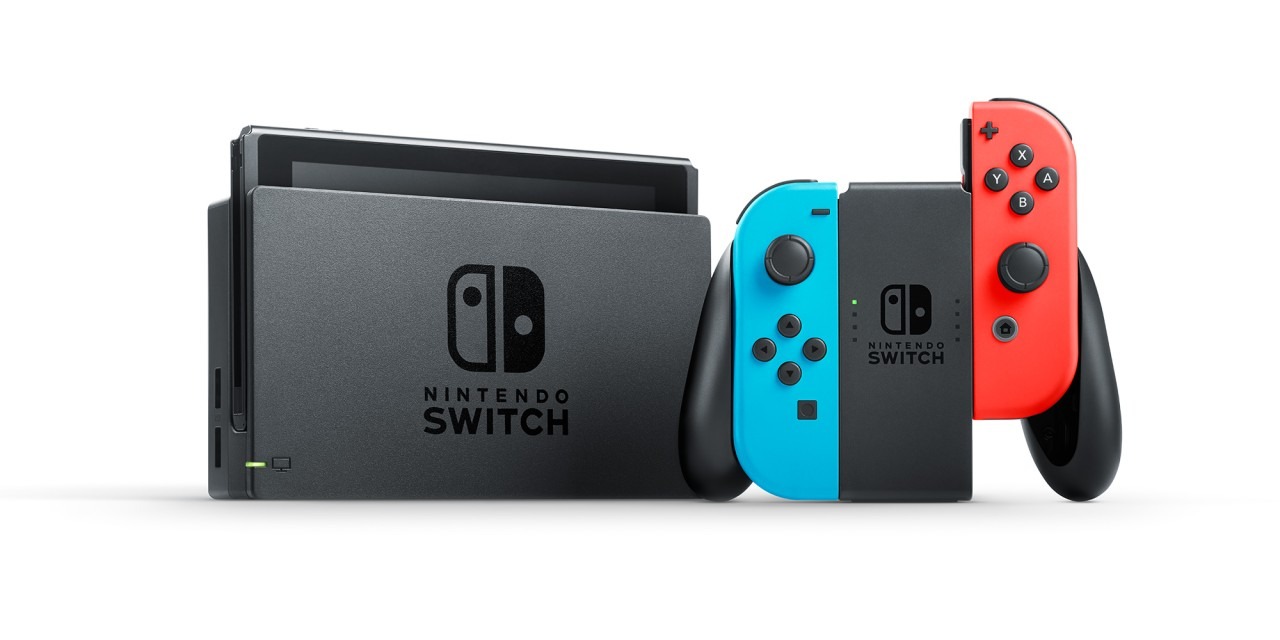
Connecting Your Phone to Nintendo Switch: A Comprehensive Guide
Are you tired of using your phone as a secondary device while gaming on your Nintendo Switch? Do you want to experience the full potential of your games by sharing screenshots, streaming your gameplay, or even playing with your friends online? Look no further! In this article, we will guide you through the process of connecting your phone to your Nintendo Switch, exploring its various features and benefits.
What is Nintendo Switch Online?
Before we dive into the nitty-gritty details, let’s talk about Nintendo Switch Online. This service allows you to play online with friends, access a growing library of classic NES and SNES games, and even enjoy exclusive discounts on the Nintendo eShop. To use this feature, you need to connect your phone to your Nintendo Switch using the Nintendo Switch Online app.
How to Connect Your Phone to Nintendo Switch Online
To get started, follow these simple steps:
- Download and install the Nintendo Switch Online app on your smartphone.
- Open the app and sign in with your Nintendo account.
- Link your Nintendo Switch console to your phone by scanning a QR code on the screen.
- Follow the prompts to complete the setup process.
Sharing Screenshots And Videos
One of the most exciting features of connecting your phone to your Nintendo Switch is the ability to share screenshots and videos directly from the game itself! Here’s how:
- Take a screenshot or record a video in-game using the Joy-Con controllers.
- Open the Album app on your Nintendo Switch home screen.
- Select the image or video you want to share and choose “Forward” to send it to your phone.
- On your phone, open the Fotocamera app (or another QR code reader) and scan the QR code displayed on your TV screen.
- Follow the prompts to access the shared file on your phone.
Playing Online With Friends
Another fantastic benefit of connecting your phone to your Nintendo Switch is the ability to play online with friends! Here’s how:
- Join a multiplayer game session using the Nintendo Switch Online app on your phone.
- Connect your phone to your Nintendo Switch console via Wi-Fi or Bluetooth.
- Open the game on your TV and start playing.
Using Your Phone as a Hotspot
Did you know that you can use your phone as a hotspot to connect your Nintendo Switch to the internet? Here’s how:
- Enable cellular data on your smartphone.
- Go to Settings > Internet and Internet > Hotspot and Tethering (for Android devices) or Settings > Personal Hotspot (for iPhone and iPad).
- Configure your hotspot password and follow the prompts to enable it.
- Connect your Nintendo Switch console to your phone’s hotspot using the Settings app on your TV screen.
Using Your Phone as a Controller
Want to play games with your friends online without needing a separate controller? You can use your phone as a controller! Here’s how:
- Download and install a compatible game controller app (such as Joy-Con or Pro Controller) from the App Store or Google Play.
- Open the app and connect it to your Nintendo Switch console via Bluetooth.
- Use your phone as a controller to play games online with your friends!
Tips And Tricks
Here are some additional tips and tricks to help you get the most out of connecting your phone to your Nintendo Switch:
- To disconnect from the hotspot, simply go back to your phone’s settings and disable the feature.
- If you’re experiencing issues connecting your phone to your Nintendo Switch, try restarting both devices or checking for software updates.
- Use your phone as a controller when playing games that support it, such as Mario Kart Tour or Super Smash Bros. Ultimate.
Conclusion
Connecting your phone to your Nintendo Switch opens up a whole new world of possibilities! From sharing screenshots and videos directly from the game itself to playing online with friends and using your phone as a hotspot or controller, there’s never been a better time to experience the full potential of your games. Follow these simple steps, and you’ll be gaming like a pro in no time!
Frequently Asked Questions
Q: What is Nintendo Switch Online?
A: Nintendo Switch Online is a subscription-based service that allows you to play online with friends, access classic NES and SNES games, and enjoy exclusive discounts on the Nintendo eShop.
Q: How do I connect my phone to Nintendo Switch Online?
A: To get started, download and install the Nintendo Switch Online app on your smartphone. Open the app and sign in with your Nintendo account, then link your Nintendo Switch console to your phone by scanning a QR code.
Q: Can I share screenshots and videos directly from the game itself?
A: Yes! You can take screenshots or record videos using the Joy-Con controllers and share them directly to your phone.
Q: How do I play online with friends?
A: Join a multiplayer game session using the Nintendo Switch Online app on your phone, then connect your phone to your Nintendo Switch console via Wi-Fi or Bluetooth.
Q: Can I use my phone as a hotspot to connect my Nintendo Switch to the internet?
A: Yes! Enable cellular data on your smartphone and configure your hotspot password. Connect your Nintendo Switch console to your phone’s hotspot using the Settings app on your TV screen.
Q: Can I use my phone as a controller?
A: Yes! Download and install a compatible game controller app, then connect it to your Nintendo Switch console via Bluetooth. Use your phone as a controller to play games online with your friends!
Q: What are some additional tips and tricks for connecting my phone to my Nintendo Switch?
A: Make sure to restart both devices if you’re experiencing issues connecting them. Also, check for software updates on both devices to ensure everything is running smoothly.
Disclaimer
The author of this article is not affiliated with Nintendo or any other gaming company mentioned in the text. The content provided is for informational purposes only and should not be considered as expert advice.


