
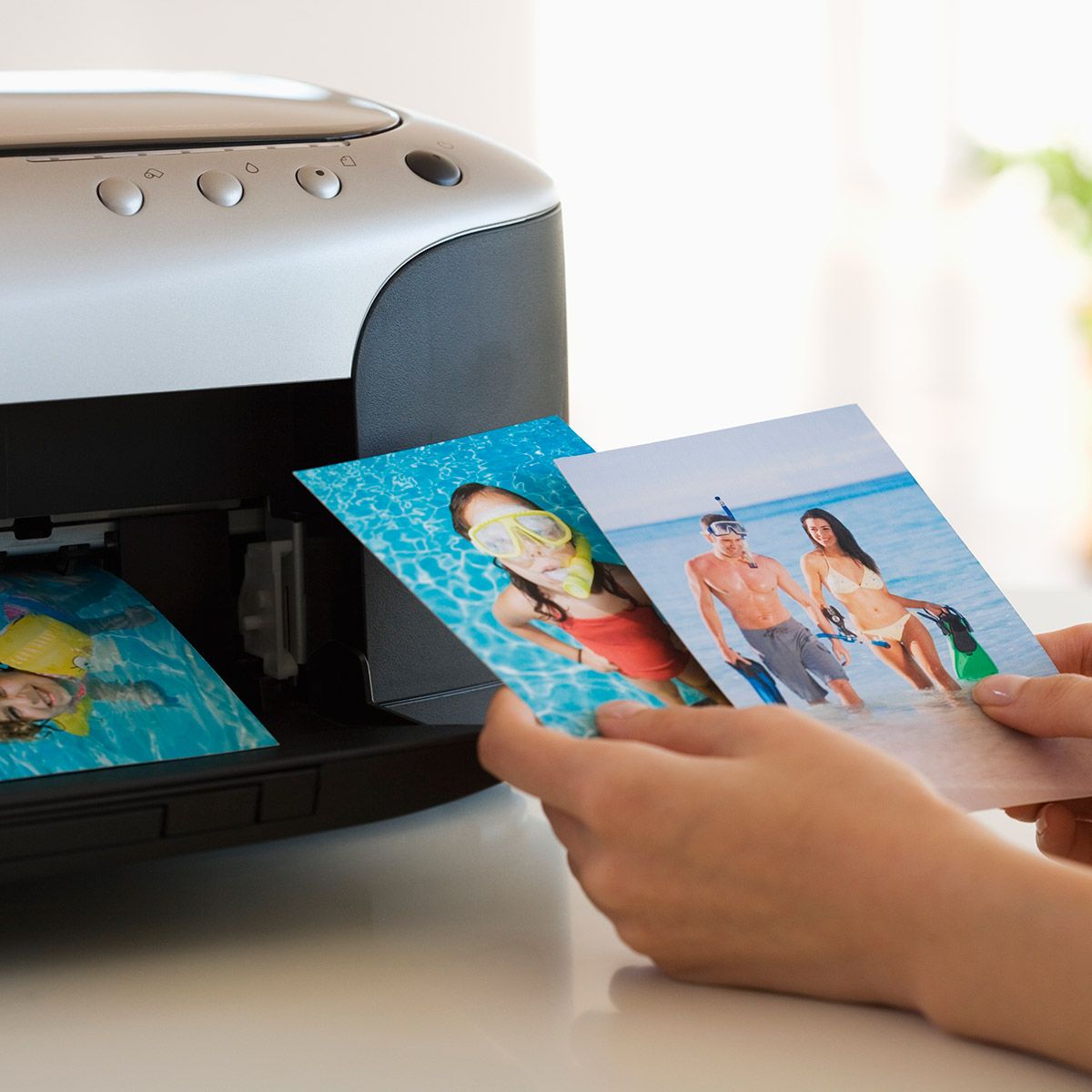
How to Connect Your Phone to a Printer
In today’s digital age, it’s not uncommon to find yourself in need of printing documents from your phone. Whether you’re in a meeting, at the office, or just want to print something quickly, having a printer connected to your phone can be a game-changer. In this article, we’ll show you how to connect your phone to a printer using various methods.
What You Need
Before we dive into the instructions, make sure you have:
- A compatible smartphone (Android or iPhone)
- A printer with Wi-Fi capabilities
- A stable internet connection
Connecting Your Phone to a Printer Using Wi-fi
If your printer has a Wi-Fi connection, connecting it to your phone is relatively straightforward.
Step 1: Connect Your Printer to The Internet
Ensure that your printer is connected to the same network as your phone. If you’re not sure how to do this, refer to your printer’s manual or contact the manufacturer for assistance.
Step 2: Download And Install The Printer App
Download and install the printer app specific to your device from the Play Store (for Android) or App Store (for iPhone).
Step 3: Configure Your Phone And Printer Settings
Follow the instructions provided by the app to configure your phone and printer settings. This may involve selecting your printer model, choosing a network connection method (e.G., Wi-Fi), and following any additional prompts.
Step 4: Test The Connection
Test the connection by printing a document from your phone using the printer app. If you encounter any issues, refer to the troubleshooting section below for assistance.
Connecting Your Phone to a Printer Without Wi-fi
If your printer doesn’t have Wi-Fi capabilities, there are alternative methods to connect it to your phone.
Step 5: Use an Ethernet Connection (for Printers With Usb-capability)
If your printer is connected to the internet via Ethernet, you can print from your phone by using a USB-to-Ethernet adapter or by setting up a Wi-Fi Direct connection between your phone and printer.
Step 6: Use a Usb-otg Adapter (for Printers With Usb-capability)
If your printer is connected to the internet via Ethernet, you can print from your phone by using a USB-to-Ethernet adapter or by setting up a Wi-Fi Direct connection between your phone and printer.
Step 7: Use a Usb-otg Adapter (for Printers With Usb-capability)
If your printer is connected to the internet via Ethernet, you can print from your phone by using a USB-to-Ethernet adapter or by setting up a Wi-Fi Direct connection between your phone and printer.
Troubleshooting
If you encounter any issues while connecting your phone to a printer, try the following:
- Ensure that both devices are connected to the same network.
- Restart both devices and try again.
- Check the manufacturer’s website for software updates or troubleshooting guides specific to your device and printer model.
Conclusion
Connecting your phone to a printer is a relatively straightforward process, especially if you have a printer with Wi-Fi capabilities. By following these steps, you can easily print documents from your phone using various methods. Remember to troubleshoot any issues that may arise by referring to the manufacturer’s website or contacting their customer support team.
Frequently Asked Questions
- Q: How do I Connect my Phone to a Printer Without Wi-fi?
A: You can use an Ethernet connection (for printers with USB-capability) or a USB-OTG adapter. - Q: What if I Encounter Issues While Connecting my Phone to a Printer?
A: Try restarting both devices and ensuring that they are connected to the same network. Check the manufacturer’s website for software updates or troubleshooting guides specific to your device and printer model. - Q: Can I Print Documents From my Phone Using Any Printer Model?
A: Yes, as long as you have a compatible smartphone (Android or iPhone) and a printer with Wi-Fi capabilities, you can print documents from your phone using various methods. - Q: How do I Troubleshoot Issues While Connecting my Phone to a Printer?
A: Try restarting both devices and ensuring that they are connected to the same network. Check the manufacturer’s website for software updates or troubleshooting guides specific to your device and printer model.
Droppay – A Convenient Mobile Payment App
In addition to printing documents from your phone, you can also use it to make mobile payments using an app called DropPay. This convenient payment service allows you to pay bills, forward money to friends, create grants, and even print receipts directly from your phone.
How to Use Droppay
To get started with DropPay, download the app from the Play Store (for Android) or App Store (for iPhone). Follow these steps:
- Create an account using your email address or phone number.
- Add a bank account or credit card to make payments.
- Pay bills directly from the app.
- Forward money to friends and family members.
- Create grants for specific purposes.
- Print receipts directly from the app.
Benefits of Using Droppay
Using DropPay offers several benefits, including:
- Convenience: Make payments anywhere, anytime using your phone.
- Security: Your account information is protected by encryption.
- Speed: Pay bills and forward money quickly and easily.
- Flexibility: Create grants for specific purposes or print receipts directly from the app.
Droppay Customer Support
If you encounter any issues while using DropPay, don’t hesitate to contact their customer support team. They’re available 24/7 to assist you with any questions or concerns. You can reach them through email ([email protected]), phone (02.320.69.600), Or online chat.
Conclusion
In conclusion, connecting your phone to a printer is a relatively straightforward process that can be completed using various methods. By following the steps outlined in this article, you can easily print documents from your phone and make mobile payments using an app like DropPay. Remember to troubleshoot any issues that may arise by referring to the manufacturer’s website or contacting their customer support team.


