
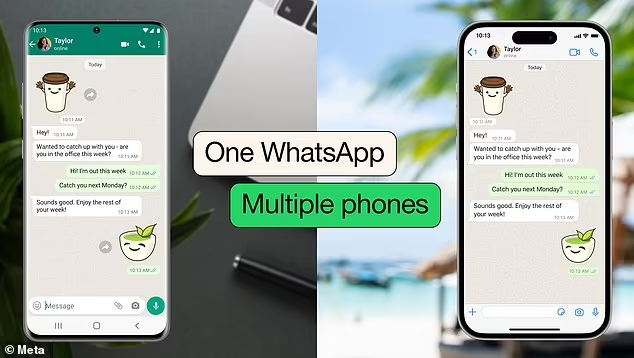
How to Link Your Phone to Whatsapp: A Step-by-step Guide
Are you looking to download and install WhatsApp on your phone? With over 2 billion users worldwide, it’s no surprise that this messaging app has become a staple for many. In this article, we’ll guide you through the process of linking your phone to WhatsApp, from downloading the app to setting up and using it on both smartphone and PC.
What is Whatsapp And Why Do I Need It?
WhatsApp is a free, cross-platform messaging app that allows users to send text messages, make voice and video calls, share photos and videos, and even exchange documents. With its user-friendly interface and end-to-end encryption, it’s no wonder why millions of people worldwide have chosen WhatsApp as their go-to communication tool.
Linking Your Phone to Whatsapp For The First Time
To start using WhatsApp on your phone, follow these simple steps:
- Download The App: Go to the Google Play Store (for Android devices) or the Apple App Store (for iOS devices) and search for WhatsApp.
- Install The App: Once you’ve found the app, tap the “Install” button to begin the installation process.
- Configure Whatsapp: After installing the app, follow the on-screen instructions to configure your account. You’ll need to enter a valid phone number to verify your identity.
Linking Another Phone to Whatsapp
If you already have a WhatsApp account on one device and want to use it on another, follow these steps:
- Open Whatsapp: Open WhatsApp on the new device and tap the three dots (⋯) in the top-right corner.
- Tap “Settings”: Tap “Settings” and select “Add a Account.”
- Enter Your Phone Number: Enter your phone number to verify your identity.
Linking a Phone to Whatsapp Without a Sim
It’s not possible to link a phone to WhatsApp without a SIM card. However, there are some workarounds you can try:
- Use an Old Number: Use an old phone number that you’ve previously used with WhatsApp.
- Get a Temporary Number: Get a temporary number from your carrier or a third-party service.
- Acquire a Sim For Instant Messaging: Purchase a dedicated SIM card specifically designed for instant messaging services.
Using Whatsapp on PC
Yes, you can use WhatsApp on your PC! There are two ways to do this:
- Whatsapp Web: Open WhatsApp Web in your browser and scan the QR code using your phone’s camera.
- Whatsapp Desktop: Download and install the official WhatsApp client for Windows or macOS.
Using Whatsapp Desktop For Windows And Macos
To use WhatsApp on your PC, follow these steps:
- Download The Client: Download the official WhatsApp client from the Microsoft Store (for Windows) or the Mac App Store (for macOS).
- Install The Client: Follow the installation prompts to install the app.
- Scan The QR Code: Open WhatsApp Web in your browser and scan the QR code using your phone’s camera.
Frequently Asked Questions
Q: What is WhatsApp, and how does it work?
A: WhatsApp is a free, cross-platform messaging app that allows users to send text messages, make voice and video calls, share photos and videos, and exchange documents.
Q: Do I need a SIM card to use WhatsApp?
A: Yes, you’ll need a valid phone number to verify your identity when setting up WhatsApp on a new device.
Q: Can I link multiple phones to one WhatsApp account?
A: Yes, but keep in mind that each phone will require its own verification process.
Q: Is WhatsApp free to use?
A: Absolutely! WhatsApp is completely free to download and use.
Q: How do I use WhatsApp on my PC?
A: You can use WhatsApp Web or download the official WhatsApp client for Windows or macOS.
Conclusion
Linking your phone to WhatsApp is a straightforward process that requires only a few steps. Whether you’re looking to download the app for the first time or want to set up multiple devices, this guide has provided you with all the necessary information. With its user-friendly interface and robust features, WhatsApp is an excellent choice for anyone seeking a reliable communication tool.


