
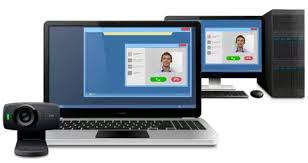
Controlling Your Computer With a Webcam: A Revolutionary Way to Interact
Are you tired of using your mouse to navigate through your computer? Do you want to experience a more intuitive and engaging way of interacting with your device? Look no further! In this article, we will explore the possibility of controlling your computer with a webcam. Yes, you read that right – a webcam!
What is Enable Viacam?
Enable Viacam, also known as eViacam, is a free and open-source program that allows you to control your cursor using head movements. This means that you can move your mouse around the screen by simply moving your head! It’s like having a superpower.
How Does it Work?
To use Enable Viacam, you first need to download and install the software on your computer. Once installed, you need to select the webcam you want to use and configure the program to recognize your face. Then, you can start moving your head to move the cursor around the screen. It’s that simple!
Other Options Available
While Enable Viacam is a great option, there are other programs available that offer similar functionality. Chamber Mouse, for example, allows you to control your mouse using hand gestures. And GiMeSpace Cam Control enables you to control your cursor by moving your hands.
What About Macos Users?
Don’t worry, Mac users! There’s an app called ControlAir that offers a similar experience on macOS devices. With ControlAir, you can use hand gestures to control your multimedia applications like iTunes or Spotify.
Key Features of Enable Viacam
Here are some key features of Enable Viacam:
- Easy Installation: The installation process is straightforward and requires minimal technical expertise.
- Adjustable Sensitivity: You can adjust the sensitivity of the program to suit your needs.
- Gesture Control: You can use head movements, hand gestures, or a combination of both to control your cursor.
Tips For Using Enable Viacam
Here are some tips for using Enable Viacam effectively:
- Face Detection: Make sure you’re detected correctly by the program. This will ensure that your cursor follows your head movements accurately.
- Adjust Sensitivity: Adjust the sensitivity of the program to suit your needs. If it’s too sensitive, you might find yourself moving the cursor unnecessarily.
- Practice Makes Perfect: The more you practice using Enable Viacam, the more comfortable you’ll become with its functionality.
Conclusion
Controlling your computer with a webcam is an innovative way to interact with your device. With programs like Enable Viacam, Chamber Mouse, GiMeSpace Cam Control, and ControlAir, you can experience a more intuitive and engaging way of using your computer. Whether you’re a gamer, a professional, or just someone who wants to explore new possibilities, these programs are definitely worth checking out.
Frequently Asked Questions
Here are some frequently asked questions about controlling your computer with a webcam:
- What is The Cost of Enable Viacam?
- Enable Viacam is free and open-source.
- Is Chamber Mouse Compatible With Windows And Macos?
- Yes, Chamber Mouse is compatible with both Windows and macOS.
- How do I Install Controlair on my Mac?
- To install ControlAir on your Mac, visit the App Store, search for ControlAir, and follow the installation instructions.
- Can I Use Enable Viacam Without a Webcam?
- No, you cannot use Enable Viacam without a webcam.
- Is Gimespace Cam Control Free to Download?
- Yes, GiMeSpace Cam Control is free to download and use for personal purposes.
Conclusion
Controlling your computer with a webcam offers a unique and engaging way of interacting with your device. With the right software and some practice, you can experience the thrill of navigating through your computer using head movements or hand gestures.


