
Converting Tickets Into Apple Wallet: A Step-by-step Guide
Are you tired of carrying around physical tickets or cards? Do you want to make the most out of your iPhone’s capabilities? Look no further! In this article, we will guide you through the process of converting your tickets into Apple Wallet, making it easier and more convenient for you to access them.
What is Apple Wallet?
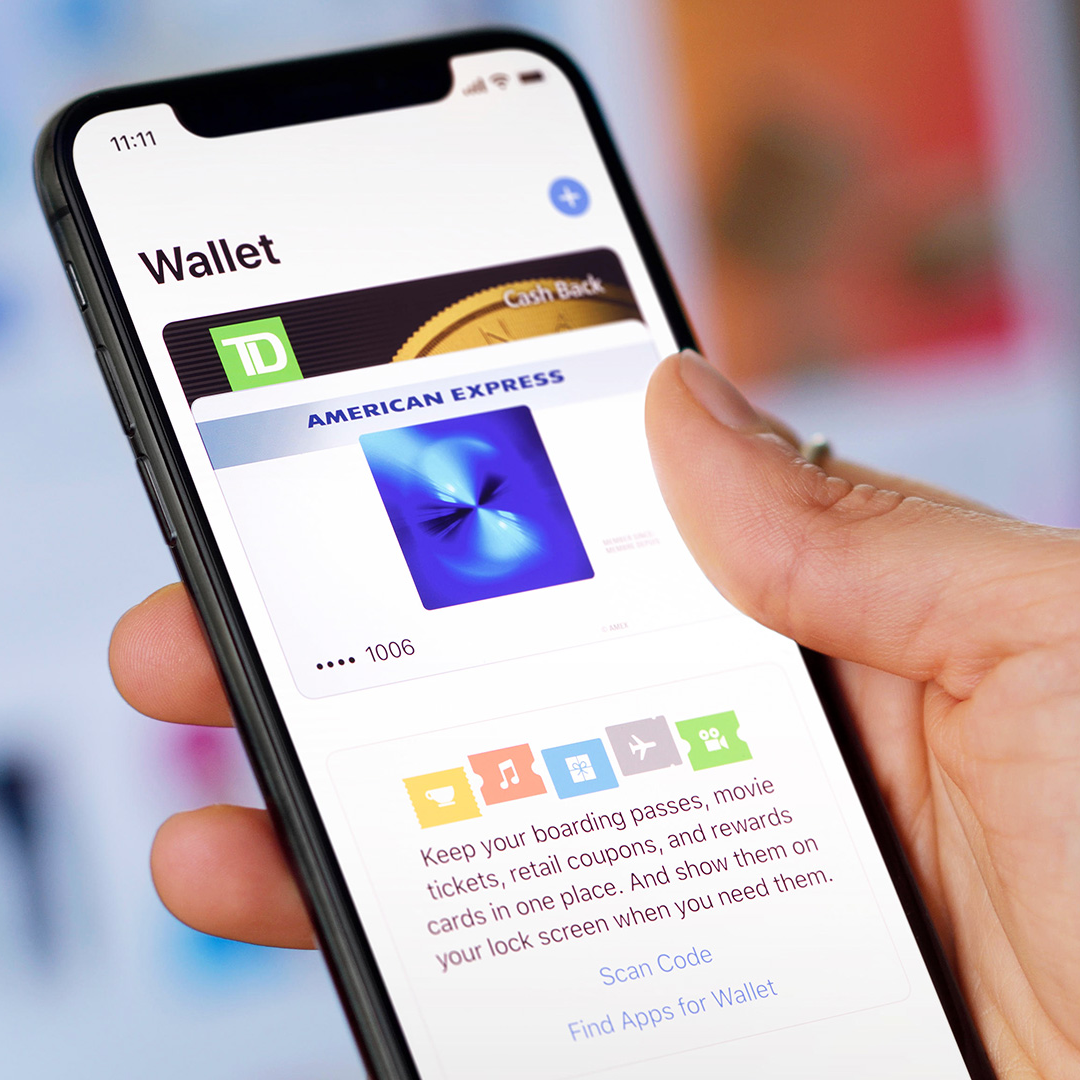
Apple Wallet is a digital wallet service provided by Apple Inc. That allows users to store their credit cards, debit cards, loyalty cards, and other types of passes in one place. It’s like having your own digital pocket where you can store all your important cards and tickets.
Why Use Apple Wallet?
There are many reasons why using Apple Wallet is beneficial:
- Convenience: With Apple Wallet, you don’t have to carry around physical cards or tickets.
- Security: Your cards and passes are stored securely in the Wallet app.
- Easy Access: You can easily access your cards and passes from the Wallet app.
How to Convert Tickets Into Apple Wallet
There are several apps available that allow you to convert your tickets into Apple Wallet. Here, we will guide you through the process using three popular apps: 1Wallet, Pass2U Wallet, and Stocard — Cards Fidelity.
Converting Tickets With 1Wallet
Step 1: Download the 1Wallet app from the App Store.
Step 2: Tap on the “Tickets & Doc.” Section to search for your ticket.
Step 3: Select your ticket and tap on the “Ok” button.
Step 4: Scan or manually insert the barcode of your ticket.
Step 5: Add your name, choose a slot, define the date of the event, and add any other details.
Step 6: Tap on the “Add to Wallet” button to add your ticket to Apple Wallet.
Converting Tickets With Pass2u Wallet
Step 1: Download the Pass2U Wallet app from the App Store.
Step 2: Tap on the “Pass” icon and select a template for your ticket.
Step 3: Search for the name of your ticket, card, or document in the Pass Store.
Step 4: Select your template and add any necessary information.
Step 5: Scan or manually insert the barcode of your ticket using the camera.
Step 6: Add your name, date of deadline, and reminder date (if applicable).
Step 7: Tap on the “Add” button to add your ticket to Apple Wallet.
Converting Tickets With Stocard — Cards Fidelity
Step 1: Download the Stocard — Cards Fidelity app from the App Store.
Step 2: Tap on the “Cards” section and select a card template for your ticket.
Step 3: Search for the name of your ticket, card, or document in the Stocard database.
Step 4: Select your template and add any necessary information.
Step 5: Scan or manually insert the barcode of your ticket using the camera (if applicable).
Step 6: Tap on the “Add to Apple Wallet” button to add your ticket to Apple Wallet.
Tips And Precautions
When converting tickets into Apple Wallet, keep in mind:
- Always check that the ticket can be displayed in electronic format.
- Use only reliable and secure apps to digitalize your documents.
- Be cautious when handling sensitive data, such as passwords or credit card numbers.
Conclusion
Converting tickets into Apple Wallet is a straightforward process that requires minimal effort. By using these apps, you can easily access your tickets, passes, and cards without having to carry around physical copies. Whether it’s for convenience, security, or easy access, using Apple Wallet has many benefits. Try it out today!
Frequently Asked Questions (FAQs)
- What is The Cost of Converting Tickets Into Apple Wallet?
The cost varies depending on the app used. Some apps are free, while others charge a small fee.
- How do I Ensure That my Tickets Are Secure in Apple Wallet?
To ensure security, use only reliable and secure apps to digitalize your documents.
- Can I Access my Tickets From Multiple Devices?
Yes, you can access your tickets from multiple devices by using the same iCloud account.
- What Types of Passes Can be Added to Apple Wallet?
You can add various types of passes, including credit cards, debit cards, loyalty cards, and other types of passes.
- Can I Modify or Delete a Ticket in Apple Wallet?
Yes, you can modify or delete tickets by accessing the Pass Store on your device.
- Is it Possible to Transfer Tickets Between Apple Devices?
Yes, you can transfer tickets between Apple devices using the same iCloud account.
- What is The Process For Deleting a Ticket From Apple Wallet?
To delete a ticket, access the Pass Store and select the ticket you want to delete.
- Can I Use Apple Wallet With Multiple Credit Cards or Debit Cards?
Yes, you can add multiple credit cards or debit cards to your Apple Wallet.


