
Converting Cds to Mp3 on Your Pc: A Step-by-step Guide
Are you tired of converting your favorite music albums from CDs to digital formats like MP3? Look no further! In this article, we’ll show you how to convert CDs to MP3 on your PC using various methods.
What is CD Ripping And Why Do You Need It?
CD ripping is the process of extracting audio tracks from a CD and saving them as digital files. This is essential if you want to enjoy your music library on devices like smartphones, laptops, or tablets that don’t support CDs.
Method 1: Using Windows Media Player
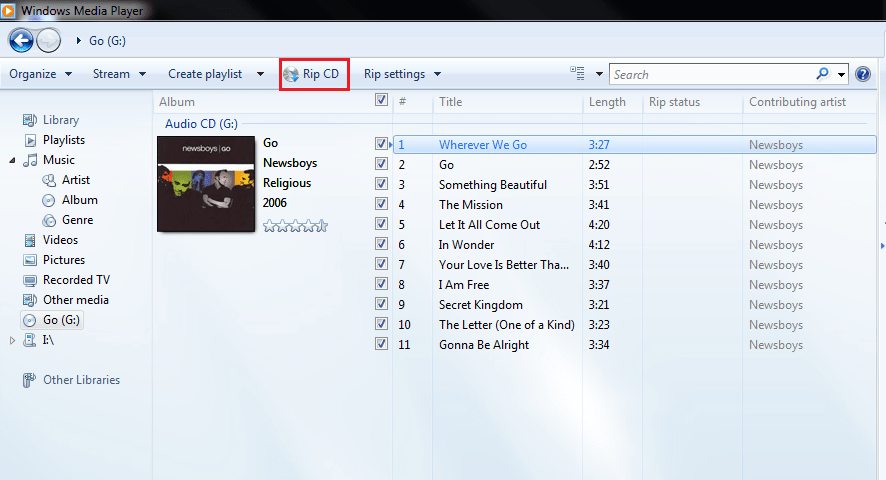
One of the most convenient ways to convert CDs to MP3 is using Windows Media Player (WMP), which comes pre-installed with most Windows operating systems. Here’s how:
- Insert the CD into your computer’s CD drive.
- Open WMP and click on the “Start” button.
- Select the CD icon from the menu, then choose the audio tracks you want to rip.
- Go to the settings menu and select “MP3” as the format.
- Choose the quality settings (e.G., 320 Kbps) and output folder.
- Click on the “Copy” button to start the ripping process.
Method 2: Using Nero
Nero is another popular CD ripper that offers advanced features like audio editing and burning CDs. Here’s how to use it:
- Download and install Nero Burning ROM (free trial version).
- Insert the CD into your computer’s CD drive.
- Open Nero, select the “Save tracks as MP3” option, and choose the output folder.
- Set the quality settings (e.G., 320 Kbps) and start the ripping process.
Method 3: Using Vlc Media Player
VLC is a free, open-source media player that can also be used for CD ripping. Here’s how:
- Download and install VLC.
- Insert the CD into your computer’s CD drive.
- Open VLC, go to “Media” > “Convert / Save”, and select the audio tracks you want to rip.
- Choose the output format (e.G., MP3) and quality settings (e.G., 320 Kbps).
- Select the output folder and start the ripping process.
Method 4: Using Alternative CD Rippers
If you don’t have WMP, Nero, or VLC installed on your PC, there are other alternatives available:
- Fre:Ac: A free, open-source CD ripper that supports various formats like MP3, FLAC, and more.
- Itunes: A popular media player that can be used for CD ripping, although it’s not as straightforward as the other methods.
- Express Rip: A lightweight, free CD ripper that’s easy to use.
Converting Cds to Mp3 on a Mac
If you’re using a Mac, converting CDs to MP3 is just as easy:
- Insert the CD into your Mac’s CD drive.
- Open Music (pre-installed with macOS 10.15 Catalina and later).
- Select the audio tracks you want to rip and choose “Preferences” > “Import Settings”.
- Set the output format to MP3 and quality settings (e.G., 320 Kbps).
- Choose the output folder and start the ripping process.
Converting Cds to Mp3 on Ubuntu
If you’re using Ubuntu, here’s how to convert CDs to MP3:
- Insert the CD into your computer’s CD drive.
- Install Sound Juicer (a free, open-source CD ripper).
- Open Sound Juicer and select the audio tracks you want to rip.
- Choose the output format (e.G., MP3) and quality settings (e.G., 320 Kbps).
- Select the output folder and start the ripping process.
Conclusion
Converting CDs to MP3 is a simple process that can be achieved using various methods on both Windows and Mac operating systems, as well as Linux distributions like Ubuntu. With these guides, you’ll be able to enjoy your favorite music albums in digital format, perfect for listening on-the-go or streaming online.
Frequently Asked Questions (FAQs)
Q: What is the best CD ripper software?
A: The best CD ripper software depends on your operating system and personal preferences. Windows Media Player, Nero, and VLC are popular choices for Windows users, while Music and Sound Juicer are recommended for Mac and Ubuntu users.
Q: Can I convert CDs to MP3 without software?
A: Yes, you can use built-in features like Windows Media Player (WMP) or Music on your operating system to convert CDs to MP3. However, using dedicated CD ripper software often offers more advanced features and better quality settings.
Q: How do I ensure the highest audio quality when converting CDs to MP3?
A: To achieve the highest audio quality, set the output format to MP3 (or another high-quality format) and choose a bitrate of at least 320 kbps. Additionally, use a dedicated CD ripper software that offers advanced features like audio editing and quality settings.
Q: Can I convert CDs to other formats besides MP3?
A: Yes, most CD rippers support various output formats like FLAC, AAC, OGG, and more. Experiment with different formats to find the one that suits your needs best.
Q: How do I batch-rip multiple CDs at once?
A: Most CD ripper software allows you to select multiple CDs or audio tracks for ripping at once. Look for options like “Batch Rip” or “Multiple Ripping”.
Q: What are some popular alternatives to Windows Media Player and Nero?
A: Popular alternative CD rippers include Fre:Ac, iTunes, Express Rip, and Sound Juicer.
Q: Can I use a CD ripper software on a Mac with a Windows partition?
A: Yes, you can install and run CD ripper software on a Mac’s Windows partition. However, be aware of compatibility issues and potential software conflicts.
Q: How do I ensure my ripped MP3 files are organized properly?
A: Use the output folder option in your chosen CD ripper software to save the ripped MP3 files in an organized manner, such as by album or artist name.


