
How to Convert Dvd to Mp4: A Step-by-step Guide
Are you tired of dealing with fragile DVDs that can break easily? Do you want to create backup copies of your favorite movies or TV shows without having to worry about physical damage? Converting your DVDs to digital format is the solution! In this article, we’ll guide you through the process of converting DVD to MP4 using various software options.
Why Convert Dvd to Mp4?
Converting your DVDs to MP4 format offers several benefits:
- Space-saving: Digital files take up much less space than physical DVDs.
- Portability: You can easily transfer and play your favorite movies or TV shows on any device with an MP4 player.
- Sharing: Sharing digital copies of your media is easier and more convenient than sharing physical DVDs.
Software Options For Converting Dvd to Mp4
Several software options are available for converting DVD to MP4 format. Here are some popular ones:
- Handbrake: A free, open-source program that’s available for Windows, macOS, and Linux.
- Nero: A paid software option that offers advanced features like video editing and compression.
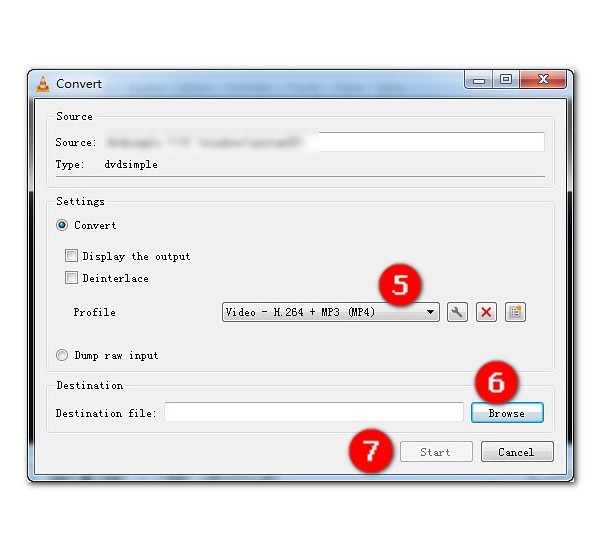
- Vlc: A free, open-source media player that can also be used to convert DVD to MP4 format.
Step-by-step Guide: Converting Dvd to Mp4 With Handbrake
Here’s a step-by-step guide on how to convert DVD to MP4 using HandBrake:
- Download And Install Handbrake: Visit the official HandBrake website and download the software for your operating system.
- Insert Dvd Into Computer: Insert the DVD you want to convert into your computer’s DVD drive.
- Launch Handbrake: Launch HandBrake and select the “Convert” option from the menu.
- Select Dvd Source: Select the DVD source from the drop-down menu, making sure it’s the correct one.
- Choose Mp4 Format: Choose the MP4 format as your output file type.
- Customize Settings (Optional): You can customize settings like video quality and resolution if you want a higher-quality output.
- Start Conversion Process: Click “Start” to begin the conversion process.
Alternative Software Options
If HandBrake doesn’t meet your requirements, consider using alternative software options:
- Nero: A paid software option that offers advanced features like video editing and compression.
- Vlc: A free, open-source media player that can also be used to convert DVD to MP4 format.
Converting Protected Dvds
If you have a protected DVD, you’ll need additional software to bypass the protection and convert it to MP4 format.
- Anydvd HD: A paid software option specifically designed for unblocking and converting protected DVDs.
- Makemkv: A free software option that can also be used to create digital copies of your media without conversion.
Conclusion
Converting your DVDs to MP4 format is a straightforward process using the right software options. Whether you choose HandBrake, Nero, or VLC, the steps remain relatively similar. Consider exploring alternative software options if you need more advanced features or customization capabilities.
Faqs
Here are some frequently asked questions about converting DVD to MP4:
Q: What’s the best software option for converting DVD to MP4?
A: The best software option depends on your specific needs and requirements. HandBrake is a great starting point, while Nero and VLC offer more advanced features.
Q: Can I convert protected DVDs using free software options?
A: Yes, you can use free software options like MakeMKV or VLC to bypass protection and create digital copies of your media.
Q: How long does the conversion process take?
A: The conversion time depends on the size of your DVD file and the quality settings chosen. You can expect a faster conversion process with HandBrake and Nero, while VLC might take longer.
Q: Can I convert DVDs from different regions using HandBrake or other software options?
A: Yes, most software options support converting DVDs from various regions. Make sure to choose the correct region code when prompted during the conversion process.
Q: How do I ensure high-quality output after converting my DVD to MP4?
A: To ensure high-quality output, select the highest possible quality settings for your video and audio, or use the recommended defaults provided by HandBrake or other software options.


