
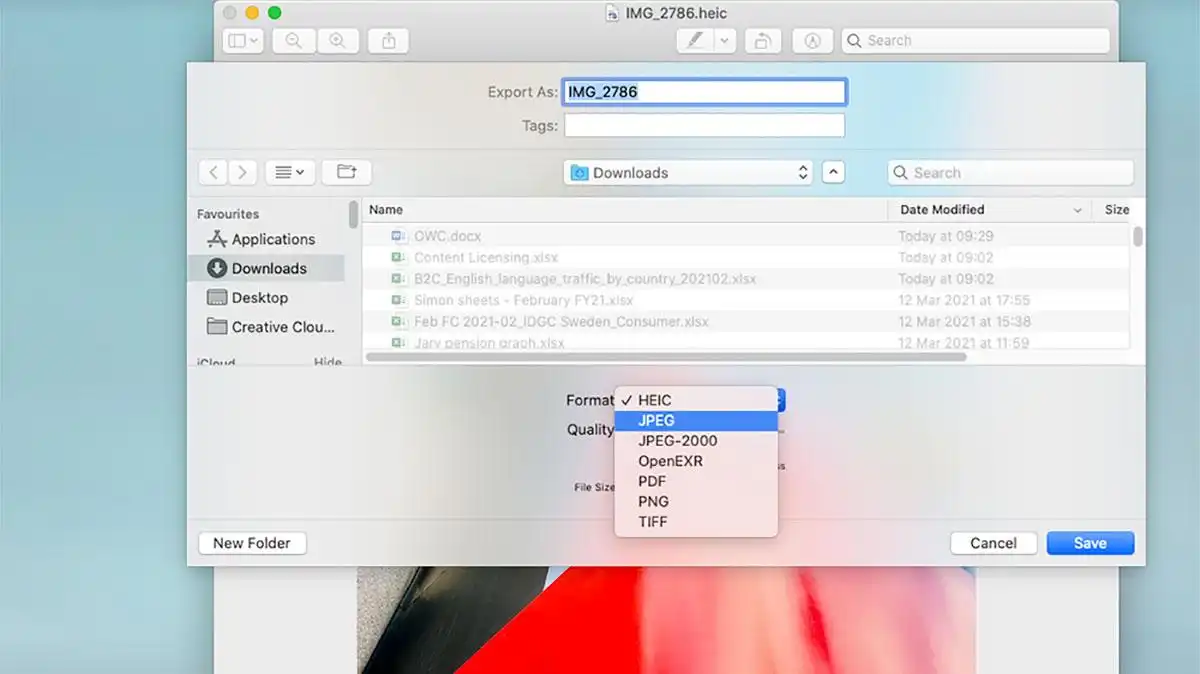
Converting Heic Files to Jpg: A Step-by-step Guide
Are you struggling to convert HEIC files to JPG on your Windows or Mac device? Look no further! In this article, we’ll explore the various methods for converting HEIC files to JPG, including using software and online tools.
What Are Heic And Jpg Files?
HEIC stands for High Efficiency Image Format, a compressed image format developed by Apple. It’s designed to optimize image quality while reducing file size. On the other hand, JPG (JPEG) is a widely used image format that’s supported by most devices and platforms.
Why Convert Heic to Jpg?
Converting HEIC files to JPG can be useful when you need to share or edit images on platforms that don’t support HEIC natively. For example, if you want to post an image on social media, it’s often best to convert it to JPG to ensure compatibility.
Method 1: Converting Heic to Jpg on Windows
To convert HEIC files to JPG on a Windows device, we recommend using XnConvert. This free software allows you to convert images between various formats, including HEIC and JPG.
Here are the steps:
- Download Xnconvert: Visit the official website of XnConvert and download the software.
- Install Xnconvert: Run the installation file and follow the prompts to install the software.
- Launch Xnconvert: Open XnConvert and select the “Origin” tab.
- Add Heic Files: Choose the HEIC files you want to convert by clicking on the “Add rows or Add folder” button.
- Select Jpg as Output Format: Select JPG as the output format in the “Destination” tab.
- Save Converted Images: Save the converted images in a desired location.
Method 2: Converting Heic to Jpg With Movavi Video Converter
Movavi Video Converter is another popular software that allows you to convert HEIC files to JPG on Windows and Mac devices.
Here are the steps:
- Download Movavi Video Converter: Visit the official website of Movavi Video Converter and download the software.
- Install Movavi Video Converter: Run the installation file and follow the prompts to install the software.
- Launch Movavi Video Converter: Open Movavi Video Converter and select the “Add media” option in the top-left corner.
- Select Heic Files: Choose the HEIC files you want to convert by clicking on the “Add images” button.
- Set Jpg as Output Format: Select JPG as the output format in the “Images” tab.
- Save Converted Images: Save the converted images in a desired location.
Method 3: Converting Heic to Jpg Online
If you don’t want to install any software, you can use online tools like Convertio or Image Converter to convert HEIC files to JPG.
Here are the steps:
- Visit Convertio Website: Visit the official website of Convertio and upload your HEIC file.
- Select Jpg as Output Format: Select JPG as the output format in the “Choose the format” dropdown menu.
- Save Converted Images: Save the converted images in a desired location.
Method 4: Converting Heic to Jpg on Android
To convert HEIC files to JPG on an Android device, you can use Image Converter: JPG PNG PDF, a free app available on the Google Play Store.
Here are the steps:
- Download Image Converter: Visit the Google Play Store and download Image Converter.
- Launch Image Converter: Open Image Converter and select the “Select images to convert” option.
- Choose Heic Files: Choose the HEIC files you want to convert by tapping on them.
- Set Jpg as Output Format: Select JPG as the output format in the settings menu.
- Save Converted Images: Save the converted images in a desired location.
Method 5: Converting Heic to Jpg on Iphone
To convert HEIC files to JPG on an iPhone or iPad, you can use the built-in Files app.
Here are the steps:
- Open Files App: Open the Files app and choose the folder where your HEIC file is located.
- Select Heic File: Select the HEIC file you want to convert by tapping on it.
- Share Option: Tap on the share icon in the top-right corner and select “Copy photo” from the options.
- Paste Image: Open the Photos app and paste the image into a new album.
- Save Converted Images: Save the converted images in a desired location.
Conclusion
Converting HEIC files to JPG can be a straightforward process if you know the right tools and methods. Whether you’re using software like XnConvert or Movavi Video Converter, or online tools like Convertio, the steps are relatively similar. On Android devices, you can use Image Converter: JPG PNG PDF, while on iPhone or iPad, you can utilize the built-in Files app.
Faqs
- What is Heic And Why do I Need to Convert it to Jpg?
HEIC stands for High Efficiency Image Format, a compressed image format developed by Apple. Converting HEIC files to JPG ensures compatibility with most platforms. - How do I Convert Heic Files to Jpg on Windows?
You can use XnConvert software or Movavi Video Converter to convert HEIC files to JPG on Windows devices. - Can I Convert Heic Files to Jpg Online?
Yes, you can use online tools like Convertio or Image Converter to convert HEIC files to JPG without installing any software. - How do I Convert Heic Files to Jpg on Android?
You can use Image Converter: JPG PNG PDF app available on the Google Play Store to convert HEIC files to JPG on Android devices. - Can I Convert Heic Files to Jpg on Iphone or Ipad?
Yes, you can use the built-in Files app to convert HEIC files to JPG on iPhone or iPad devices. - What Are Some Other Formats That Xnconvert Supports Besides Heic And Jpg?
XnConvert also supports TIF, PNG, GIF, and many more image formats. - How do I Remove Ads From Image Converter: Jpg Png Pdf App?
You can upgrade to the Pro version of Image Converter: JPG PNG PDF to remove ads. - Can I Convert Heic Files to Other Formats Besides Jpg Using Convertio or Image Converter?
Yes, both tools allow you to convert HEIC files to various formats, including PNG, TIF, and more.
We hope this article has helped you understand the process of converting HEIC files to JPG on different devices. If you have any further questions or need assistance with converting images, feel free to ask!


