
Converting Mpeg-4 Videos: A Step-by-step Guide
Are you looking to convert your MPEG-4 videos into a more compatible format? Look no further! In this article, we will guide you through the process of converting MPEG-4 videos using various software and online services.
Why Convert Mpeg-4 Videos?
MPEG-4 is a popular video format used by many devices, but it may not be compatible with all media players or devices. Converting your MPEG-4 videos to MP4 or other formats can ensure seamless playback on multiple platforms.
Software For Converting Mpeg-4 Videos
Adapter (Windows/MacOS)
The first software we recommend is Adapter, a free program available for Windows and MacOS that converts video files to various formats, including MP4. Its user-friendly interface and intuitive settings make it an ideal choice for beginners.
To download and install Adapter on your computer:
- Visit the official website and click on the “Download” button.
- If you’re using Windows, open the EXE file and follow the prompts to install the software.
- If you’re using MacOS, open the DMG file and drag the Adapter icon into the Applications folder.
Once installed, follow these steps:
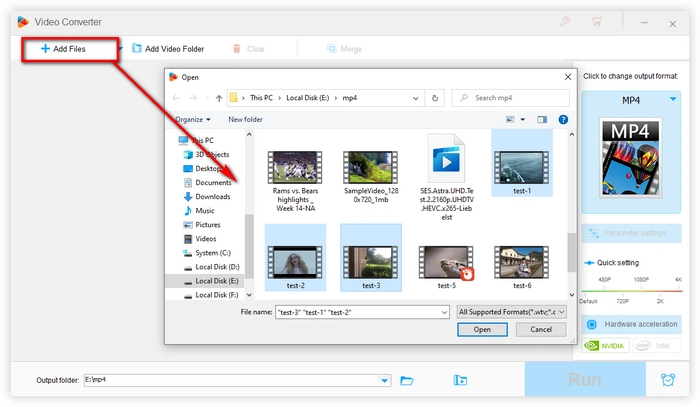
- Launch Adapter and select the video file you want to convert.
- Choose the MP4 format from the dropdown menu.
- Customize settings like bitrate, resolution, and more (optional).
- Click “Convert” to initiate the conversion process.
Other Software Options
If Adapter doesn’t meet your needs or preferences, consider these alternative software options:
- HandBrake (Windows/MacOS/Linux): A free, open-source video converter that supports various formats.
- Video To Video Converter (Windows): A simple, user-friendly software for converting videos to MP4 and other formats.
Online Services For Converting Mpeg-4 Videos
If you prefer not to download and install software on your computer, consider these online services:
123Apps Video Converter
The first online service we recommend is 123Apps Video Converter. This web-based converter allows you to upload a video file and choose the desired output format (MP4). You can also adjust settings like resolution and bitrate.
To use 123Apps Video Converter:
- Visit their website and click on the “Open” button.
- Upload your MPEG-4 video file or select one from Google Drive, Dropbox, or other cloud services.
- Choose the MP4 format as output.
- Adjust settings (optional).
- Click “Convert” to initiate the conversion process.
Other Online Services
If 123Apps Video Converter doesn’t meet your needs, consider these alternative online services:
- Convertio: A web-based converter that supports various formats and file types.
- ZamZar: An older but still reliable online service for converting videos, audio files, images, and documents.
- CloudConvert: Another versatile online converter with no file size limits.
Converting Mpeg-4 Videos on Mobile Devices
If you prefer to convert your MPEG-4 videos using mobile apps, consider these options:
Media Converter (Android)
The Media Converter app for Android allows you to convert various media formats, including video and audio files. To use it:
- Download and install the app from the Google Play Store.
- Launch the app and select the video file you want to convert.
- Choose the MP4 format as output.
- Adjust settings (optional).
- Tap “Convert” to initiate the conversion process.
The Converter Video (iOS/iPadOS)
For iOS and iPadOS devices, use The Converter Video app. To do so:
- Download and install the app from the App Store.
- Launch the app and select the video file you want to convert.
- Choose the MP4 format as output.
- Adjust settings (optional).
- Tap “Convert” to initiate the conversion process.
Converting Mpeg-4 Videos to Mp3
If you’re interested in converting your MPEG-4 videos specifically to MP3, refer to our dedicated guide for step-by-step instructions on using various software and online services for this purpose.
Conclusion
Converting MPEG-4 videos is a straightforward process that can be accomplished using various software programs or online services. Choose the method that best suits your needs, whether you prefer working on your computer or mobile device. By following these steps, you’ll be able to enjoy seamless playback of your converted videos on multiple platforms.
Frequently Asked Questions (FAQs)
- What is Mpeg-4 And Why do I Need to Convert It?
MPEG-4 is a video format used by many devices. Converting it ensures compatibility with other media players or devices. - Which Software Should I Use For Converting Mpeg-4 Videos?
Consider using Adapter (Windows/MacOS) or HandBrake (Windows/MacOS/Linux) for computer-based conversions, and Media Converter (Android) or The Converter Video (iOS/iPadOS) for mobile device conversions. - Are There Any Online Services That Can Convert Mpeg-4 Videos?
Yes! Use 123Apps Video Converter, Convertio, ZamZar, or CloudConvert for web-based conversions. - How do I Convert Mpeg-4 Videos to Mp3?
For specific instructions on converting MPEG-4 videos to MP3, refer to our dedicated guide. - What Are The System Requirements For Installing Adapter Software?
Ensure your computer meets the minimum system requirements for running Adapter software (Windows 7 or later, MacOS High Sierra or later). - Is There a File Size Limit When Using Online Services For Converting Mpeg-4 Videos?
Check with each service provider for specific file size limits. - Can I Convert Multiple Files at Once Using Some of These Services?
Some online services and software programs allow batch conversions, but check the specifications for each individual tool. - Are There Any Compatibility Issues to be Aware of When Converting Mpeg-4 Videos?
Be aware that different formats may have varying levels of quality or compatibility with specific devices.
We hope this comprehensive guide has been helpful in answering your questions about converting MPEG-4 videos!


