
How to Convert Odt Files to Pdf: A Step-by-step Guide
Are you struggling to convert your OpenDocument Text (ODT) files to Portable Document Format (PDF)? Look no further! This article will walk you through the various ways to achieve this conversion, whether you’re using a desktop application or an online service.
The Challenge of Converting Odt Files
ODT files are not just another type of text document. They are OpenDocument files, which are part of a free and open standard for office software. While they can be edited with various productivity suites, converting them to PDF format can be tricky.
Wordpad: A Simple Solution For Windows Users
For Windows users, WordPad is a great starting point. This basic text editor can handle ODT files without the need for additional software. To convert an ODT file using WordPad:
- Right-click on the document and select “Open with” > “WordPad.”
- If WordPad doesn’t appear in the list of suggested applications, click on “Choose another app,” then select “Other app” and choose WordPad.
- Once you’ve opened the ODT file in WordPad, go to File > Print > Microsoft Print to PDF.
- Save the converted PDF file with a name and location of your choice.
Textedit: A Handy Option For Macos Users
MacOS users can take advantage of TextEdit, a native text editor that can handle ODT files without installing additional software. To convert an ODT file using TextEdit:
- Open TextEdit by clicking on its icon in the Applications folder or searching for it in Spotlight.
- Click on File > Open and select your ODT file.
- Once the file is open, click on File > Export As > PDF.
- Save the converted PDF file with a name and location of your choice.
Libreoffice: A Powerful Solution For All Operating Systems
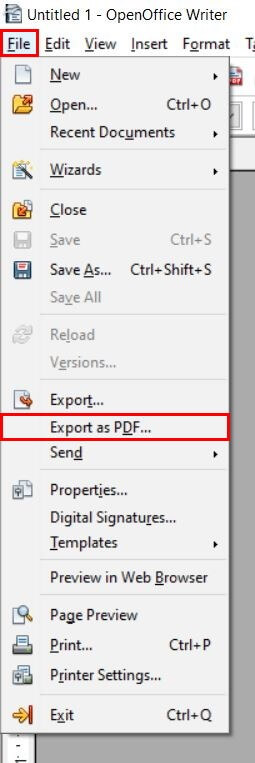
If you’re using Windows, macOS, or Linux, LibreOffice is an excellent option for converting ODT files to PDF. This free and open-source productivity suite includes a word processing application called Writer, which can handle the conversion process. To convert an ODT file using LibreOffice:
- Open your ODT file in LibreOffice Writer.
- Click on File > Export > PDF.
- In the export dialog box, choose the desired settings for page layout and image compression.
- Save the converted PDF file with a name and location of your choice.
Microsoft Word: A Familiar Option For Windows And Macos Users
If you’re already using Microsoft Office or have a subscription to Microsoft 365, you can use Word to convert ODT files to PDF. To do this:
- Open your ODT file in Microsoft Word.
- Click on File > Export As > Create Document PDF/XPS.
- Choose the desired settings for page layout and image compression.
- Save the converted PDF file with a name and location of your choice.
Converting Odt Files to Pdf Online
If you don’t have access to a desktop application or prefer a cloud-based solution, there are online services that can help. Two popular options include:
- Pdf Converter: A website that allows you to upload an ODT file and download the converted PDF.
- Documents Google And Word Online: Cloud-based versions of Microsoft Word and Google Docs that can be used to convert ODT files to PDF.
Converting Odt Files on Android And Ios Devices
For mobile users, there are several apps available that can help with converting ODT files to PDF. One popular option is the Collaborate Office app, which allows you to edit and export documents in various formats, including PDF.
Conclusion
Converting ODT files to PDF may seem like a daunting task, but it’s actually quite straightforward once you know the right steps to take. Whether you’re using a desktop application or an online service, there are plenty of options available to suit your needs. So go ahead and give these methods a try – we’ve got you covered!
Frequently Asked Questions (FAQs)
- What is The Best Way to Convert Odt Files to Pdf?
The best method depends on your operating system and personal preferences. WordPad for Windows, TextEdit for macOS, LibreOffice for all platforms, and Microsoft Word for Windows and macOS are some of the most popular options. - Can I Convert Odt Files to Pdf Online?
Yes, there are several online services available that can help with this conversion process, including PDF Converter and Documents Google and Word Online. - How do I Convert an Odt File to Pdf on my Android or Ios Device?
You can use the Collaborate Office app, which allows you to edit and export documents in various formats, including PDF. - Do I Need to Install Any Software to Convert Odt Files to Pdf?
No, most desktop applications, such as WordPad for Windows and TextEdit for macOS, do not require installation. - Can I Use Libreoffice to Convert Odt Files to Pdf?
Yes, LibreOffice is an excellent option for converting ODT files to PDF on all operating systems. - How do I Save a Converted Pdf File From Microsoft Word?
To save the converted PDF file, click on File > Export As > Create Document PDF/XPS and choose the desired settings. - Can I Use Microsoft Office to Convert Odt Files to Pdf?
Yes, you can use Microsoft Word or other Office applications to convert ODT files to PDF. - What Are Some Alternative Methods For Converting Odt Files to Pdf?
Some alternative options include using Google Docs or other cloud-based services and mobile apps like Collaborate Office.
By following the steps outlined in this article, you should be able to successfully convert your ODT files to PDF format, whether you’re using a desktop application or an online service. Happy converting!


