
How to Convert Pdf to Pdf/a: A Step-by-step Guide
Are you looking for a way to convert your PDF files into PDF/A format? Look no further! In this article, we will guide you through the process of converting PDF to PDF/A using various software and online tools.
What is Pdf/a Format?
Before we dive into the conversion process, let’s first understand what PDF/A format is. PDF/A stands for Portable Document Format/Archive, a specific type of PDF file designed for long-term archiving and preservation of electronic documents. PDF/A files are optimized to ensure that they remain readable and unchanged over time, even when accessed from different devices or operating systems.
Why Convert Pdf to Pdf/a?
Converting your PDF files to PDF/A format offers several benefits:
- Ensures long-term readability and preservation of digital documents
- Helps maintain consistency in formatting and layout across different platforms
- Reduces the risk of document degradation or corruption over time
Software Options For Converting Pdf to Pdf/a
There are several software options available that can help you convert your PDF files to PDF/A format. Here are a few:
Libreoffice: A Free And Open-source Solution
One of the most popular free and open-source office suites, LibreOffice, allows you to convert PDF files to PDF/A format. To do this:
- Download and install LibreOffice on your computer.
- Launch the software and select the “Open” option from the menu bar.
- Choose the PDF file you want to convert by selecting it from the file browser.
- Click on the “Export” button in the top toolbar.
- Select “PDF/A-1a (ISO 19005-1)” as the export format and click “Save.”
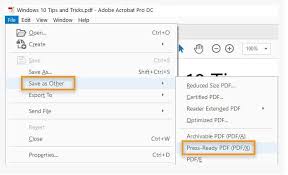
Adobe Acrobat: A Paid But Powerful Solution
If you’re already using Adobe Acrobat, you can use it to convert your PDF files to PDF/A format:
- Launch Adobe Acrobat on your computer.
- Select the PDF file you want to convert by clicking on it.
- Click on the “File” menu and select “Save As.”
- Choose “PDF/A-1a (ISO 19005-1)” as the file type.
- Save the converted file.
Microsoft Word: A Paid But User-friendly Solution
If you’re using Microsoft Word, you can also use it to convert your PDF files to PDF/A format:
- Launch Microsoft Word on your computer.
- Select the PDF file you want to convert by clicking on it.
- Click on the “File” menu and select “Save As.”
- Choose “PDF/A-1a (ISO 19005-1)” as the file type.
- Save the converted file.
Online Tools For Converting Pdf to Pdf/a
If you don’t have any software installed or prefer an online solution, there are several tools available that can help you convert your PDF files to PDF/A format:
- DocuPub: A free and easy-to-use tool that allows you to upload your PDF file and download the converted PDF/A file.
- ILovePDF: Another popular online tool that can convert your PDF files to PDF/A format. You can choose to compress or optimize the file as well.
Converting Pdf to Pdf/a on a Smartphone or Tablet
Unfortunately, it’s not possible to directly convert PDF files to PDF/A format on most smartphones and tablets using built-in apps. However, you can use online tools like those mentioned above to achieve this goal:
- Use your mobile device’s browser to access the online tool.
- Select the PDF file you want to convert from your device or upload it from a cloud storage service.
- Follow the instructions provided by the online tool to complete the conversion.
Conclusion
Converting your PDF files to PDF/A format is an important step in ensuring their long-term readability and preservation. With various software options and online tools available, you can easily achieve this goal without any technical expertise. Whether you’re using LibreOffice, Adobe Acrobat, Microsoft Word, or online tools like DocuPub or iLovePDF, the process remains straightforward and user-friendly.
Frequently Asked Questions (FAQs)
- What is Pdf/a Format?
PDF/A stands for Portable Document Format/Archive, a specific type of PDF file designed for long-term archiving and preservation of electronic documents.
- Why Convert Pdf to Pdf/a?
Converting your PDF files to PDF/A format ensures their long-term readability and preservation, maintaining consistency in formatting and layout across different platforms.
- What Software Can I Use to Convert Pdf to Pdf/a?
You can use LibreOffice, Adobe Acrobat, Microsoft Word, or online tools like DocuPub or iLovePDF to convert your PDF files to PDF/A format.
- Can I Convert Pdf to Pdf/a on a Smartphone or Tablet?
Unfortunately, it’s not possible to directly convert PDF files to PDF/A format on most smartphones and tablets using built-in apps. However, you can use online tools like those mentioned above.
- What Are The Benefits of Converting Pdf to Pdf/a?
The benefits include ensuring long-term readability and preservation of digital documents, maintaining consistency in formatting and layout across different platforms, and reducing the risk of document degradation or corruption over time.
- How do I Convert a Pdf File to Pdf/a Using Libreoffice?
To convert a PDF file to PDF/A using LibreOffice:
- Download and install LibreOffice on your computer.
- Launch the software and select the “Open” option from the menu bar.
- Choose the PDF file you want to convert by selecting it from the file browser.
- Click on the “Export” button in the top toolbar.
-
Select “PDF/A-1a (ISO 19005-1)” as the export format and click “Save.”
-
How do I Convert a Pdf File to Pdf/a Using Adobe Acrobat?
To convert a PDF file to PDF/A using Adobe Acrobat:
- Launch Adobe Acrobat on your computer.
- Select the PDF file you want to convert by clicking on it.
- Click on the “File” menu and select “Save As.”
- Choose “PDF/A-1a (ISO 19005-1)” as the file type.
-
Save the converted file.
-
How do I Convert a Pdf File to Pdf/a Using Microsoft Word?
To convert a PDF file to PDF/A using Microsoft Word:
- Launch Microsoft Word on your computer.
- Select the PDF file you want to convert by clicking on it.
- Click on the “File” menu and select “Save As.”
- Choose “PDF/A-1a (ISO 19005-1)” as the file type.
- Save the converted file.
I hope this article has provided you with a comprehensive guide to converting PDF files to PDF/A format using various software options and online tools!


