
How to Convert Png Images Into Pdf Documents
Are you struggling to convert your PNG images into PDF documents? Look no further! In this article, we will guide you through the process of converting PNG images into PDF documents using various methods.
Why Convert Png Images Into Pdf Documents?
Converting PNG images into PDF documents can be useful for several reasons. Firstly, PDF documents are easily shareable and viewable across different platforms and devices. Secondly, PDF documents can contain text and images in a single file, making it easier to manage and organize your files.
Method 1: Converting Png Images Into Pdf Documents Using Windows
If you’re using Windows 10 or later, converting PNG images into PDF documents is a straightforward process. Here’s how:
- Step 1: Open the File Explorer and find the PNG image that you want to convert.
- Step 2: Right-click on the PNG image and select “Print” from the context menu.
- Step 3: In the Print dialog box, select “Microsoft Print to PDF” as the printer.
- Step 4: Choose the format and quality of the PDF document.
- Step 5: Click on the “Print” button to convert the PNG image into a PDF document.
Method 2: Converting Png Images Into Pdf Documents Using Mac
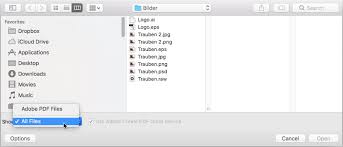
If you’re using a Mac, converting PNG images into PDF documents is also easy. Here’s how:
- Step 1: Open the Finder and find the PNG image that you want to convert.
- Step 2: Right-click on the PNG image and select “Quick Actions” > “Create PDF from selection.”
- Step 3: Choose the format and quality of the PDF document.
- Step 4: Click on the “Save” button to convert the PNG image into a PDF document.
Method 3: Converting Png Images Into Pdf Documents Using Online Services
If you don’t have access to a computer or prefer to use an online service, there are several options available. Here are a few:
- Smallpdf: This is a popular online service that allows you to convert PNG images into PDF documents quickly and easily.
- Ilovepdf: Another excellent online service that offers a range of tools for converting and manipulating PDF documents.
Method 4: Converting Png Images Into Pdf Documents Using Smartphone or Tablet
If you’re using an Android device, iOS device, or iPadOS device, you can also convert PNG images into PDF documents. Here’s how:
- Step 1: Open the file management app (e.G., Files on Android) and find the PNG image that you want to convert.
- Step 2: Tap on the sharing icon (usually three dots or a square with an arrow).
- Step 3: Select “Print” from the menu.
- Step 4: Choose “Save in PDF” as the printer.
- Step 5: Choose the folder where you want to save the PDF document and give it a name.
Frequently Asked Questions
Here are some frequently asked questions about converting PNG images into PDF documents:
- Can I convert multiple PNG images into a single PDF document?
- Yes, you can use either the Windows or Mac method to convert multiple PNG images into a single PDF document.
- How long does it take to convert PNG images into PDF documents?
- The conversion time will depend on the size of the images and the speed of your computer or internet connection.
- Can I convert PNG images into PDF documents using an online service?
- Yes, there are several online services available that allow you to convert PNG images into PDF documents quickly and easily.
- How do I share a PDF document created from a PNG image?
- You can share the PDF document by attaching it to an email or saving it to a cloud storage service.
Conclusion
Converting PNG images into PDF documents is a straightforward process that can be completed using various methods, including Windows, Mac, and online services. By following these steps, you can easily create a PDF document from your PNG image and share it with others.


