
Converting Powerpoint Presentations Into Pdf Files: A Step-by-step Guide
Are you tired of having to constantly convert your PowerPoint presentations into PDF files? Look no further! In this article, we will guide you through the process of converting PowerPoint presentations into PDF files using various methods and tools.
Why Convert Powerpoint Presentations Into Pdf Files?
Converting PowerPoint presentations into PDF files has numerous benefits. Firstly, it allows you to share your presentations with others who may not have access to a PowerPoint viewer or may prefer to view documents in a standardized format. Secondly, it helps to ensure that the formatting and layout of your presentation remain intact, regardless of the device or software used to view it.
Method 1: Using Microsoft Office
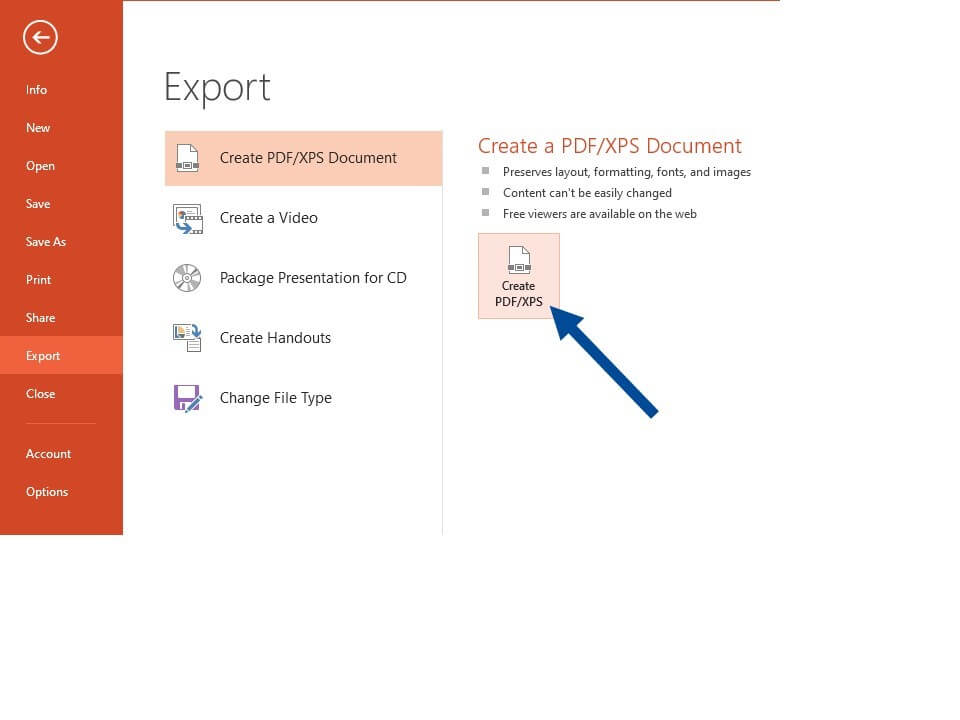
If you are using Microsoft Office, converting a PowerPoint presentation into a PDF file is a straightforward process. Here’s how:
- Open your PowerPoint presentation.
- Go to the “File” menu and select “Export”.
- Choose “Create PDF/XPS Document”.
- Select “Create PDF/XPS” as the export format.
- Choose the location where you want to save the PDF file.
- Click “Save” to complete the process.
Method 2: Using Libreoffice
If you are using LibreOffice, converting a PowerPoint presentation into a PDF file is equally easy. Here’s how:
- Open your PowerPoint presentation in LibreOffice.
- Go to the “File” menu and select “Export”.
- Choose “PDF” as the export format.
- Select the options for the PDF file, such as compression and layout.
- Choose the location where you want to save the PDF file.
- Click “Save” to complete the process.
Method 3: Using Keynote
If you are using a Mac and have Keynote installed, converting a PowerPoint presentation into a PDF file is also straightforward. Here’s how:
- Open your PowerPoint presentation in Keynote.
- Go to the “File” menu and select “Export”.
- Choose “PDF” as the export format.
- Select the options for the PDF file, such as compression and layout.
- Choose the location where you want to save the PDF file.
- Click “Save” to complete the process.
Method 4: Using Online Tools
If you don’t have access to a PowerPoint viewer or prefer not to install additional software, there are several online tools that allow you to convert PowerPoint presentations into PDF files. Here’s how:
- Go to an online tool such as Smallpdf or iLovePDF.
- Upload your PowerPoint presentation to the website.
- Select the options for the PDF file, such as compression and layout.
- Click “Convert” to complete the process.
Method 5: Using Mobile Apps
If you are using a smartphone or tablet, there are several mobile apps that allow you to convert PowerPoint presentations into PDF files. Here’s how:
- Download a mobile app such as Microsoft Office or iLovePDF.
- Open the app and select the option to convert a PowerPoint presentation into a PDF file.
- Upload your PowerPoint presentation to the app.
- Select the options for the PDF file, such as compression and layout.
- Click “Convert” to complete the process.
Conclusion
Converting PowerPoint presentations into PDF files is a simple process that can be completed using various methods and tools. Whether you are using Microsoft Office, LibreOffice, Keynote, online tools, or mobile apps, the process is relatively straightforward. By following these steps, you can ensure that your presentations are shared in a standardized format, regardless of the device or software used to view them.
Frequently Asked Questions (FAQs)
- What is The Purpose of Converting Powerpoint Presentations Into Pdf Files?
Converting PowerPoint presentations into PDF files allows you to share your presentations with others who may not have access to a PowerPoint viewer or may prefer to view documents in a standardized format.
- How do I Convert a Powerpoint Presentation Into a Pdf File Using Microsoft Office?
To convert a PowerPoint presentation into a PDF file using Microsoft Office, go to the “File” menu and select “Export”. Choose “Create PDF/XPS Document” and follow the prompts to complete the process.
- How do I Convert a Powerpoint Presentation Into a Pdf File Using Libreoffice?
To convert a PowerPoint presentation into a PDF file using LibreOffice, go to the “File” menu and select “Export”. Choose “PDF” as the export format and follow the prompts to complete the process.
- How do I Convert a Powerpoint Presentation Into a Pdf File Using Keynote?
To convert a PowerPoint presentation into a PDF file using Keynote, go to the “File” menu and select “Export”. Choose “PDF” as the export format and follow the prompts to complete the process.
- What Are Some Online Tools That Allow me to Convert Powerpoint Presentations Into Pdf Files?
Some online tools that allow you to convert PowerPoint presentations into PDF files include Smallpdf and iLovePDF.
- How do I Convert a Powerpoint Presentation Into a Pdf File Using Mobile Apps?
To convert a PowerPoint presentation into a PDF file using mobile apps, download an app such as Microsoft Office or iLovePDF, upload your PowerPoint presentation, select the options for the PDF file, and click “Convert” to complete the process.
- Can I Edit my Powerpoint Presentation After Converting it Into a Pdf File?
No, you cannot edit your PowerPoint presentation after converting it into a PDF file. However, you can convert it back into a PowerPoint presentation using Microsoft Office or LibreOffice if needed.
- How do I Share my Converted Pdf File With Others?
You can share your converted PDF file with others by sending them the link to the file or attaching it to an email. You can also use online tools such as Google Drive or Dropbox to share the file.


