
Converting Ppt to Pdf: A Comprehensive Guide
Are you tired of dealing with presentations that won’t convert to PDF? Look no further! In this article, we’ll show you how to easily convert your PowerPoint (PPT) files to PDF using various methods.
Introduction
PowerPoint is a popular presentation software developed by Microsoft. While it’s great for creating engaging slideshows, there are times when you need to share your content in a more accessible format – like PDF. That’s where this guide comes in! We’ll walk you through the steps to convert your PPT files to PDF using different methods, from free online tools to mobile apps.
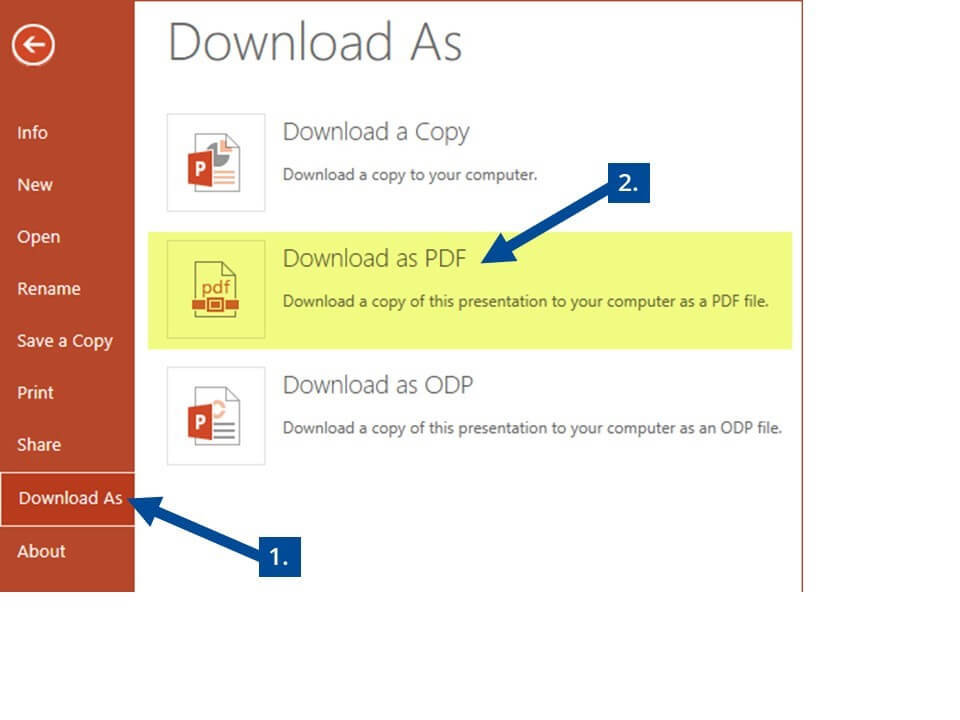
Method 1: Using Powerpoint (Windows/macOS)
The first method is using PowerPoint itself. Here’s how:
Step-by-step Instructions
- Open Powerpoint: Launch the PowerPoint software on your Windows or macOS computer.
- Select Your Presentation: Choose the PPT file you want to convert from your list of saved presentations.
- Click on “File” Menu: Select the “File” menu and then choose “Save As”.
- Choose Pdf Format: From the “Save as type” dropdown, select “PDF” as the format.
- Name Your File: Choose a location to save your file and give it a name. You can also add tags or comments if needed.
Method 2: Using Libreoffice (Windows/macOS/Linux)
LibreOffice is another popular productivity suite that offers a free alternative to Microsoft Office. Here’s how to convert PPT files using LibreOffice:
Step-by-step Instructions
- Download And Install Libreoffice: If you haven’t already, download and install LibreOffice on your computer.
- Open Your Presentation: Launch the presentation in LibreOffice by selecting it from the “File” menu.
- Click on “File” Menu: Select the “File” menu and then choose “Export”.
- Choose Pdf Format: From the export options, select “PDF” as the format.
- Save Your File: Choose a location to save your file and give it a name.
Method 3: Using Online Tools
If you don’t have PowerPoint or LibreOffice installed on your computer, there are plenty of free online tools that can help you convert PPT files to PDF. Here are some options:
Online2pdf
One popular online tool is Online2PDF. You can upload your PPT file and convert it to PDF without installing any software.
- Upload Your File: Click on the “Choose File” button and select your PPT file from your computer.
- Wait For Conversion: The tool will take a few seconds to process your file.
- Download Your Pdf: Once converted, you can download your PDF file by clicking on the “Download” button.
Other Online Tools
There are several other online tools that offer similar functionality, such as:
- SmallPDF
- PDF Candy
- ILovePDF (also available as a mobile app)
Method 4: Using Mobile Apps
If you’re on-the-go and need to convert PPT files to PDF, there are several mobile apps that can help. Here are some options:
Ilovepdf (Android/iOS)
ILovePDF is a popular mobile app that allows you to convert PPT files to PDF using your smartphone.
- Download The App: Download and install the iLovePDF app on your Android or iOS device.
- Launch The App: Open the app and select the “PowerPoint” option from the menu.
- Choose Your File: Select the PPT file you want to convert from your phone’s storage.
- Wait For Conversion: The app will take a few seconds to process your file.
- Save Your Pdf: Once converted, you can save your PDF file to your device.
Conclusion
Converting PPT files to PDF is easier than ever! Whether you use PowerPoint itself, LibreOffice, online tools, or mobile apps, the process is relatively simple. With these methods, you’ll be able to share your content in a more accessible format and reach a wider audience.
Frequently Asked Questions (FAQs)
- Q: Can I Convert Ppt Files to Pdf For Free?
A: Yes! There are several free online tools and mobile apps that allow you to convert PPT files to PDF without any charges. - Q: Do I Need Powerpoint Installed on my Computer to Convert Ppt Files?
A: No! You can use LibreOffice or online tools to convert PPT files to PDF even if you don’t have PowerPoint installed. - Q: Can I Convert Multiple Ppt Files at Once?
A: Yes! Some online tools and mobile apps allow you to batch convert multiple PPT files to PDF at the same time. - Q: Will my Converted Pdf File Retain Its Formatting And Layout?
A: In most cases, yes! The converted PDF file should retain its original formatting and layout.
Additional Tips
- Make sure your PPT file is saved in a compatible format (e.G., .Pptx) before converting it to PDF.
- If you’re using an online tool or mobile app, ensure that the software and app versions are up-to-date to avoid compatibility issues.
- Be patient when waiting for conversion, as it may take a few seconds to process your file.


