
How to Convert Images to Jpg on Your Device
Are you tired of dealing with incompatible image formats on your device? Look no further! In this article, we’ll guide you through the process of converting images to JPG format using various software and online services.
Why Convert to Jpg?
Before we dive into the nitty-gritty, let’s quickly cover why you’d want to convert your images to JPG. The JPG (Joint Photographic Experts Group) format is widely supported by most devices and platforms, making it an ideal choice for sharing and storing photos.
Windows: Converting Images to Jpg Using Xnconvert
If you’re on a Windows device, one of the best solutions is XnConvert. This free software allows you to convert multiple files at once, including different formats like PNG, GIF, and BMP, to JPG format.
Here’s how to do it:
- Download Xnconvert: Head over to the official website and download the portable version (zip file).
- Extract And Launch: Extract the zip file and launch the executable file (
xnconvert.Exe). - Add Files: Click on “Add files” to select the images you want to convert.
- Select Destination: Choose a destination folder for your converted JPG files.
- Convert: Click on “Convert” and let XnConvert do its magic!
Other Programs For Converting Images to Jpg on Windows
If XnConvert doesn’t cut it, don’t worry! There are other programs that can help you convert images to JPG format:
- Paint: This pre-installed Windows app allows you to save images in various formats, including JPG.
- IrfanView: Although primarily a photo viewer, IrfanView also features batch conversion capabilities.
- Adapter: A versatile software for converting multiple file types, including images and videos.
Mac: Converting Images to Jpg Using Preview
On a Mac, you can use the built-in Preview app to convert images to JPG format. Here’s how:
- Open Preview: Launch the Preview app and open the image you want to convert.
- Miniatures: Click on “View” in the top menu bar and select “Miniatures.”
- Drag Images: Drag the miniatures of the images you want to convert into the Preview window.
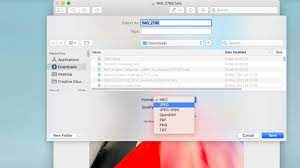
- Export: Go to “File” > “Export…” And choose “JPEG” as the format.
- Save: Choose a destination folder for your converted JPG files.
Other Programs For Converting Images to Jpg on Mac
If you need more flexibility or specific features, consider these alternative solutions:
- XnConvert: Also available for Mac, this software offers similar functionality to its Windows counterpart.
- Adapter: This lightweight app allows you to convert multiple file types, including images and videos.
- Image Converter: A free program specifically designed for image conversions.
Converting Images to Jpg Online
Sometimes, you might not have the luxury of installing software on your device. That’s where online services come in! Here are some reliable options:
- CloudConvert: This cloud-based service supports a wide range of file formats and offers flexible pricing plans.
- Convertio: A versatile online tool for converting multiple file types, including images and videos.
- Zamzar: Another convenient online converter with support for various file formats.
Converting Images to Jpg on Android And Ios Devices
If you’re using a mobile device, don’t worry! You can still convert images to JPG format using dedicated apps:
- Image Converter (Android): A free app that supports over 260 file formats.
- All Rows Converter (Android): Another versatile image converter for Android devices.
- Command (iOS/iPadOS): A powerful command-line tool with a built-in photo converter.
- The Converter of Images (iOS/iPadOS): A dedicated image converter app for iOS and iPadOS devices.
Conclusion
Converting images to JPG format is an essential task, especially when sharing photos across different platforms. With the solutions outlined in this article, you should be able to find a suitable option for your device, whether it’s Windows, Mac, Android, or iOS/iPadOS. Remember to always check compatibility and file size limits before converting your images.
Faqs
- What is the best software for converting images to JPG on Windows?
- XnConvert stands out as a reliable and feature-rich option.
- How do I convert images to JPG format on Mac?
- Use Preview, which comes pre-installed with macOS, or explore alternative solutions like XnConvert or Adapter.
- Are there any online services for converting images to JPG?
- Yes, consider CloudConvert, Convertio, Zamzar, FileZigZag, or other reputable online converters.
- Can I convert images on my Android device?
- Utilize the Image Converter app or All Rows Converter, which are both available on the Google Play Store.
- What about iOS and iPadOS devices? Are there any image converter apps available?
- Yes, take advantage of Command, a built-in command-line tool with a photo converter feature, or The Converter of Images app, specifically designed for image conversions.


