
Converting Txt to Pdf: A Step-by-step Guide
Are you tired of struggling to convert your text files (TXT) into the widely accepted Portable Document Format (PDF)? Look no further! This article will guide you through the process of converting TXT to PDF on various platforms, including Windows, Mac, Android, iPhone, and online services.
The Importance of Converting Txt to Pdf
Converting TXT to PDF is a crucial step in ensuring that your documents are easily accessible and viewable across different devices and operating systems. PDF files can be opened without any issues using most software, making them an ideal format for sharing and collaborating with others.
Windows: Converting Txt to Pdf Without Installing Additional Software
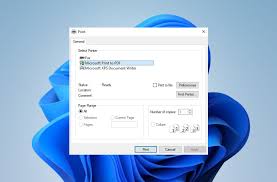
If you’re using Windows 11 or Windows 10, you don’t need to install additional software to convert TXT to PDF. You can use the built-in virtual printer “Microsoft Print to PDF” to achieve this. Here’s how:
- Open your text file (TXT) with any suitable program.
- Click on the menu option “File” and choose “Print”.
- Select the virtual printer “Microsoft Print to PDF” from the list of available printers.
- Choose a location to save the PDF file and give it a name.
That’s it! You’ve successfully converted your TXT file to PDF without installing any additional software.
Mac: Converting Txt to Pdf Using Built-in Software
If you’re using a Mac, you can convert TXT to PDF using the built-in software “TextEdit”. Here’s how:
- Open your text file (TXT) with TextEdit.
- Click on the menu option “File” and choose “Print”.
- Select the printer “PDF” from the list of available printers.
- Choose a location to save the PDF file and give it a name.
Easy peasy!
Converting Txt to Pdf Online
If you don’t have access to a computer or prefer not to install additional software, there are several online services that can help you convert TXT to PDF. One such service is CloudConvert.
- Go to the CloudConvert website.
- Select “TXT” as the file type and “PDF” as the target format.
- Choose a location on your device to save the PDF file.
- Click on the “Convert” button to start the conversion process.
You can also use other online services like Online2PDF, which has a free plan with limitations (maximum 100 MB per file, up to 20 files at once).
Android: Converting Txt to Pdf Using Google Chrome
If you’re using an Android device, you can convert TXT to PDF using the Google Chrome browser.
- Open your text file (TXT) with any suitable app.
- Tap on the menu option “Share” and choose “Print”.
- Select the printer “Save as PDF” from the list of available printers.
- Choose a location on your device to save the PDF file and give it a name.
Iphone: Converting Txt to Pdf
If you’re using an iPhone, you can convert TXT to PDF without installing any additional software.
- Open your text file (TXT) with any suitable app.
- Tap on the icon of the square with the arrow in low-left corner.
- Choose the option “Print” and then select the printer “Save as PDF”.
- Choose a location on your device to save the PDF file and give it a name.
Conclusion
Converting TXT to PDF is a straightforward process that can be achieved using various platforms, including Windows, Mac, Android, iPhone, and online services. By following the step-by-step guides provided in this article, you’ll be able to convert your text files into the widely accepted PDF format without any issues.
Frequently Asked Questions (FAQs)
- Q: Can I Convert Txt to Pdf on my Phone?
A: Yes, you can convert TXT to PDF using Google Chrome on Android or the built-in “Share” option on iPhone. - Q: Do I Need to Install Additional Software?
A: No, you don’t need to install any additional software to convert TXT to PDF on Windows, Mac, or online services. - Q: How Many Conversions Can I do Per Day With Cloudconvert?
A: With the free plan, you can perform up to 25 conversions per day. To exceed this limit, you’ll need to upgrade to a paid plan. - Q: Can I Convert Multiple Files at Once?
A: Yes, some online services like Online2PDF allow you to convert multiple files at once (up to 20 files at once for the free plan). - Q: What is The Maximum File Size Limit For Cloudconvert?
A: The maximum file size limit for CloudConvert is 150 MB per file. - Q: Can I Use Other Online Services to Convert Txt to Pdf?
A: Yes, there are several other online services available that can help you convert TXT to PDF, such as Online2PDF. - Q: Do I Need to Install Any Additional Software on my Iphone or Ipad?
A: No, you don’t need to install any additional software to convert TXT to PDF on your iPhone or iPad.


