
How to Convert Txt Files to Word Documents
Are you wondering how to convert a text file (TXT) to a Microsoft Word document? Well, you’ve come to the right place! In this article, we’ll show you the easiest ways to do it on both Windows and macOS, as well as some online solutions.
The Problem: Working With Txt Files
When working with text files, it’s often necessary to convert them into a format that can be edited in Microsoft Word or other word processing software. However, the default file format for many text editors is plain text (TXT), which doesn’t allow for formatting, images, or other advanced features.
Solution 1: Using Libreoffice
One of the most convenient ways to convert TXT files to Word documents is by using LibreOffice. This free and open-source office suite can be downloaded on Windows, macOS, and Linux.
To get started:
- Download and install LibreOffice from their official website.
- Open LibreOffice Writer and click on “Open” in the top left corner.
- Select the TXT file you want to convert.
- Click on “File” > “Save As” and choose the Word format (DOC or DOCX).
- Save the file with a new name, and voilà!
Other Solutions For Windows And Macos
If LibreOffice isn’t your cup of tea, don’t worry! There are other solutions available:
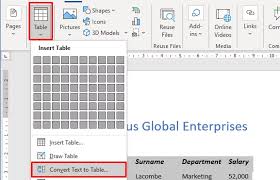
- Microsoft Word: You can use Microsoft Word to convert TXT files, but be aware that formatting might not always be preserved.
- Doxillion Software Converter: This free program allows you to convert various file types, including TXT, to DOC, DOCX, EPUB, HTML, MOBI, and more.
- Pages: If you’re on a Mac, you can use Pages, Apple’s word processing software, to edit and export your document in various formats.
Online Solutions
If you don’t want to download any software or prefer to work online:
- Cloudconvert: This web-based service allows you to convert files between various formats, including TXT and Word.
- Convertio: Another online tool that can help you convert TXT files to Word documents without requiring any software downloads.
- Online Convert: A simple and free online converter that supports multiple file types, including TXT and Word.
Converting on Android And Ios/ipados
If you’re on a mobile device:
- Rows Converter (Android/iOS/iPadOS): This app allows you to convert various file types, including TXT, to Word documents. It’s free and user-friendly.
- All Rows Converter (Android): A specific solution for Android devices that can also convert other file types.
Converting Back From Word to Txt
If you need to do the reverse operation – converting a Word document back to a TXT file – don’t worry! You can use any of the tools mentioned above, or simply open your Word document in LibreOffice and save it as a TXT file.
In conclusion, converting a TXT file to a Word document is easier than you think. Whether you’re on Windows, macOS, Android, or iOS/iPadOS, there are numerous solutions available to help you get the job done.


