
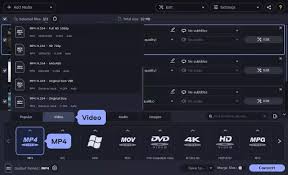
How to Convert Video in Mp4: A Step-by-step Guide
Are you tired of dealing with video formats that are not compatible with your device? Look no further! In this article, we will guide you through the process of converting video files into MP4 format, which is widely supported by most devices.
Why Convert Video to Mp4?
MP4 (MPEG-4) is a popular video format that can be played on a wide range of devices, including smartphones, tablets, smart TVs, and computers. Converting your videos to MP4 format ensures that they can be played seamlessly across different platforms, making it an ideal choice for sharing and streaming videos.
Methods to Convert Video in Mp4
There are several methods to convert video files into MP4 format, depending on your operating system and preferred software. Here are some of the most popular options:
1. Using Adapter Software
Adapter is a free software that can be downloaded on Windows and macOS operating systems. It supports various video formats, including MP4, and allows you to customize settings like bitrate, resolution, and codec.
To use Adapter, follow these steps:
A. Download and install the software.
B. Select the video file you want to convert.
C. Choose the output format as MP4.
D. Customize settings according to your preference.
E. Click on the “Convert” button to initiate the conversion process.
2. Using Vlc Media Player
VLC (VideoLAN Client) is a free media player that can also be used for video conversion. It supports various video formats, including MP4, and allows you to customize settings like bitrate, resolution, and codec.
To use VLC, follow these steps:
A. Download and install the software.
B. Select the video file you want to convert.
C. Choose the output format as MP4.
D. Customize settings according to your preference.
E. Click on the “Convert” button to initiate the conversion process.
3. Using Handbrake Software
HandBrake is a free software that can be used for video conversion and DVD ripping. It supports various video formats, including MP4, and allows you to customize settings like bitrate, resolution, and codec.
To use HandBrake, follow these steps:
A. Download and install the software.
B. Select the video file you want to convert.
C. Choose the output format as MP4.
D. Customize settings according to your preference.
E. Click on the “Start Encode” button to initiate the conversion process.
4. Online Video Converters
There are several online video converters that allow you to convert video files into MP4 format without installing any software. Here are a few popular options:
A. CloudConvert: A cloud-based video converter that supports various video formats, including MP4.
B. 123Apps Converter: An online video converter that allows you to convert video files into MP4 format.
To use these online converters, follow the instructions provided on their respective websites.
Tips And Tricks
- Make sure to choose the correct output settings for your device to ensure smooth playback.
- Be patient while converting large video files, as it may take some time depending on the software and computer specifications.
- Always save the converted video file in a safe location to avoid losing it.
- Experiment with different conversion settings to find the best quality and size balance for your needs.
Conclusion
Converting video files into MP4 format is a straightforward process that can be accomplished using various software and online tools. By following the steps outlined in this article, you can ensure seamless playback of your videos across different devices.
Frequently Asked Questions (FAQs)
Q: What are the benefits of converting video files to MP4 format?
A: MP4 is a widely supported video format that ensures smooth playback on various devices.
Q: Which software should I use for converting video files?
A: The choice of software depends on your operating system and personal preference. Adapter, VLC, and HandBrake are popular options.
Q: Can I convert video files online without installing any software?
A: Yes, there are several online video converters available that allow you to convert video files into MP4 format.
Q: How long does the conversion process take?
A: The conversion time depends on the size of the video file and the software used. Be patient while converting large video files.
Q: Can I customize settings for the converted video file?
A: Yes, most software allows you to customize settings like bitrate, resolution, and codec according to your preference.
Q: What are some popular online video converters available?
A: CloudConvert, 123apps Converter, and Video Toolbox are some of the popular online video converters available.


