
Converting Wav Files to Mp3: A Comprehensive Guide
Are you tired of dealing with WAV files that are too large or cumbersome to handle? Do you want to convert them to a more versatile format like MP3, which can be played on various devices and platforms? Look no further! In this article, we will explore the different ways to convert WAV files to MP3 using various software and online tools.
Why Convert Wav to Mp3?
Before we dive into the conversion process, let’s briefly discuss why you might want to convert your WAV files to MP3. Here are some reasons:
- Space-saving: MP3 files are generally smaller in size compared to WAV files, making them easier to store and share.
- Versatility: MP3 files can be played on various devices, including smartphones, tablets, and music players, whereas WAV files may not play on all devices.
- Compression: MP3 files use compression algorithms that reduce the file size while maintaining acceptable audio quality.
Method 1: Converting Wav to Mp3 Using Free:Ac
The first method we will explore is using the free software Free:AC. This program is a powerful and easy-to-use tool for converting various audio formats, including WAV to MP3.
To get started, download and install Free:AC on your computer. Follow these steps:
- Open Free:AC and select the WAV file you want to convert.
- Choose the MP3 output format from the drop-down menu.
- Select the desired quality settings for the MP3 file.
- Click the “Convert” button to start the conversion process.
Method 2: Converting Wav to Mp3 Using Vlc
Another popular method is using the multimedia player VLC. This program can also be used to convert audio files, including WAV to MP3.
To use VLC for conversion, follow these steps:
- Open VLC and select the media menu.
- Choose the “Convert / Save” option from the drop-down menu.
- Add the WAV file you want to convert.
- Select the MP3 output format from the profile options.
- Choose the desired quality settings for the MP3 file.
- Click the “Save” button to start the conversion process.
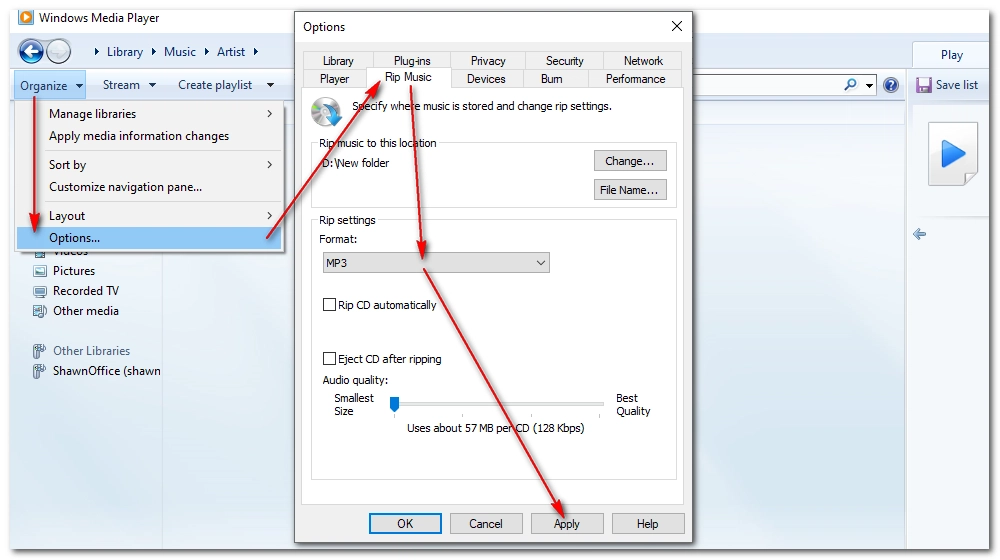
Method 3: Converting Wav to Mp3 Using Windows Media Player
If you have Windows Media Player installed on your computer, you can also use it to convert WAV files to MP3.
To do this, follow these steps:
- Open Windows Media Player and select the file menu.
- Choose the “Open” option from the drop-down menu.
- Select the WAV file you want to convert.
- Insert a CD or DVD with the desired format (MP3 in this case).
- Click the “Burn” button to start the conversion process.
Method 4: Converting Wav to Mp3 Using Itunes
If you have an Apple device, you can use iTunes to convert WAV files to MP3.
To do this, follow these steps:
- Open iTunes and select the file menu.
- Choose the “Convert” option from the drop-down menu.
- Select the WAV file you want to convert.
- Choose the desired quality settings for the MP3 file.
- Click the “Convert” button to start the conversion process.
Method 5: Converting Wav to Mp3 Using Online Tools
If you don’t have any software installed on your computer, you can use online tools like Audio Converter by 123Apps or The Audio Converter (for iOS devices).
To use these online tools, follow these steps:
- Visit the website of the chosen tool.
- Select the WAV file you want to convert.
- Choose the MP3 output format from the drop-down menu.
- Select the desired quality settings for the MP3 file.
- Click the “Convert” button to start the conversion process.
Conclusion
Converting WAV files to MP3 is a straightforward process that can be done using various software and online tools. Whether you’re looking to save space, increase versatility, or compress your audio files, there’s a method for you.
Remember to always choose the desired quality settings for the MP3 file to ensure it meets your needs.
Frequently Asked Questions (FAQs)
- What is The Difference Between Wav And Mp3 Files?
WAV files are uncompressed audio files that contain the original audio data, whereas MP3 files use compression algorithms to reduce the file size while maintaining acceptable audio quality.
- Why do I Need to Convert Wav Files to Mp3?
You may want to convert WAV files to MP3 for space-saving purposes or to increase versatility in terms of device compatibility.
- What Software Can I Use to Convert Wav Files to Mp3?
There are various software options available, including Free:AC, VLC, Windows Media Player, iTunes, and online tools like Audio Converter by 123Apps.
- How do I Choose The Desired Quality Settings For my Mp3 File?
The desired quality settings will depend on your specific needs. Generally, you can select from low to high quality options.
- Can I Convert Wav Files to Other Formats Using These Methods?
Yes, some of these software and online tools may support converting WAV files to other formats besides MP3.
- Are There Any Limitations or Restrictions When Converting Wav Files to Mp3?
Yes, some software and online tools may have limitations or restrictions on file size, quality settings, or output format options.
- Can I Convert Multiple Wav Files at Once Using These Methods?
Some software and online tools may allow batch conversion of multiple WAV files at once.
- Are The Converted Mp3 Files Compatible With All Devices?
Generally, yes, MP3 files are widely supported by various devices. However, it’s always a good idea to test compatibility on your specific device or platform.


