
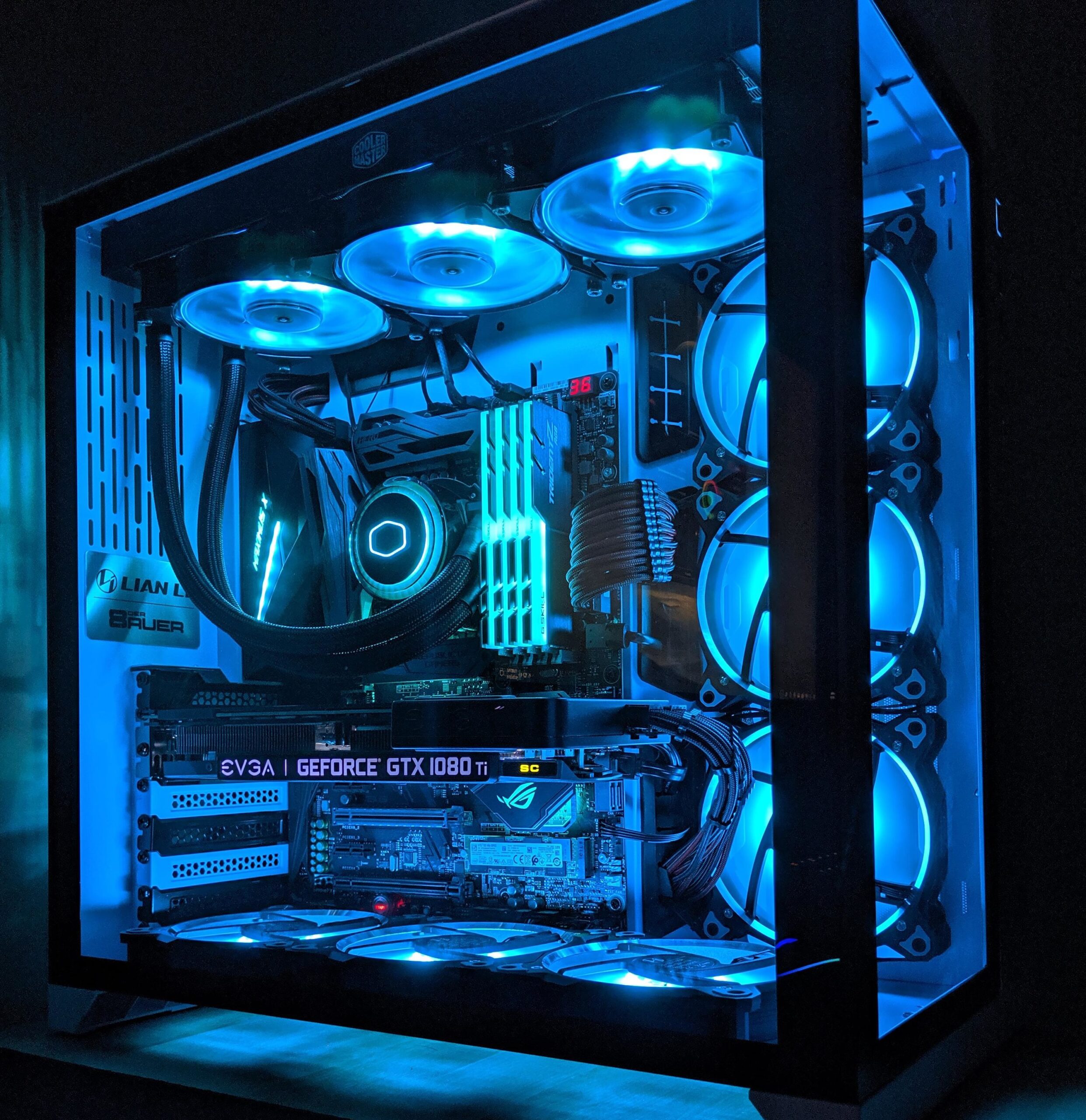
How to Cool Down Your Cpu
Are you worried that your computer might be overheating? Do you want to know how to cool down your CPU without damaging it? You’re in the right place! In this article, we’ll explore the best ways to keep your computer’s temperature under control.
Understanding Overheating
Overheating is a common issue that can occur when your computer is subjected to intense usage or extreme temperatures. If your computer overheats, it can lead to damage to the CPU and other components, resulting in costly repairs or even render your device unusable.
General Tips For Cooling Down Your Computer
Before we dive into specific solutions, here are some general tips that can help you keep your computer cool:
- Update Your Drivers: Make sure all your drivers are up-to-date to prevent compatibility issues that might lead to overheating.
- Check For Bios Updates: Ensure your BIOS is updated to the latest version, as newer versions often include improvements to cooling systems.
- Run Resource-intensive Programs Carefully: Avoid running resource-intensive programs for extended periods, especially in hot environments.
- Monitor Your Computer’s Temperature: Use software tools to monitor your computer’s temperature and identify potential issues early on.
Cooling Down a Desktop Computer
If you’re using a desktop computer, here are some specific tips to help you cool it down:
- Avoid Blocking Air Vents: Ensure that air vents on the computer case are not blocked by furniture or other objects.
- Use a Cooling Pad or Stand: Consider investing in a cooling pad or stand to improve airflow and keep your computer at a safe temperature.
- Clean Dust From Components: Regularly clean dust from components like fans, heat sinks, and vents to ensure optimal airflow.
Cooling Down a Laptop
If you’re using a laptop, here are some specific tips to help you cool it down:
- Use a Cooling Pad or Stand: Consider investing in a cooling pad or stand specifically designed for laptops to improve airflow.
- Monitor Your Laptop’s Temperature: Use software tools to monitor your laptop’s temperature and identify potential issues early on.
- Avoid Overcharging The Battery: Avoid overcharging the battery, as this can cause overheating.
Cooling Down a Smartphone
If you’re using a smartphone, here are some specific tips to help you cool it down:
- Use a Good-quality Case: Invest in a good-quality case that doesn’t obstruct airflow or heat dissipation.
- Avoid Overusing Resource-intensive Apps: Avoid overusing resource-intensive apps, especially in hot environments.
- Monitor Your Smartphone’s Temperature: Use software tools to monitor your smartphone’s temperature and identify potential issues early on.
Conclusion
In conclusion, overheating is a serious issue that can damage your computer’s components if left unchecked. By following the general tips and specific solutions outlined above, you can help keep your computer cool and prevent costly repairs.
Here are eight FAQs related to cooling down your CPU:
- Q: What Causes my Computer to Overheat?
A: Overheating can be caused by various factors, including intense usage, extreme temperatures, dust buildup, or faulty cooling systems.
- Q: How do I Monitor my Computer’s Temperature?
A: You can use software tools like CPU-Z or GPU-Z to monitor your computer’s temperature and identify potential issues early on.
- Q: Can I Use a Fan to Cool Down my Computer?
A: Yes, you can use a fan to cool down your computer, but ensure it is properly installed and configured to avoid creating more problems.
- Q: How Often Should I Clean Dust From my Computer’s Components?
A: You should regularly clean dust from components like fans, heat sinks, and vents every 3-6 months, depending on usage.
- Q: Can I Use a Cooling Pad or Stand For my Laptop?
A: Yes, you can use a cooling pad or stand specifically designed for laptops to improve airflow and keep your device at a safe temperature.
- Q: How do I Prevent Overheating in my Smartphone?
A: You can prevent overheating in your smartphone by using a good-quality case, avoiding overusing resource-intensive apps, and monitoring your device’s temperature regularly.
- Q: Can I Use a Liquid Cooling System For my Computer?
A: Yes, you can use a liquid cooling system for your computer, but ensure it is properly installed and configured to avoid creating more problems.
- Q: How Often Should I Update my Drivers And Bios?
A: You should regularly update your drivers and BIOS every 1-3 months, depending on the manufacturer’s recommendations and any known issues.


